Welcome to Cobuilder Training Portal
You can close Nordic Swan Ecolabel (NSE) deviations by assessing the product.
If a product has the status Deviation or Missing GTIN and you assess it, it no longer counts towards the deviation figures on the dashboard or in the deviation menu. This makes it easy to see which deviations are closed and which still need attention.
Start an assessment
1
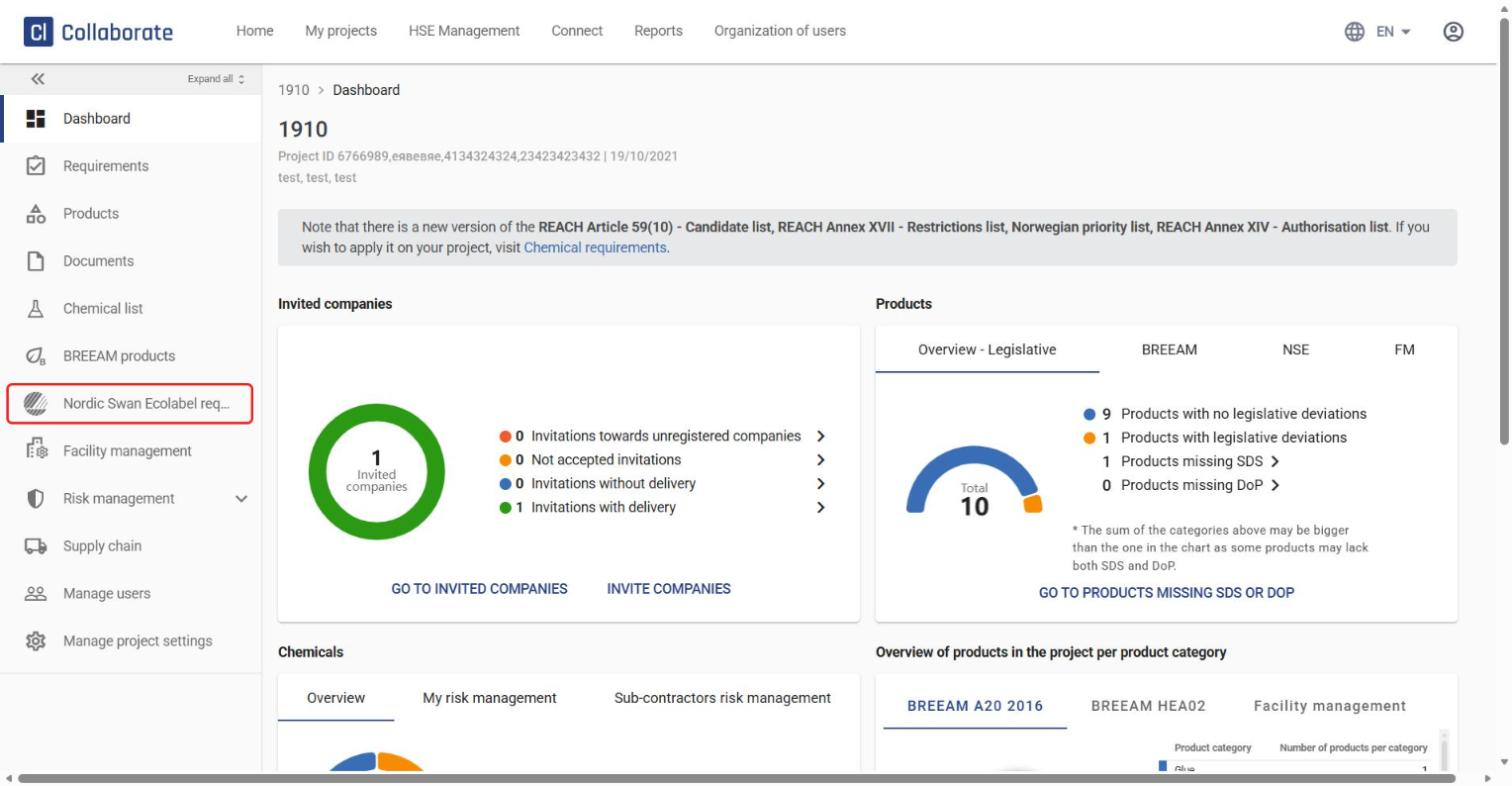
Go to the project and click Nordic Swan Ecolabel requirements in the left-hand menu.
2
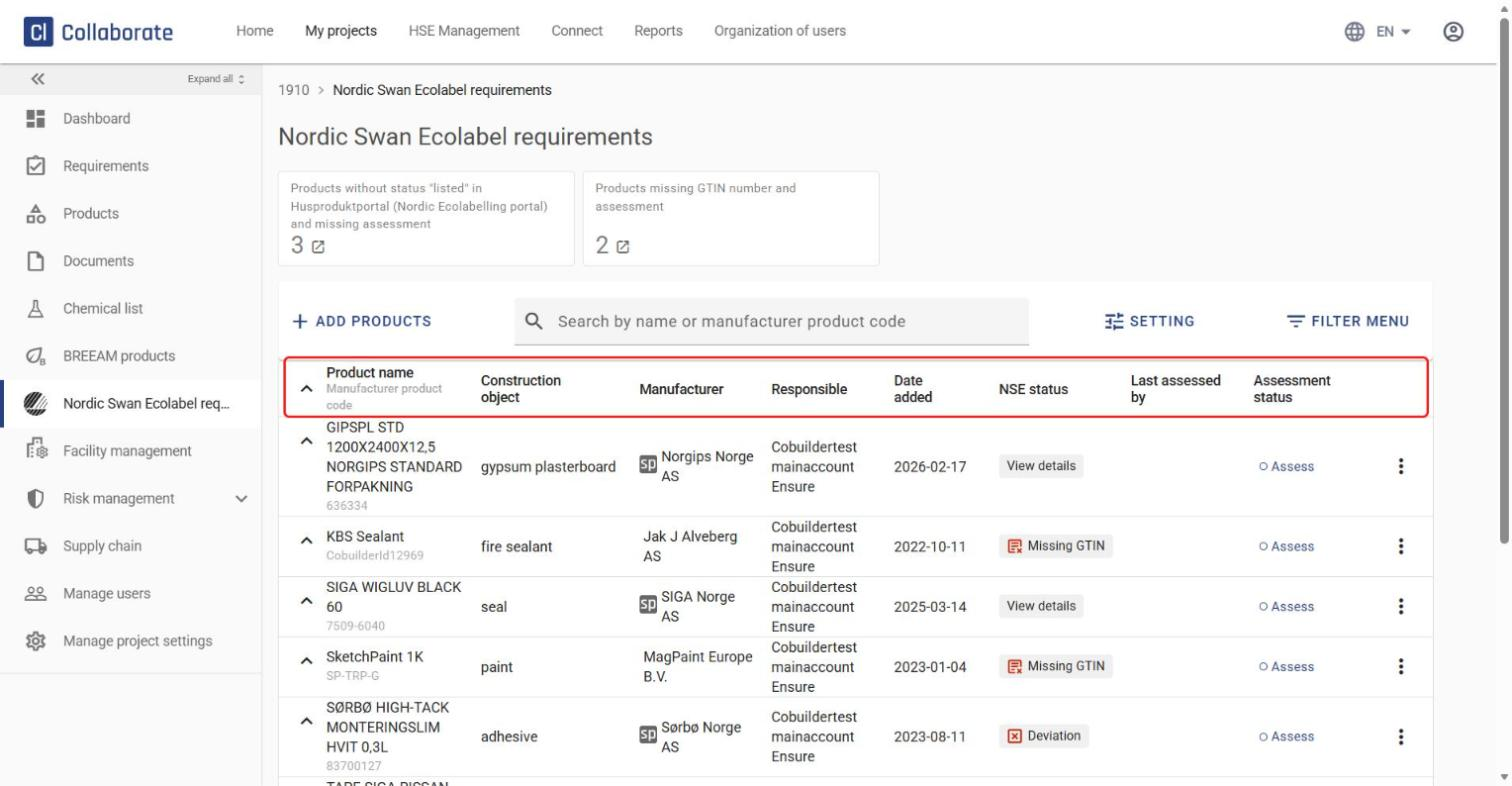
You see an overview of all products on the project that are relevant for the Nordic Swan Ecolabel.
3
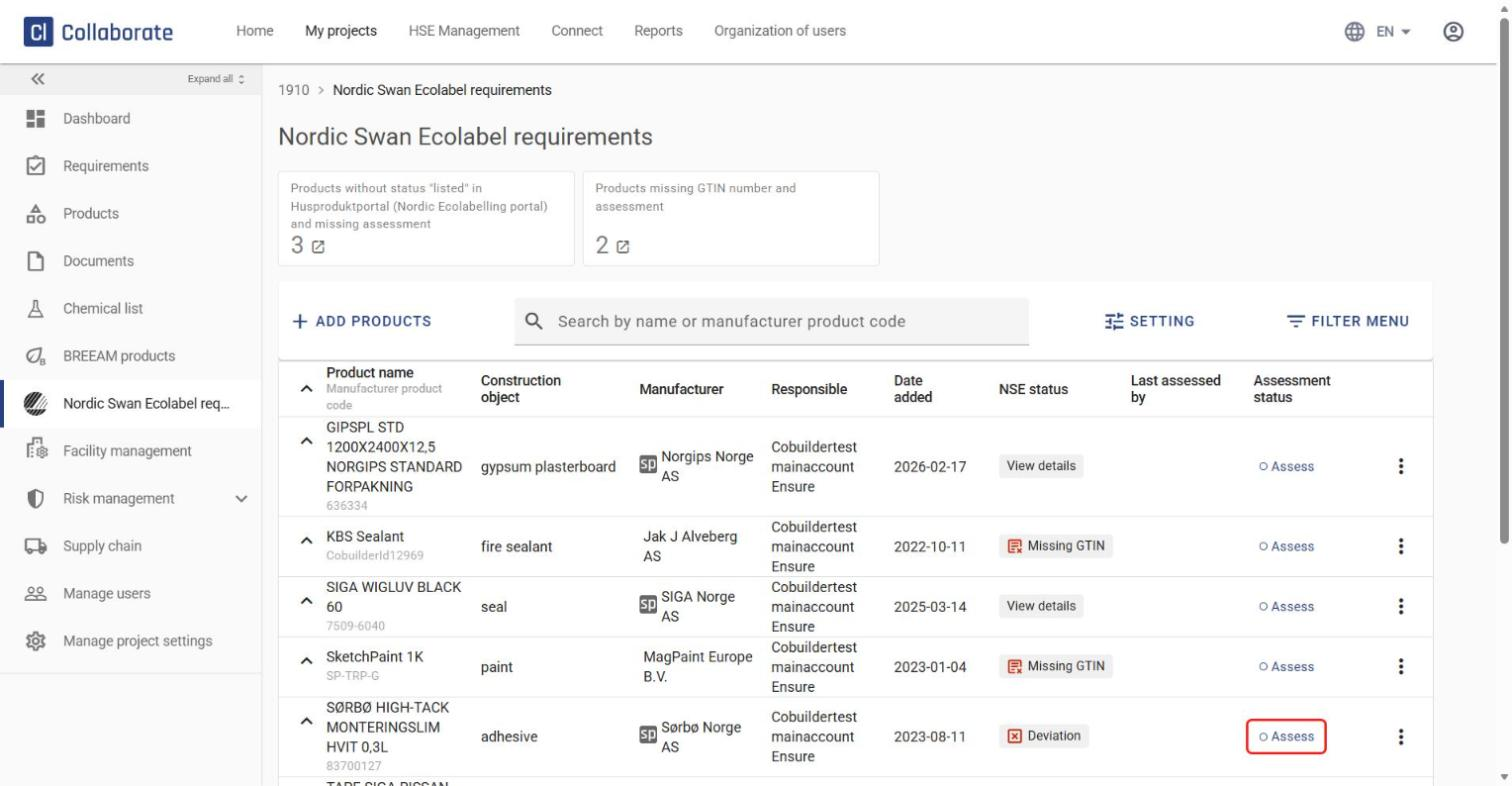
Click Assess in the Assessment status column next to the product you want to assess.
Review the documentation
1
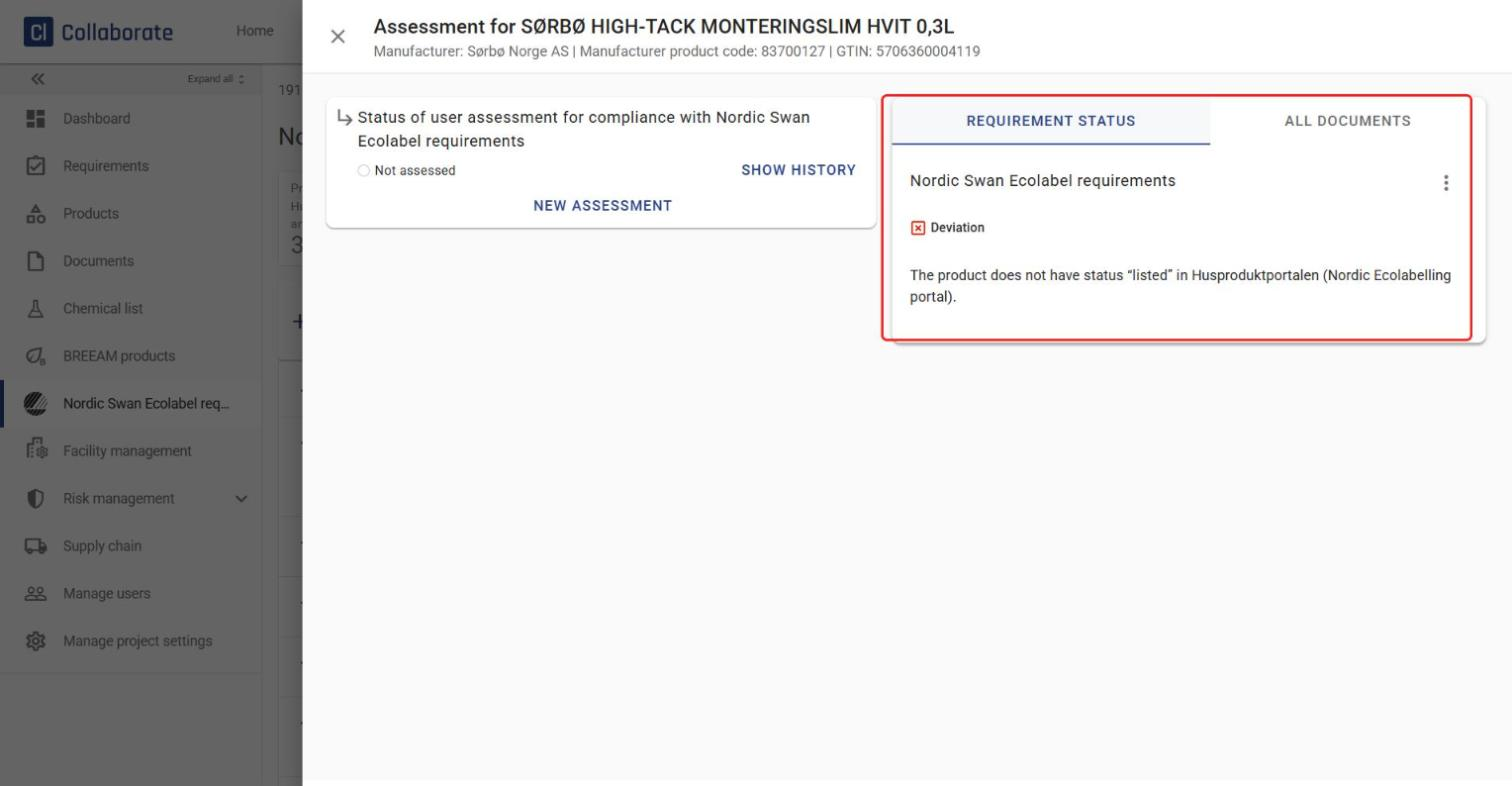
The Requirement status tab shows the status of the product’s Nordic Swan Ecolabel requirements.
2
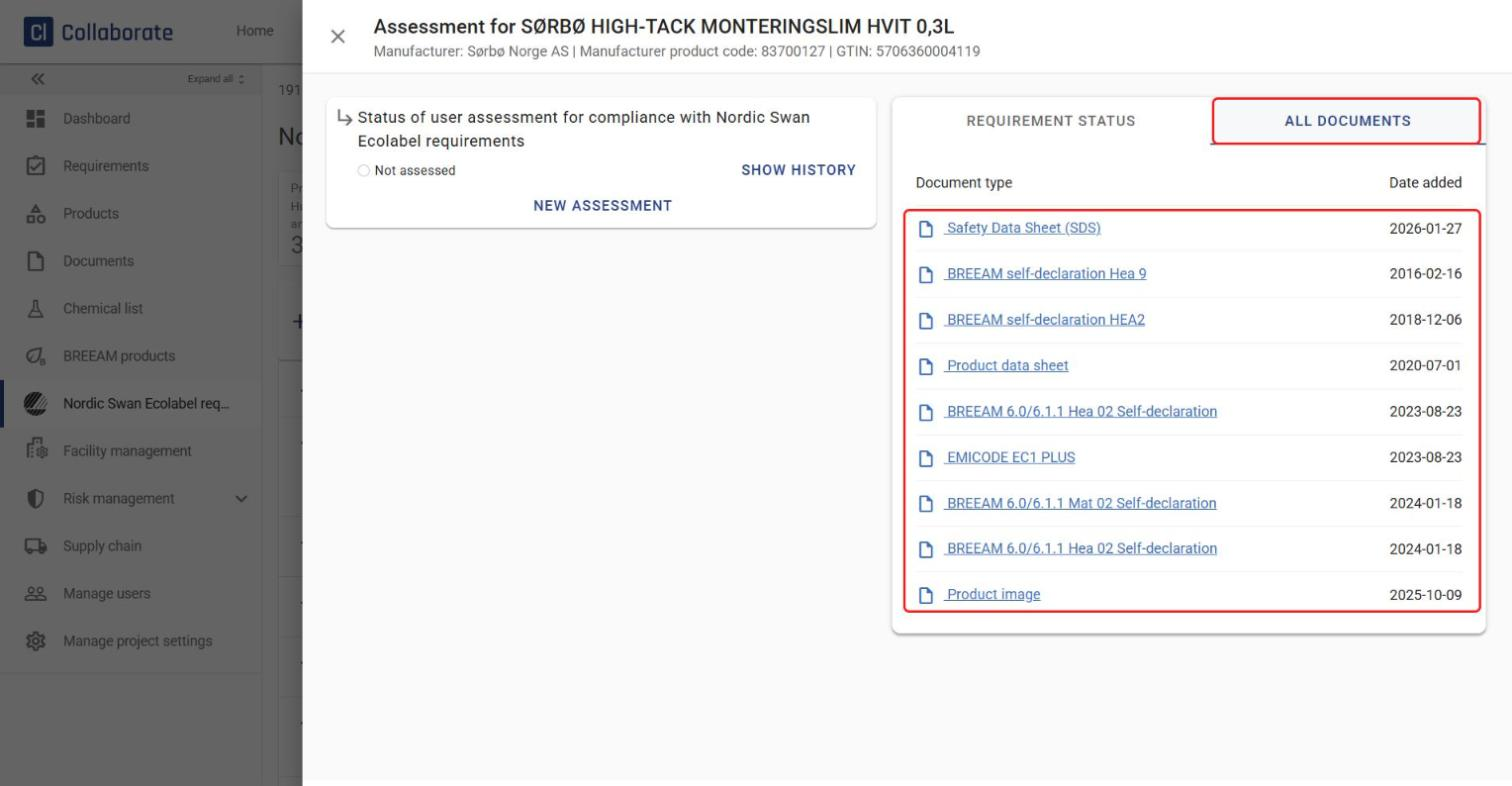
The All documents tab lists all product documentation that may be relevant to the assessment. Download the documents to check them.
Carry out the assessment
1
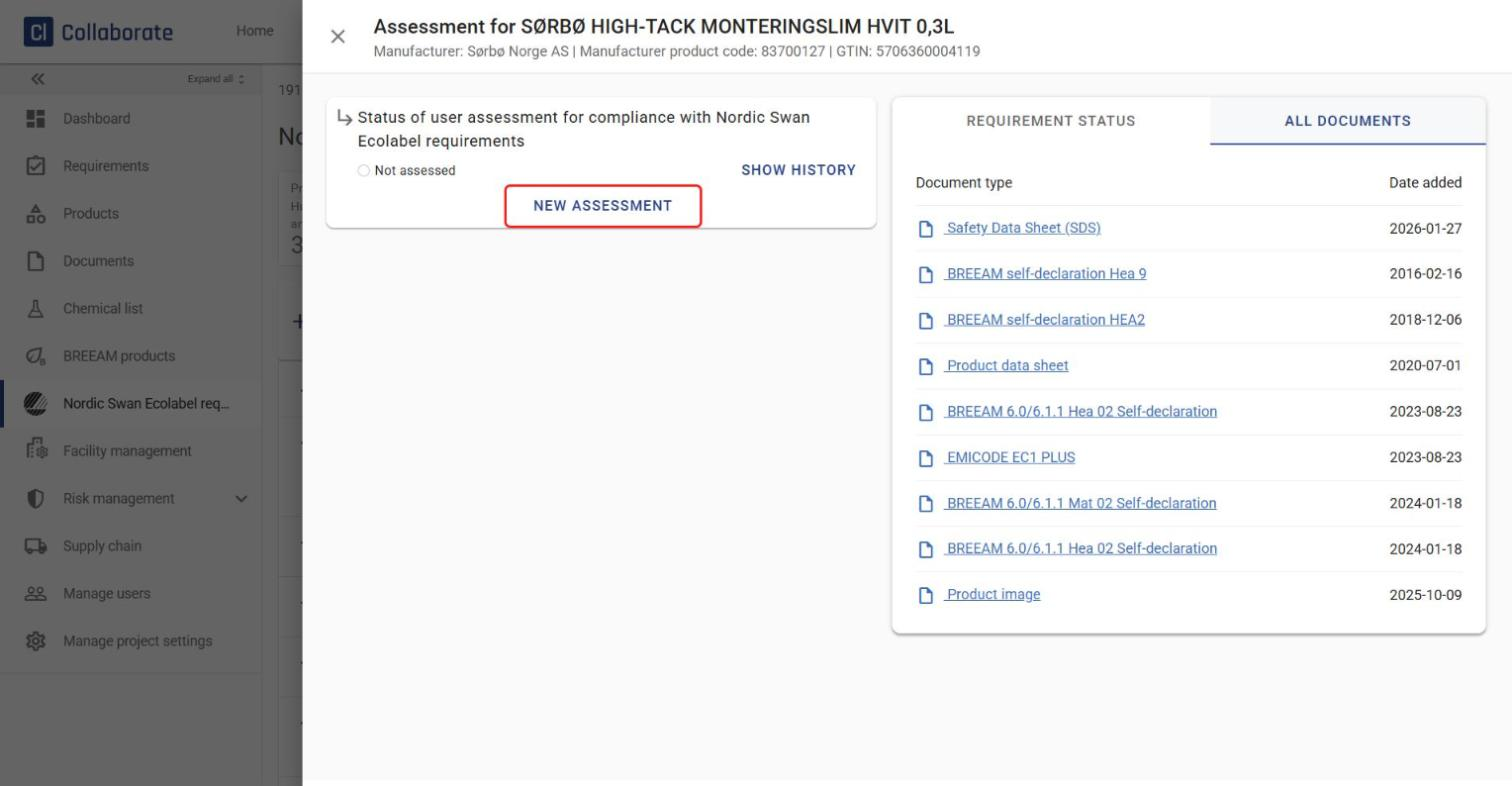
Click New assessment.
2
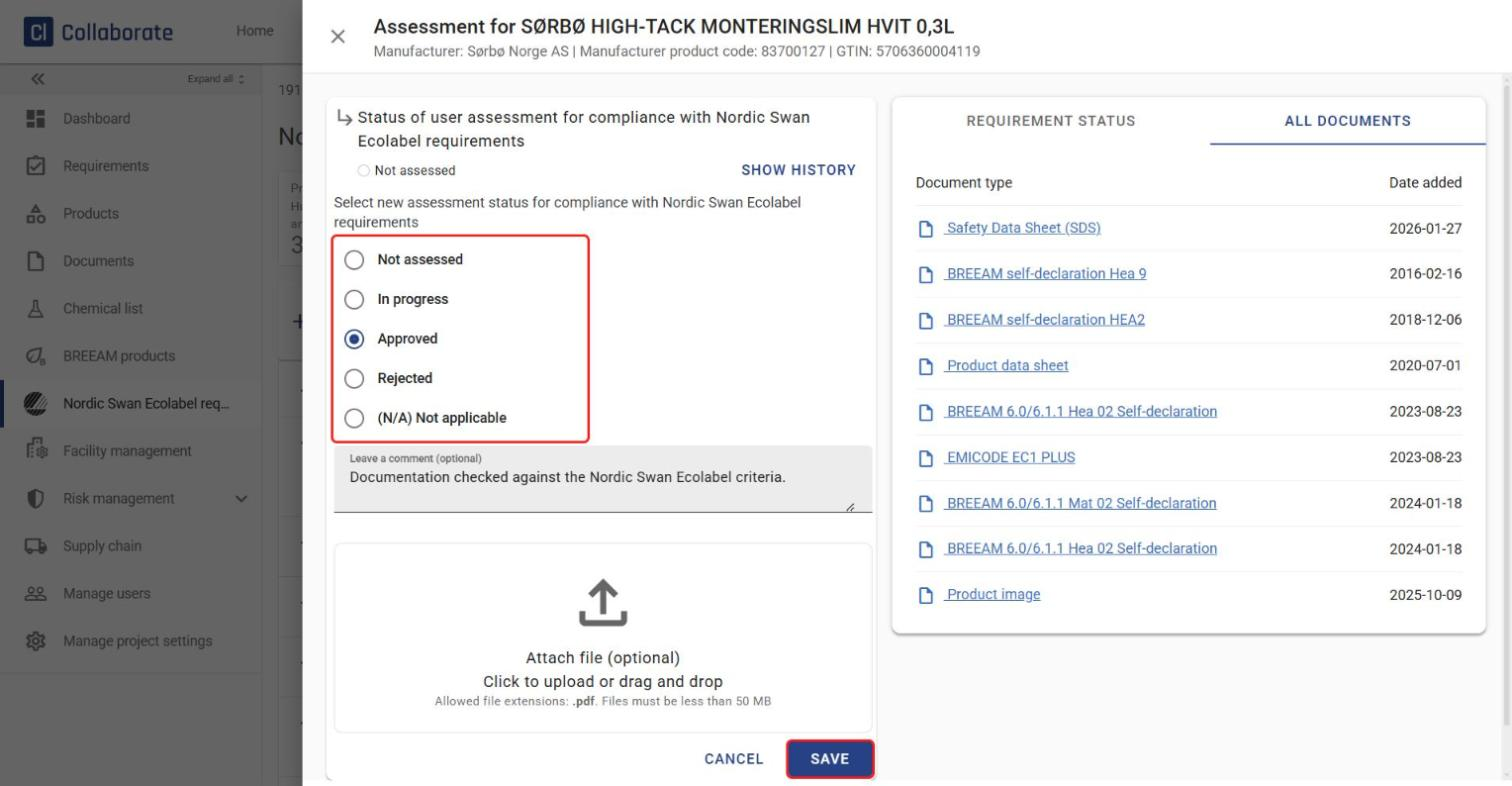
Choose a status (Not assessed, In progress, Approved, Rejected or (N/A) Not applicable). Add a comment or attach a PDF if needed, then click Save.
Track the history
1
Click Show history to see earlier assessments of the product, including who set each status and when.
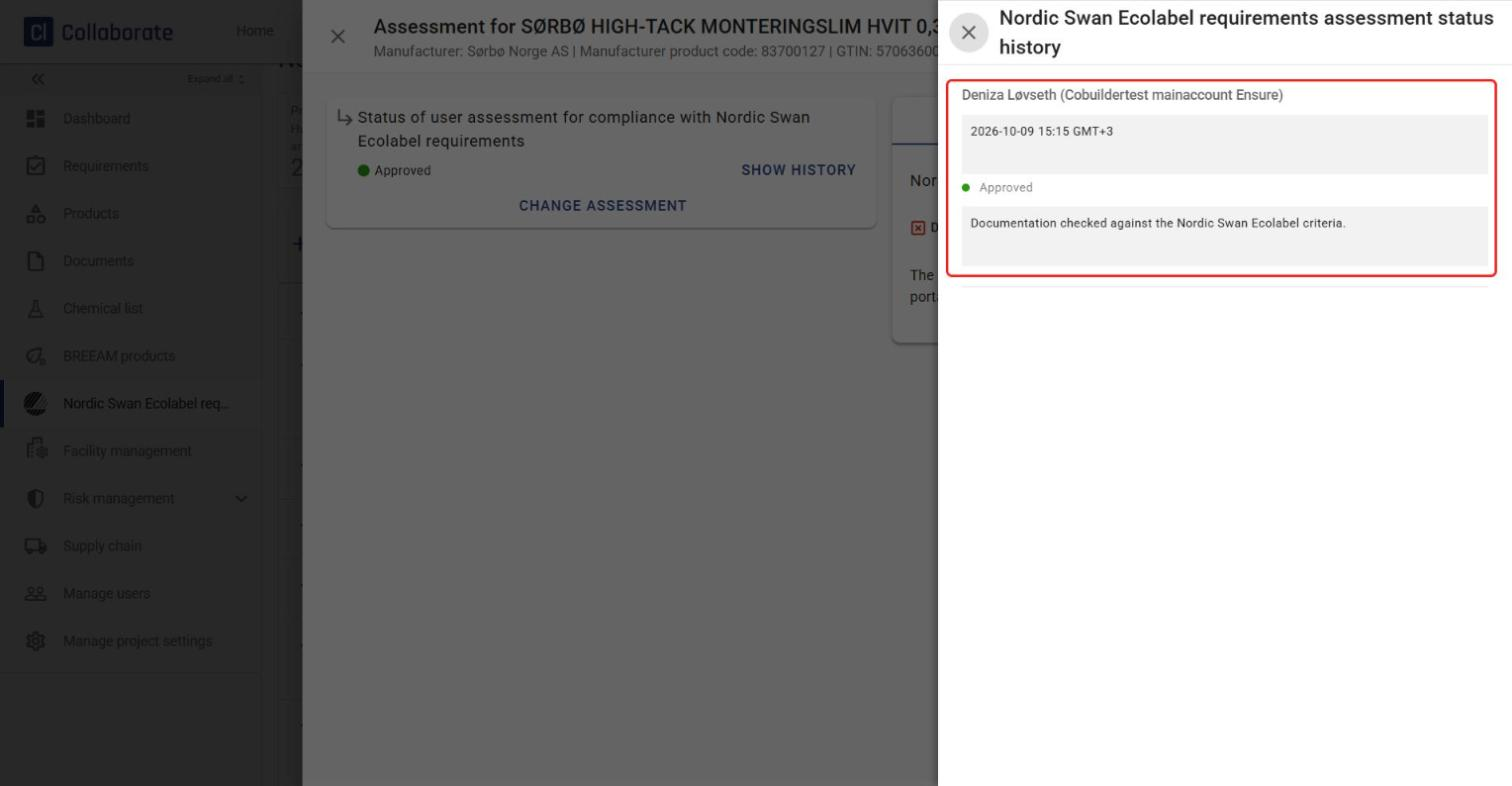
2
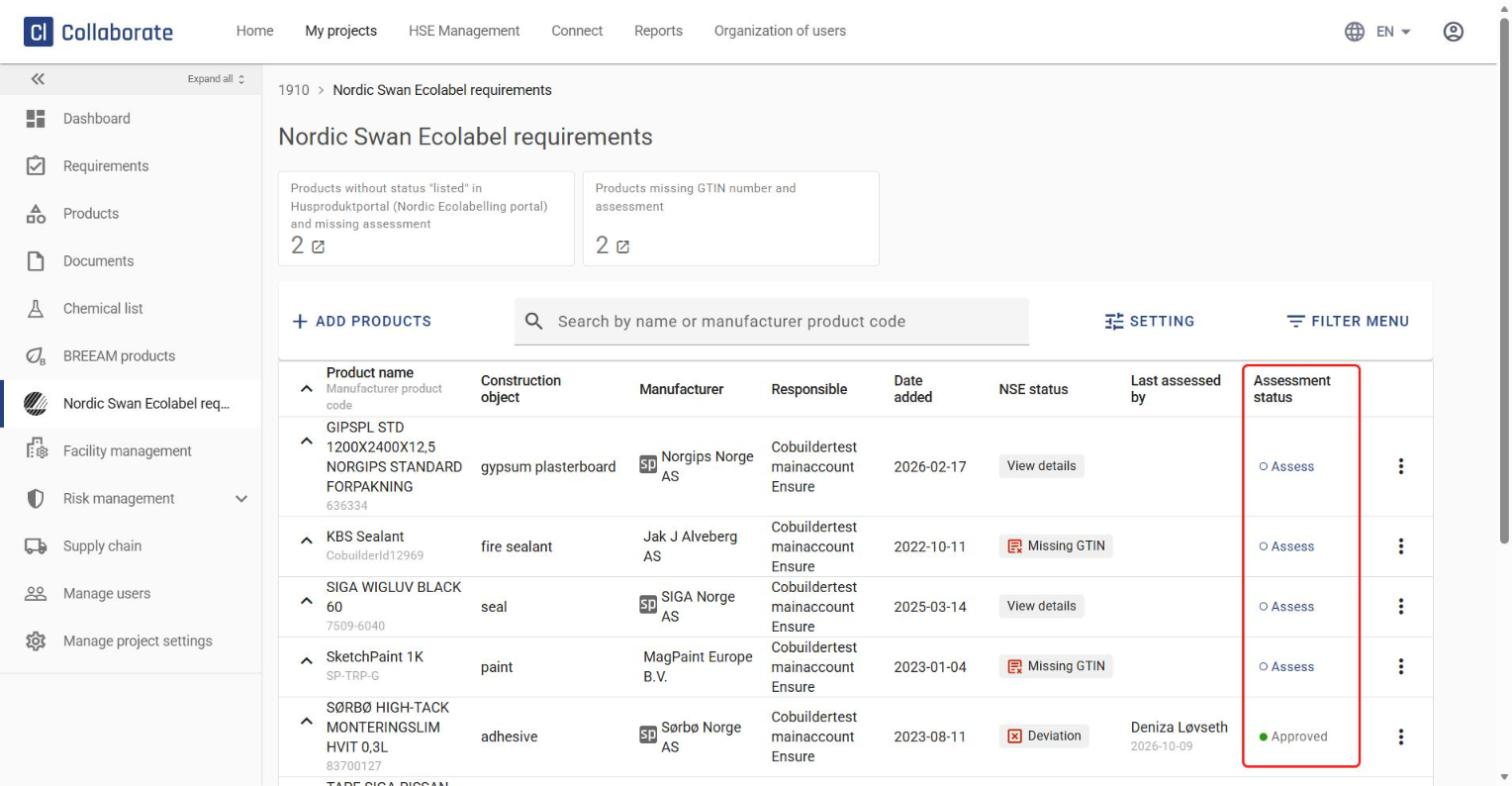
In the product overview, the Assessment status column shows the status of each assessment. Products that haven’t been assessed yet show a clickable Assess link.