Welcome to Cobuilder Training Portal
If you already have a risk management template with parameters that suit a new chemical, you can duplicate it instead of building a new template from scratch. Everything from the template you duplicate – Frequency of use, Exposure level, and the choices and comments in each step – is carried over to the new template, so you only need to adjust what’s different.
Steps
1
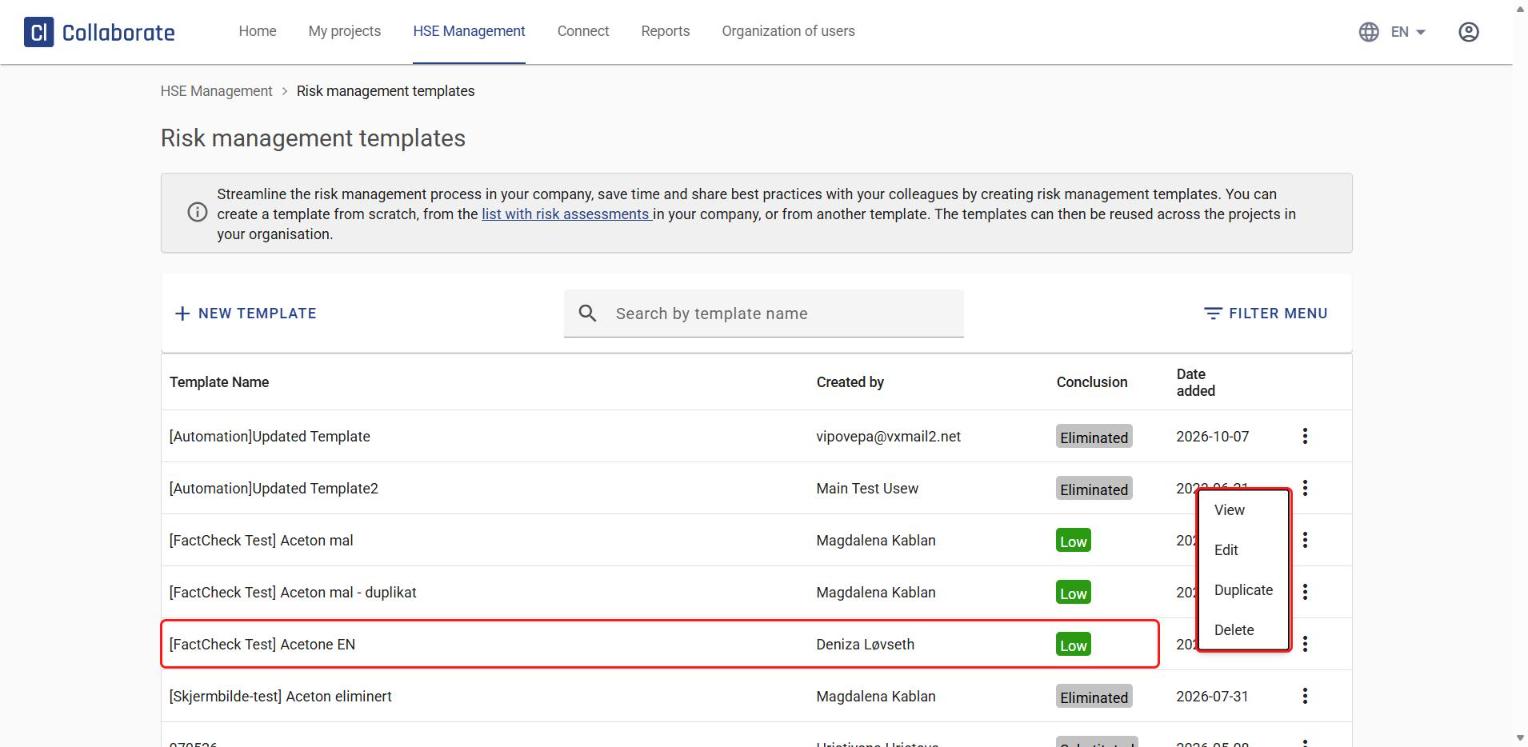
Go to HSE Management in the top menu and select Risk management templates.
2
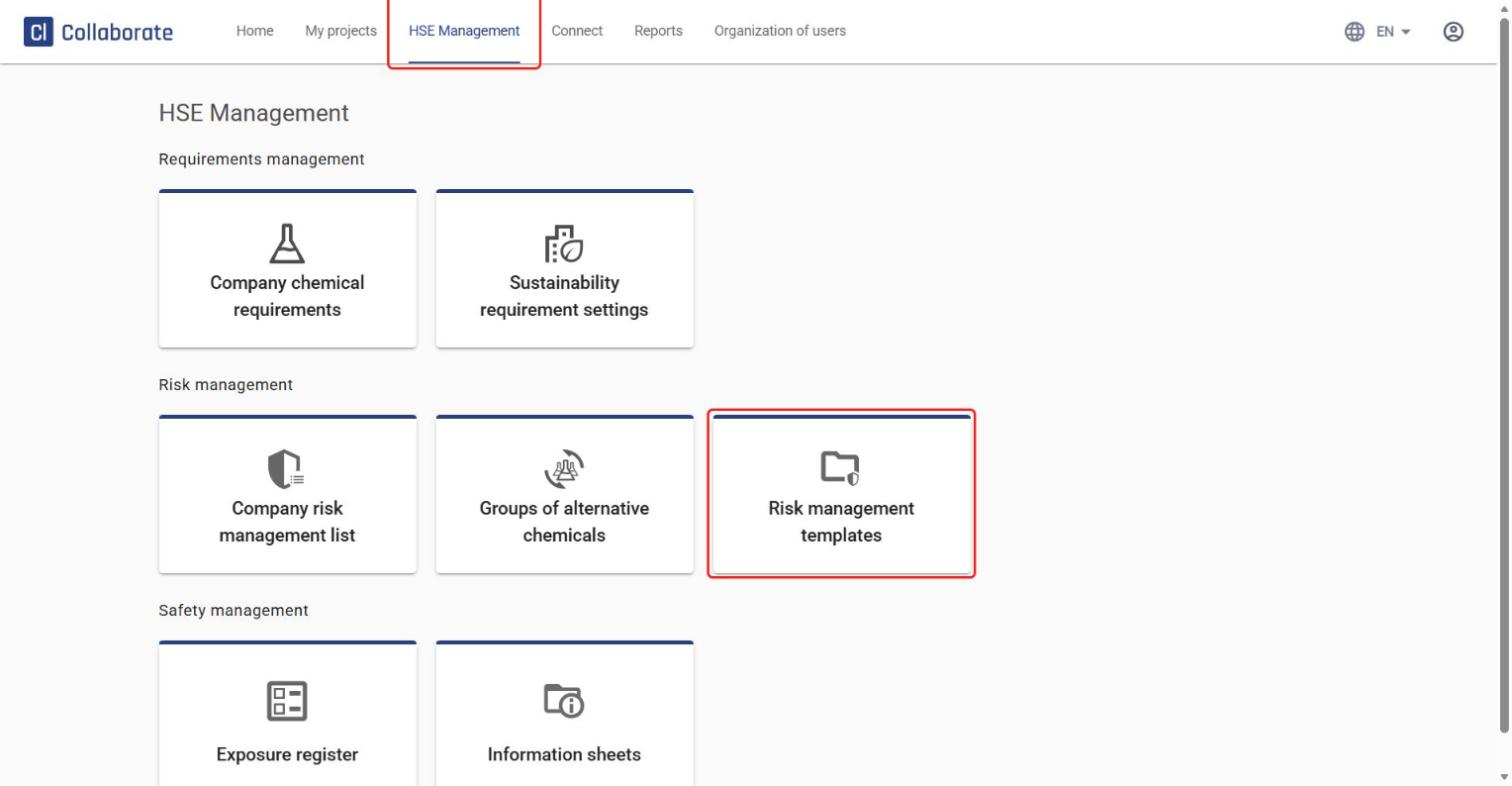
Find an existing template in the list, click the three dots to the right of it, and click Duplicate. To start a template from scratch instead, click New template – see How to create a risk management template.
3
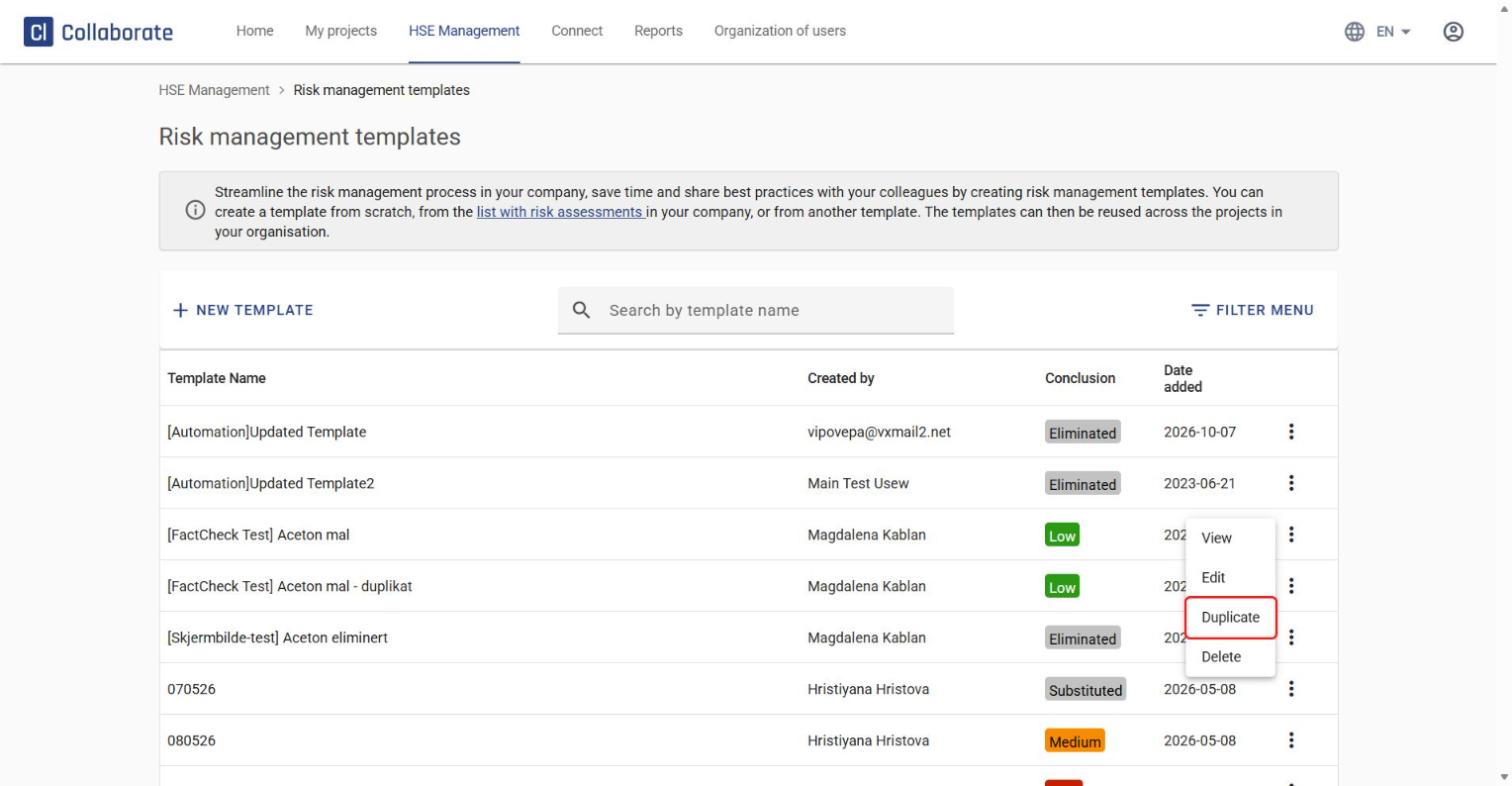
The template opens with the same name as the original, with – copy added. Frequency of use and Exposure level are already filled in with the same values as the template you duplicated. Click the info icon (ⓘ) next to Exposure level to read more about the two categories.
4
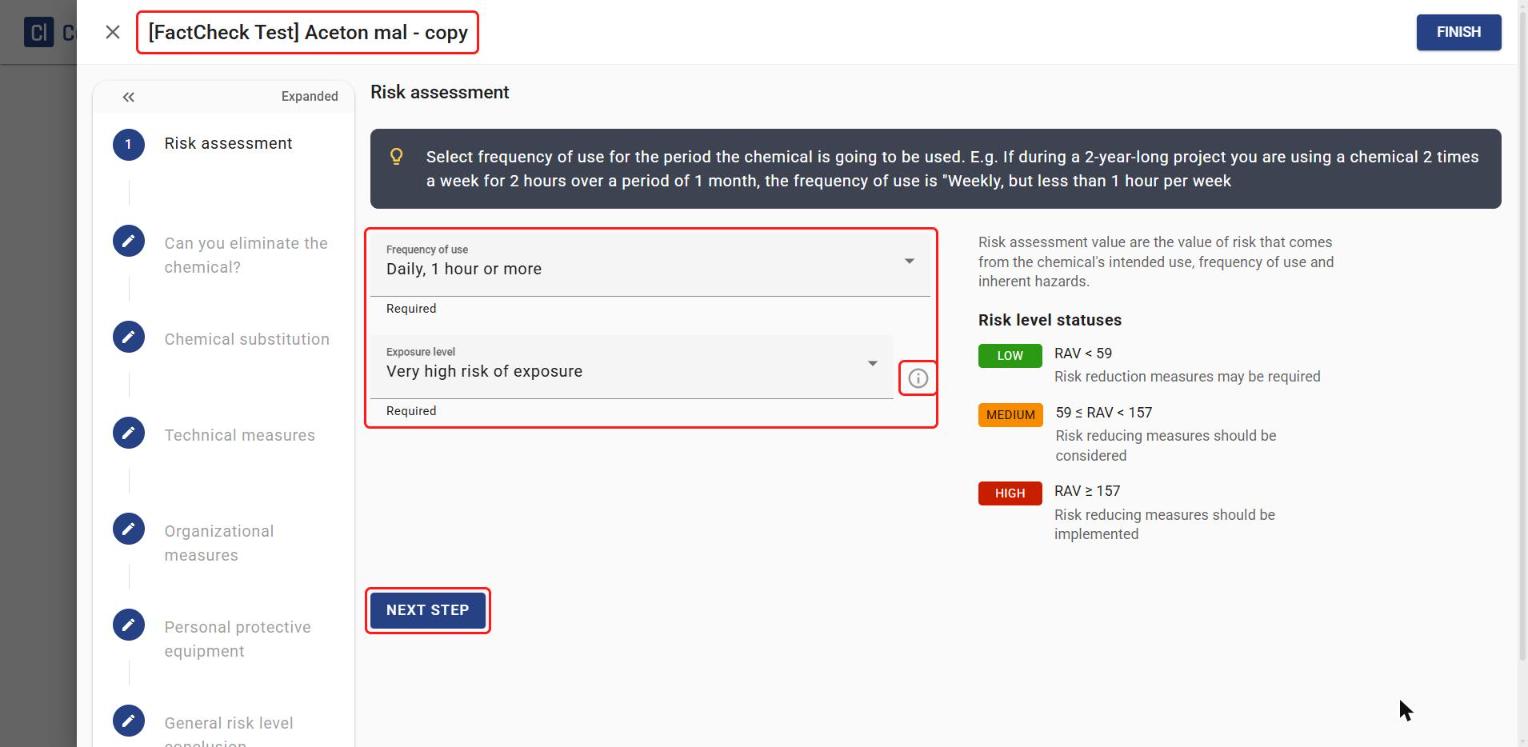
Click Next step to work through the template step by step, or jump straight to any step by clicking the pen next to it in the menu on the left.
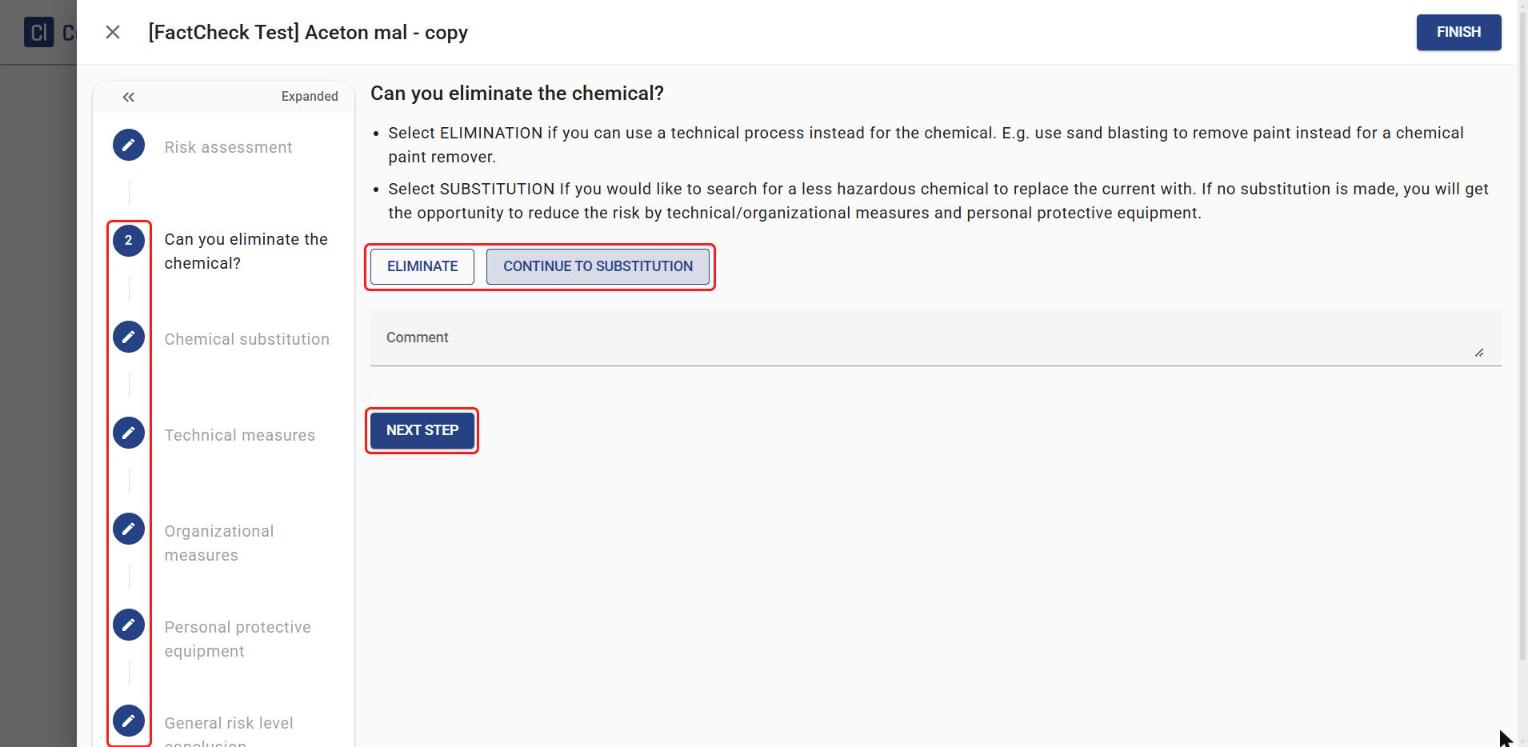
The next step is Can you eliminate the chemical?:
- Click Eliminate if the chemical can be replaced by a technical process. Write a comment (required) and click Finish – the template is then complete.
- Click Continue to substitution to move on in the process instead. The comment is optional here.
5
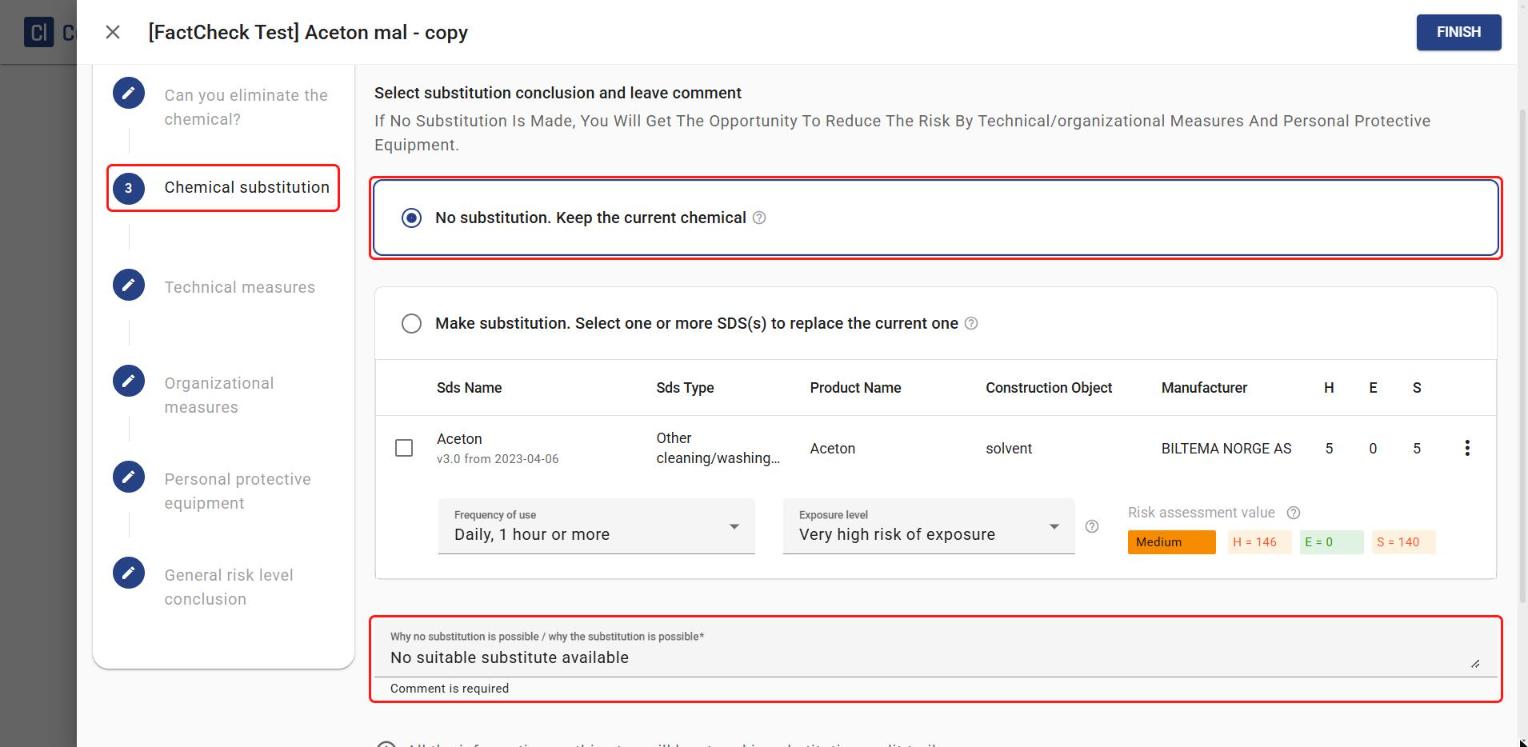
The Chemical substitution step shows the conclusion from the template you duplicated. Here, No substitution. Keep the current chemical is selected, with the comment from the original template carried over.
- To keep this choice, just click Next step.
- To search for an alternative chemical instead, click Compare to assess it against the original. See My risk management – How to create a risk management for a full walkthrough of this step.
6
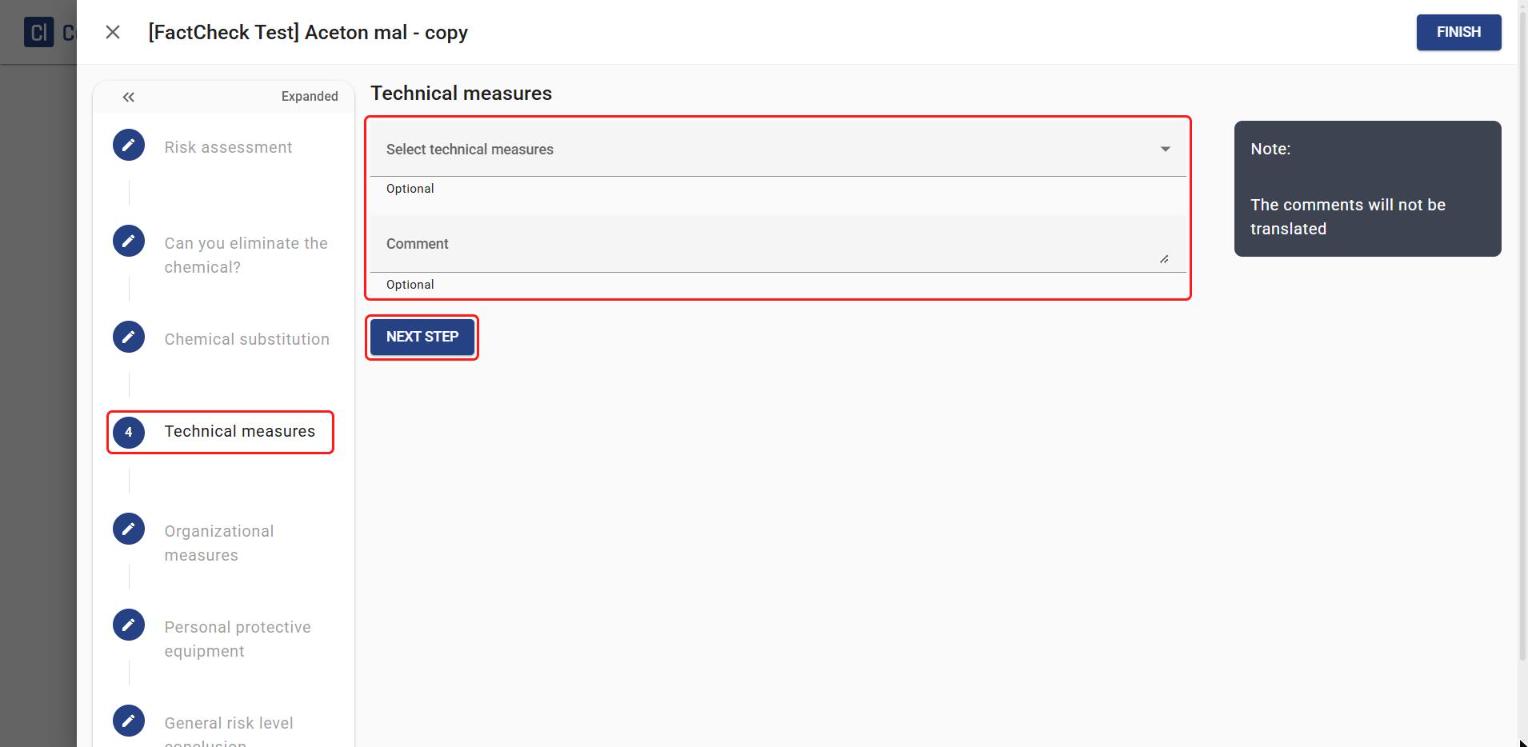
Technical measures and Organizational measures let you select measures from a drop-down list and write an optional comment. Any measures selected in the original template are prefilled here too. Click Next step for each step.
7
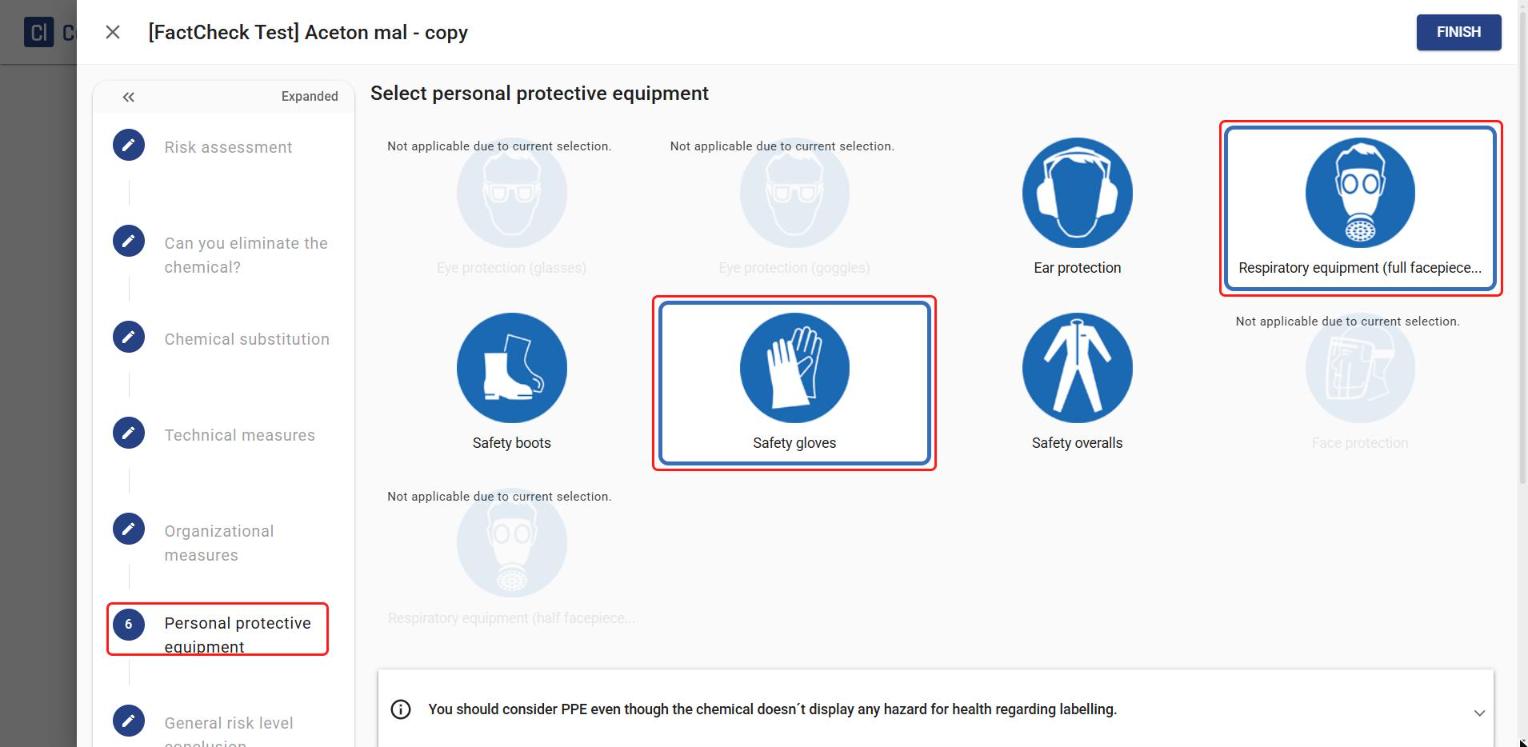
Personal protective equipment shows the equipment selected in the template you duplicated. Here, Safety gloves and Respiratory equipment (full facepiece respirator) are preselected, and equipment that can’t be combined with them is automatically marked Not applicable due to current selection. The conclusion from the original template is carried over too. Click Next step.
8
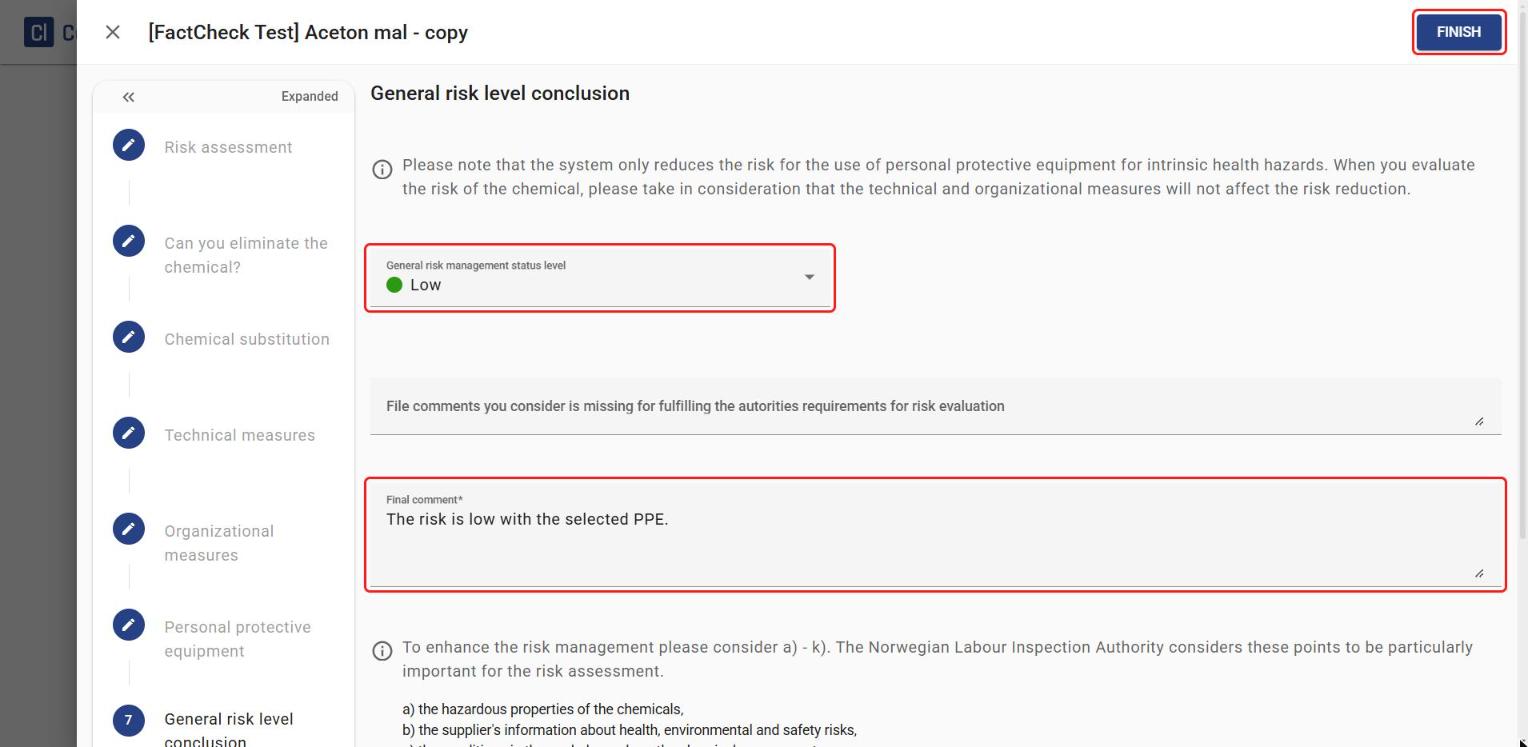
The last step, General risk level conclusion, shows the template’s original General risk management status level and Final comment. Change these if needed and click Finish.
9
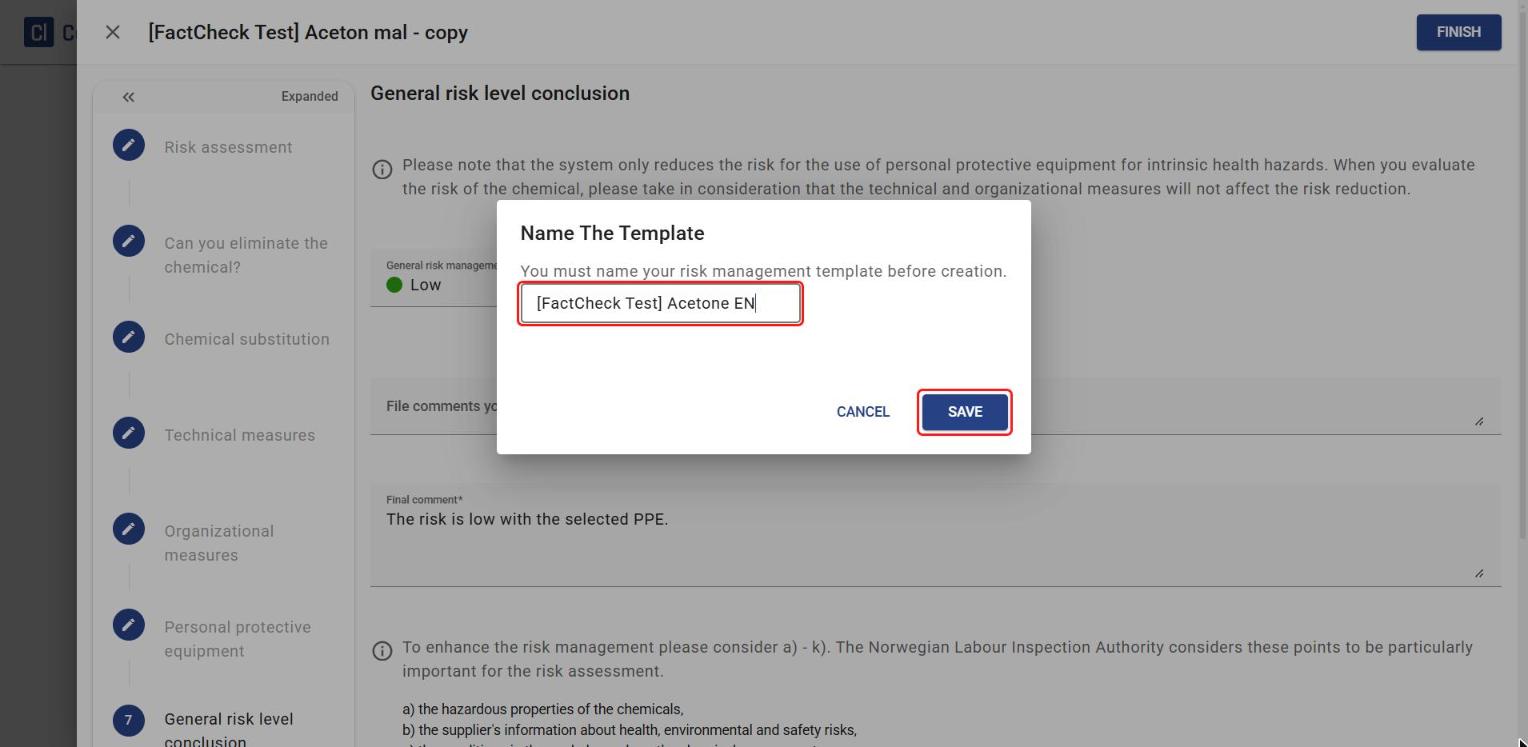
A new window opens with a suggested name – the original template name with – copy added. Change the name and click Save.
10
You’re taken back to the list of risk management templates, where the new template now appears with the same conclusion as the template you duplicated. Use the three dots to the right of the template to View, Edit, Duplicate or Delete it later.