
Welcome to Cobuilder Training Portal
When a wholesaler sends product documentation through Connect, the delivery is automatically attached to your project in Collaborate. This article shows how to make sure that happens, how to find your deliveries, and how to attach a delivery that has ended up outside the project.
Avoid unattached deliveries
A delivery is attached to the project when the wholesaler provides the same project ID that the project has in Collaborate. If the wholesaler uses a different number, such as their own customer or order number, the delivery ends up under Unattached, and you need to attach it to the project manually.
1
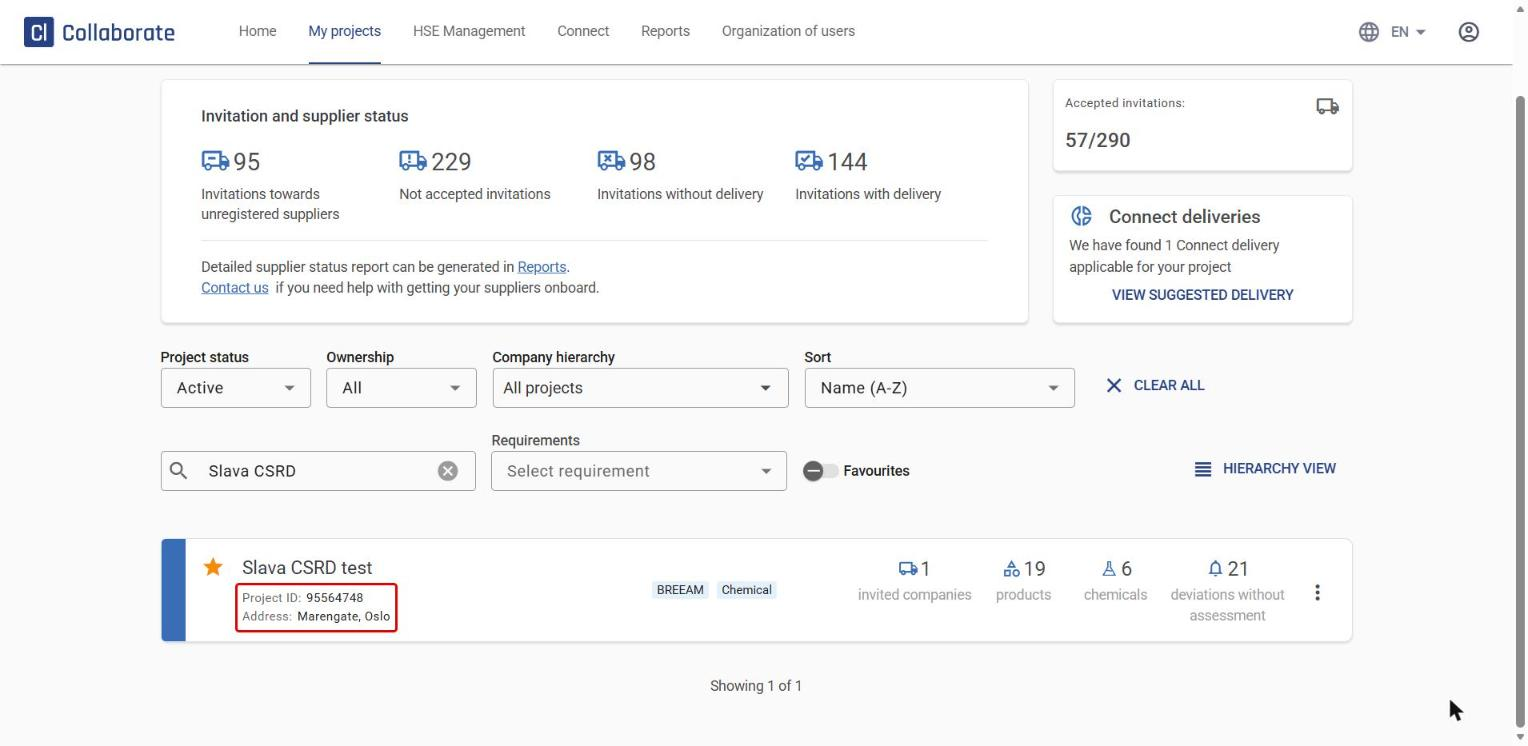
Find the project ID and project address in Collaborate. Go to My projects. Both are shown under the project name, next to Project ID and Address.
2
Share exactly this ID and address with the wholesaler early, ideally when you place the order.
3
Use the same ID in all communication with the wholesaler.
View deliveries for one project
4
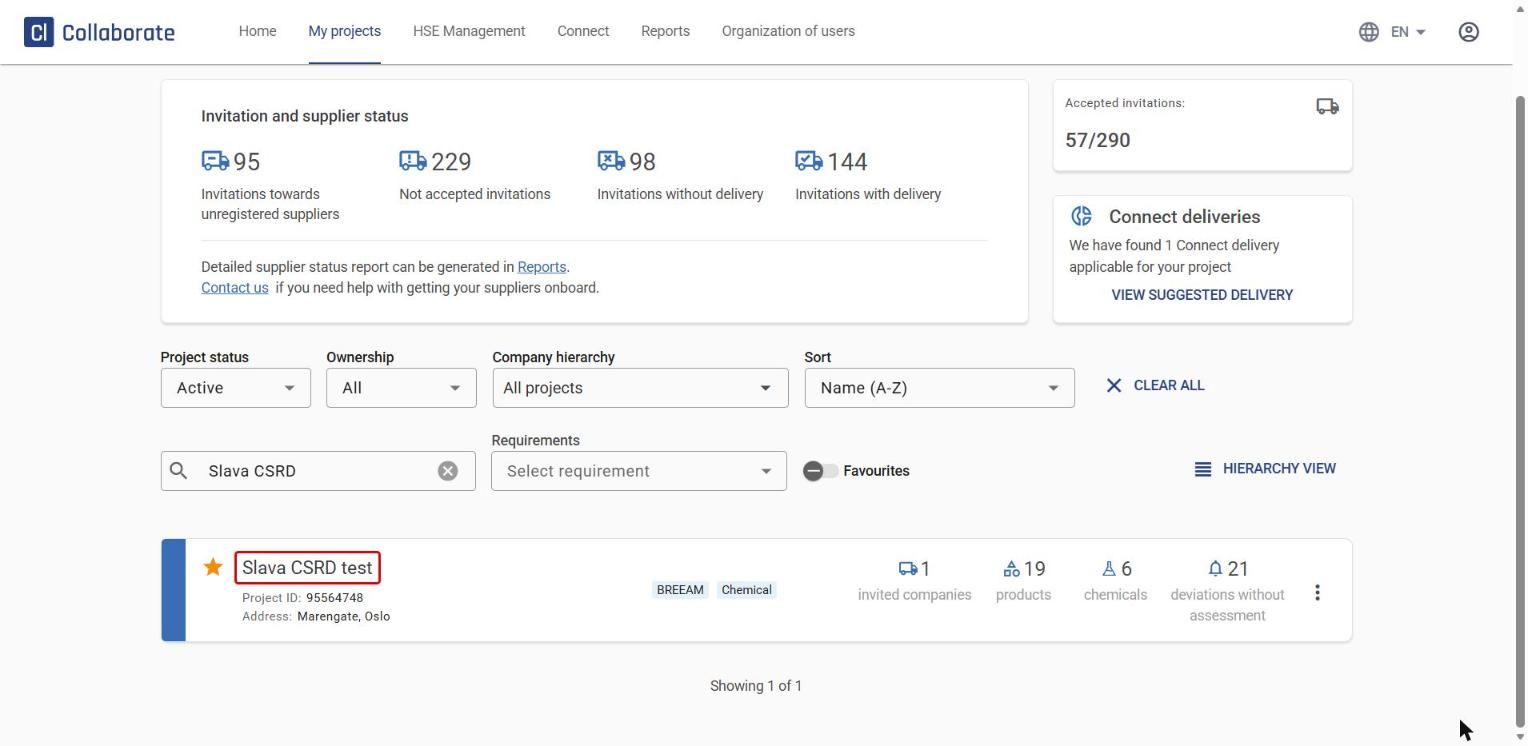
Go to My projects and click the project.
5
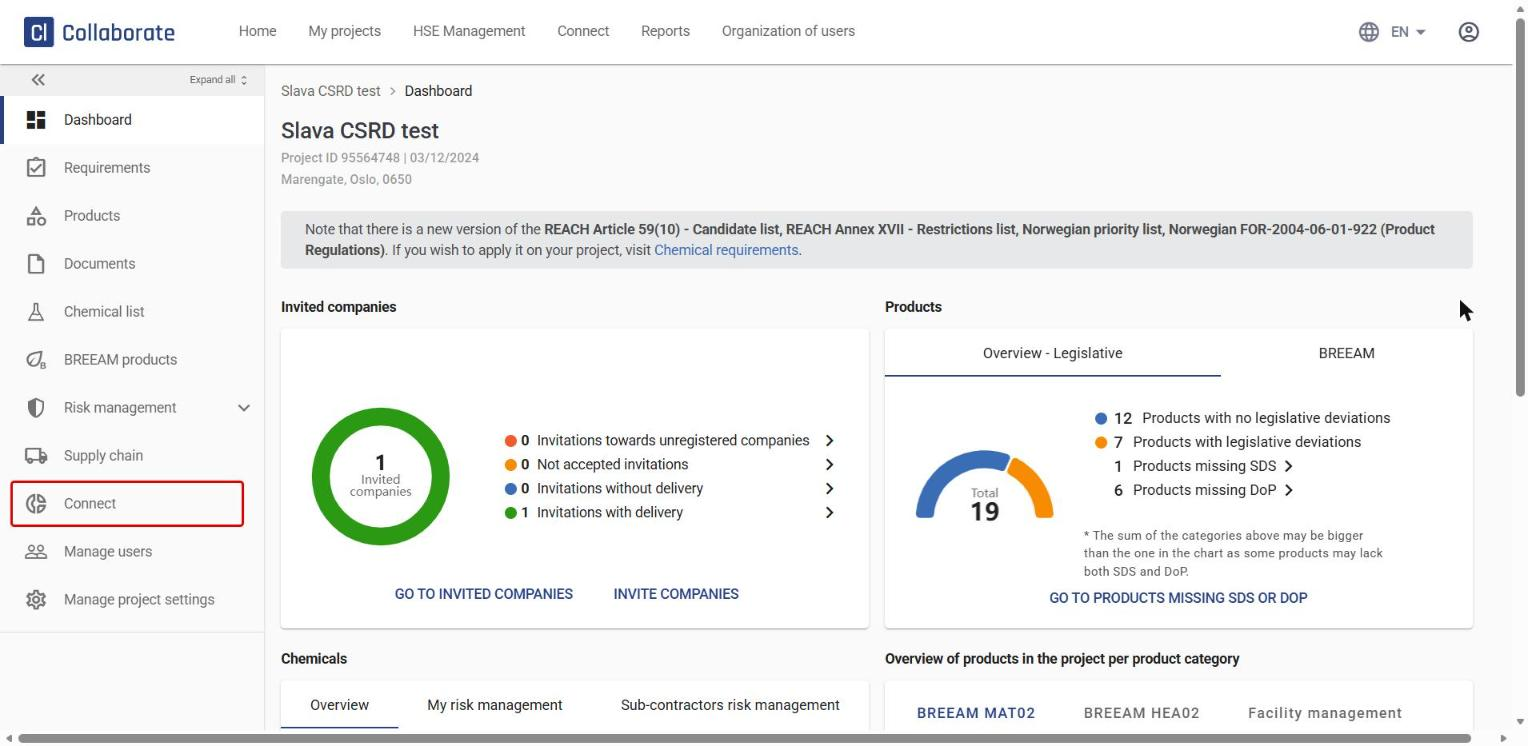
Click Connect in the project’s left menu.
6
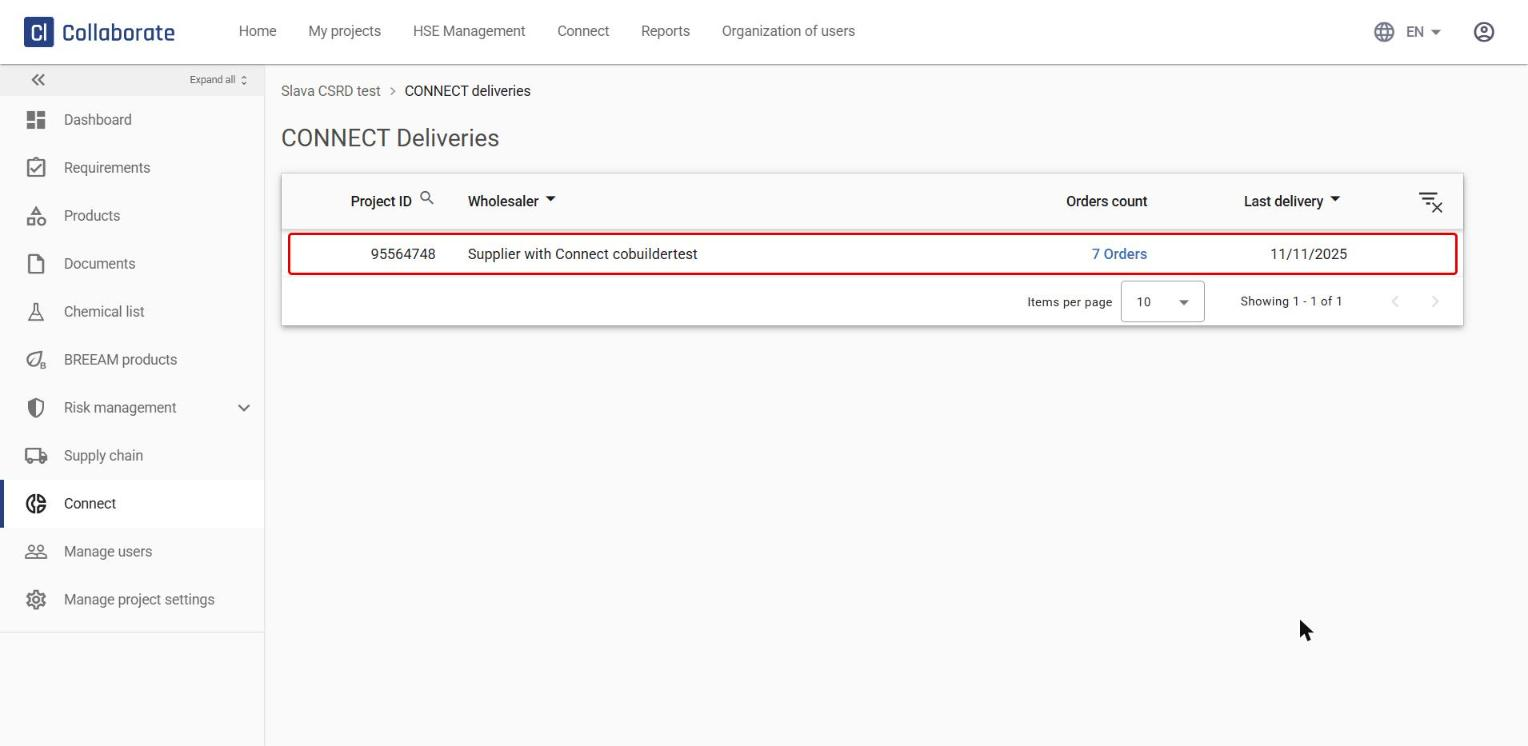
You’ll see the project’s deliveries: which wholesaler delivered, the number of orders and the date of the last delivery.
7
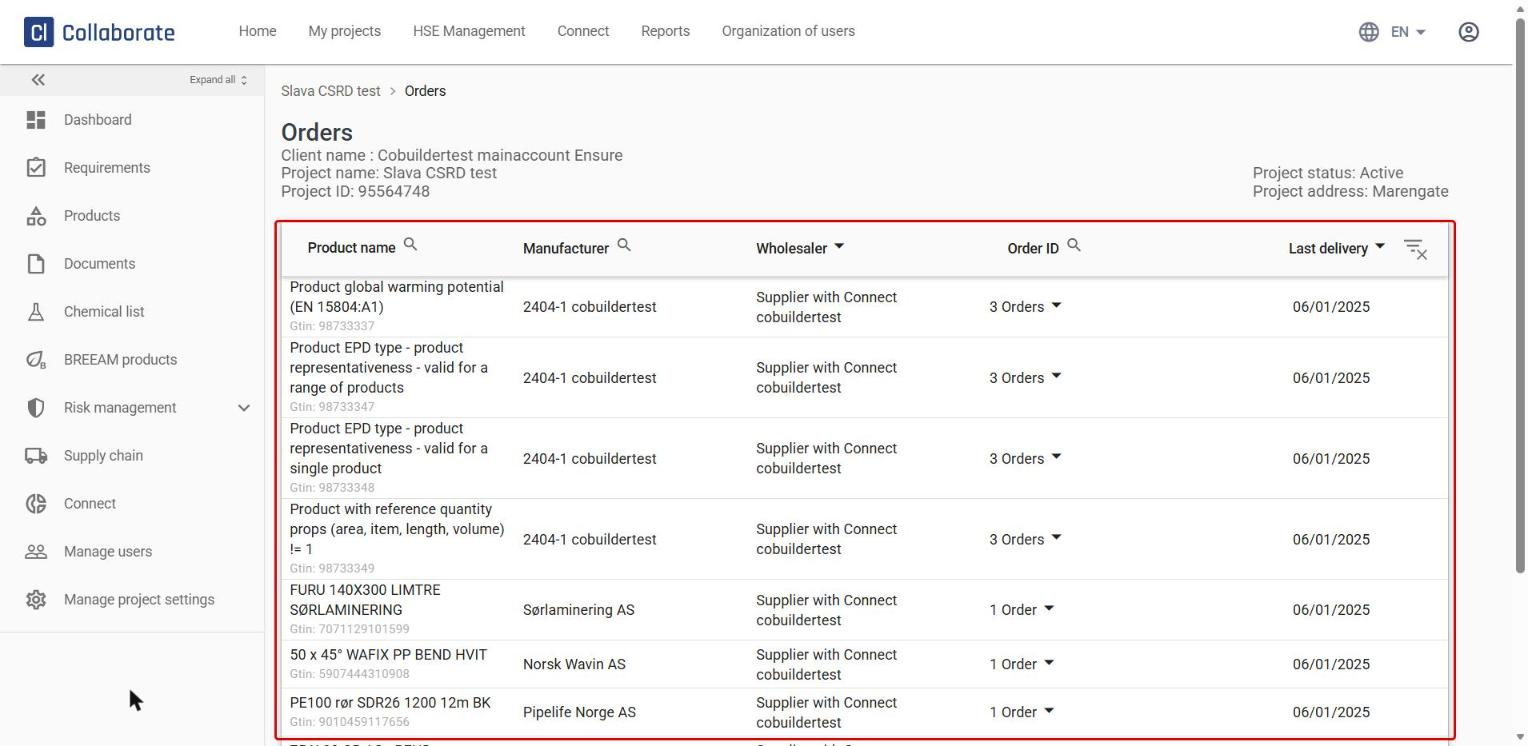
Click the number of orders to see which products have been delivered to the project.
View all deliveries
8
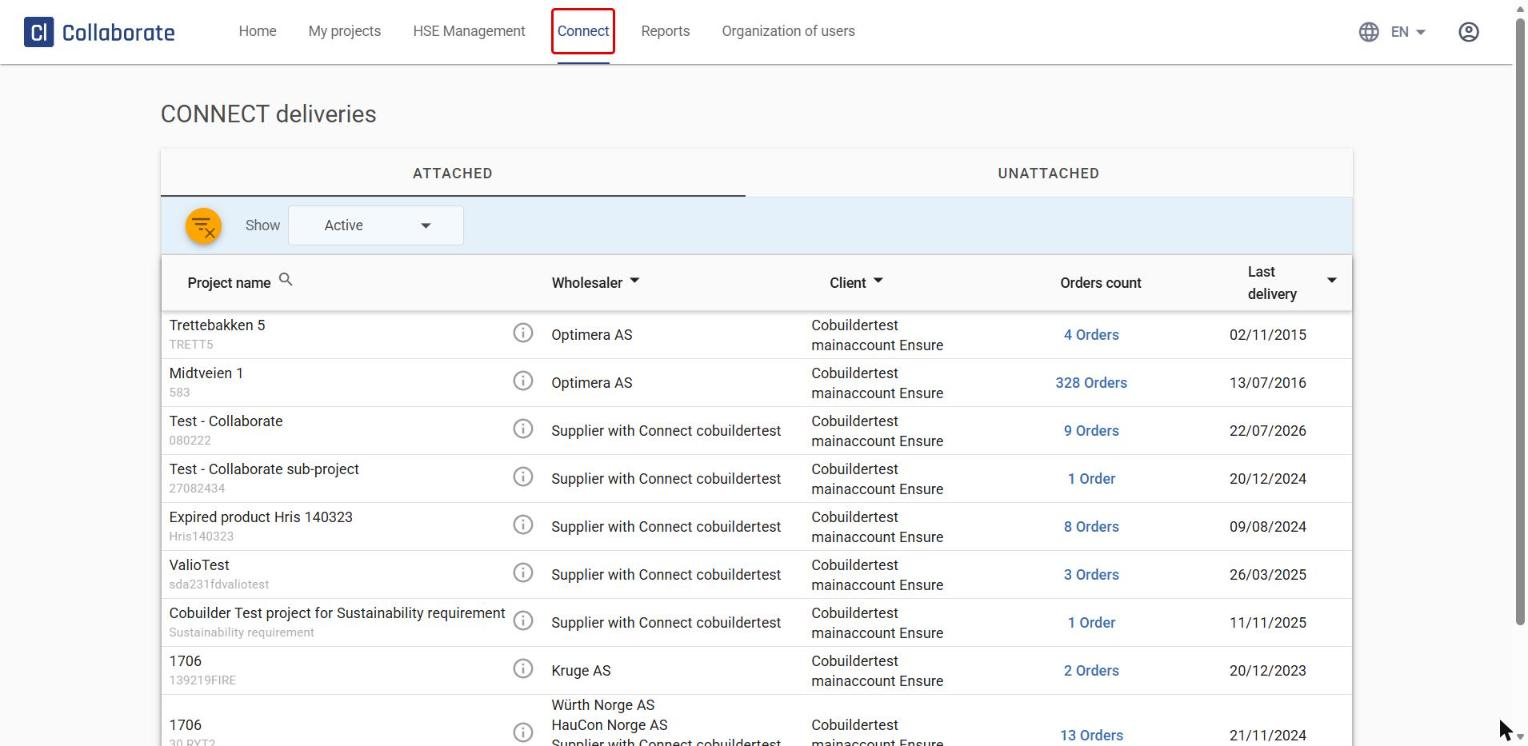
Go to the Connect tab in the top menu.
9
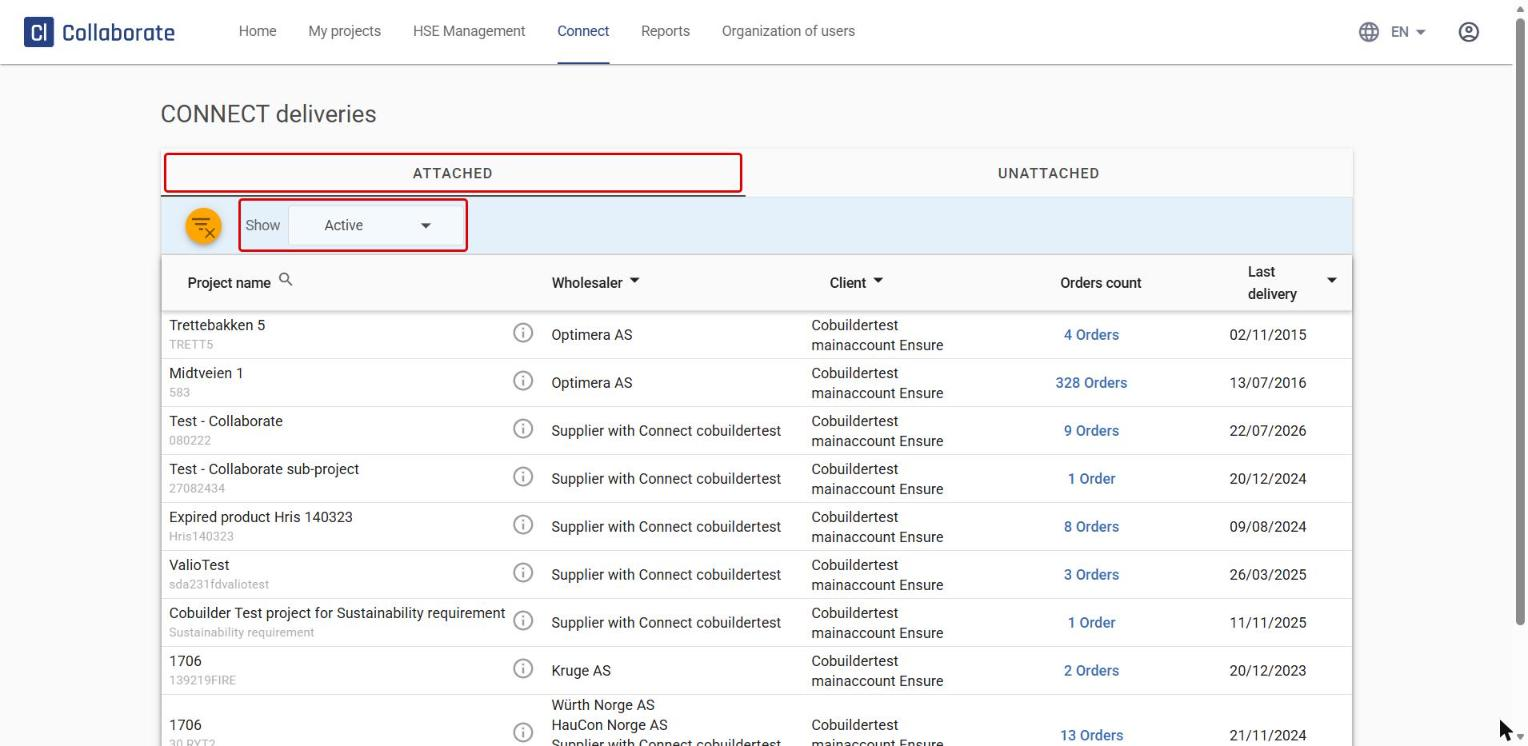
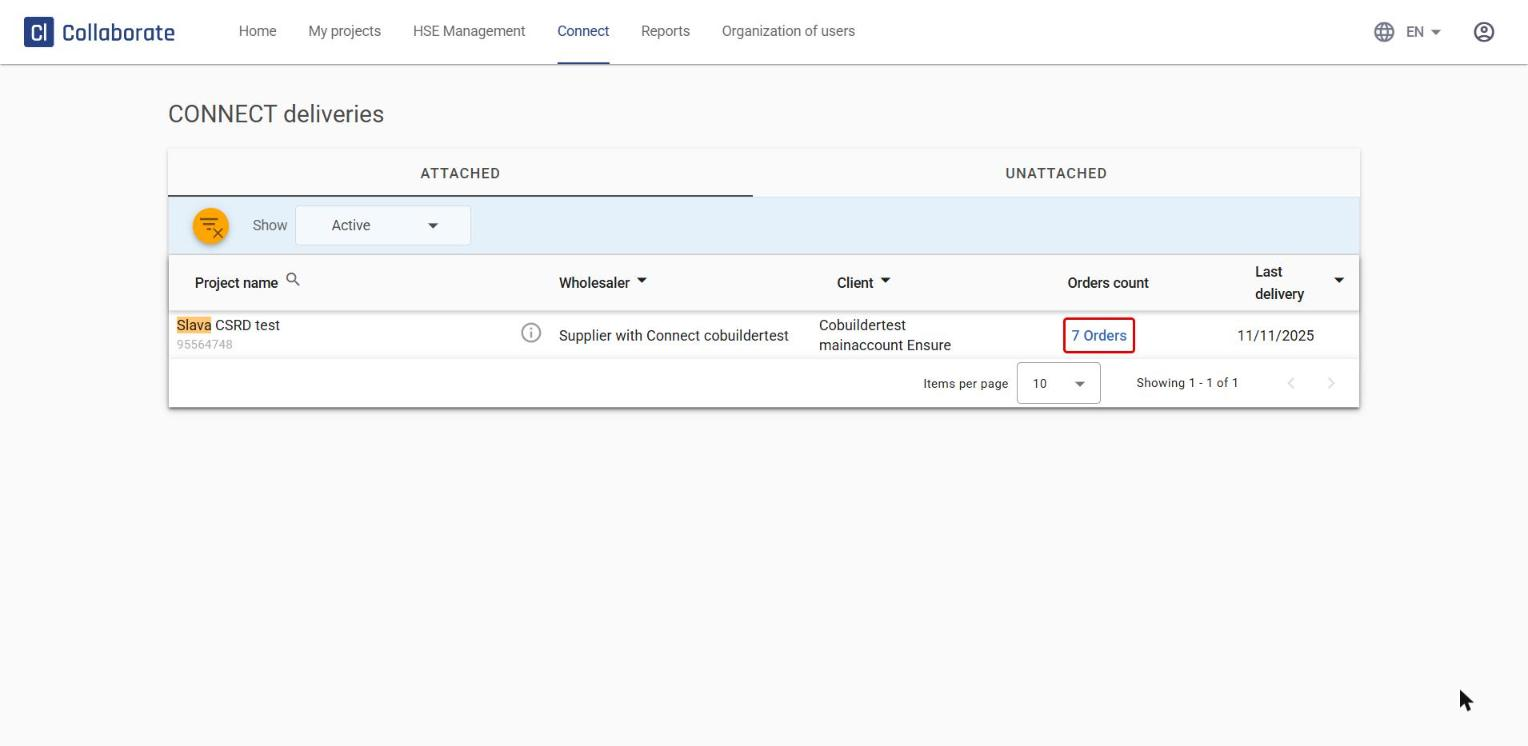
Under Attached, you’ll see deliveries that are already attached to a project: project name, wholesaler, client, orders count and last delivery. Use the Show filter to switch between Active and Archived deliveries.
10
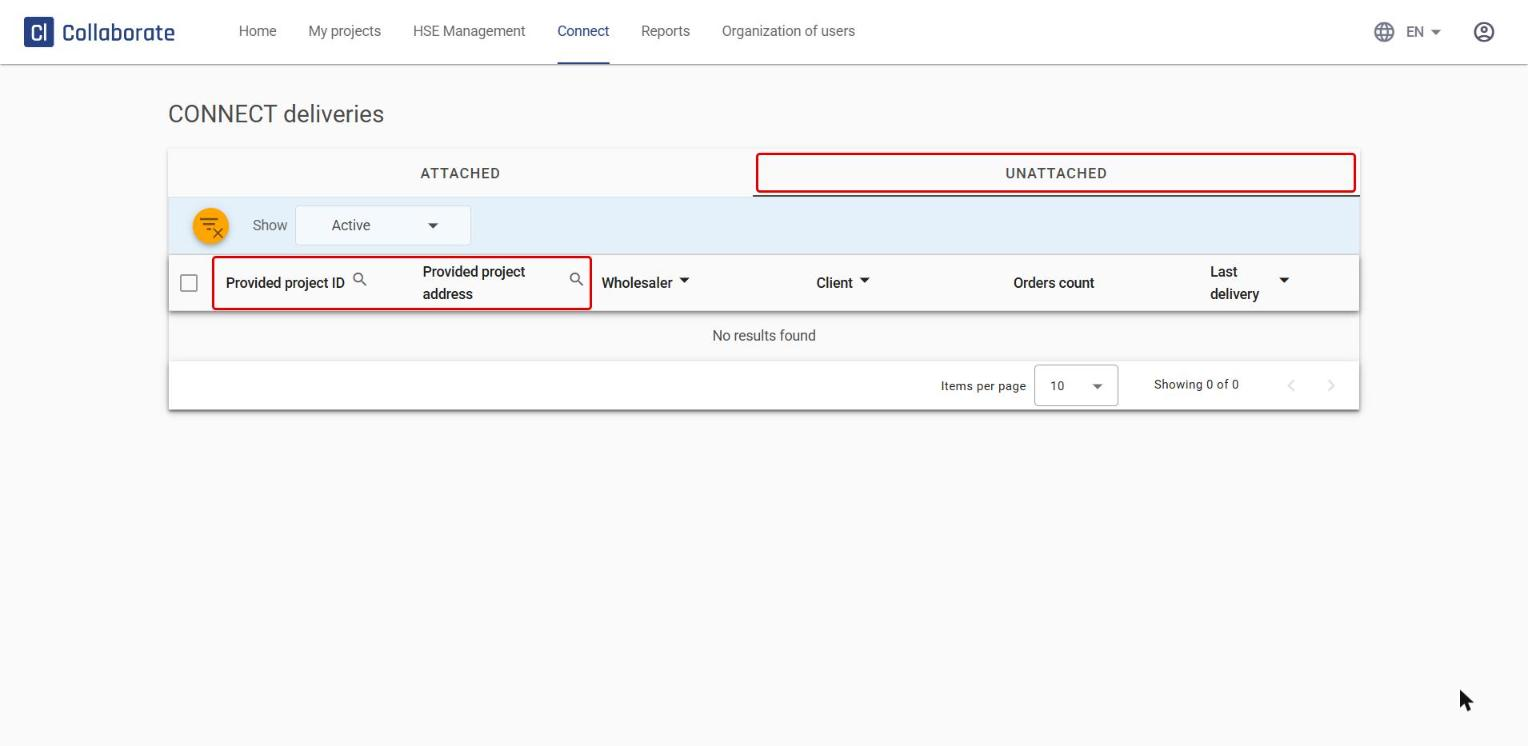
Under Unattached, you’ll find deliveries where the Provided project ID or Provided project address is missing or couldn’t be matched to an existing project.
11
Click the number in the Orders count column (for example “1 Order”) to see which products the delivery contains.
12
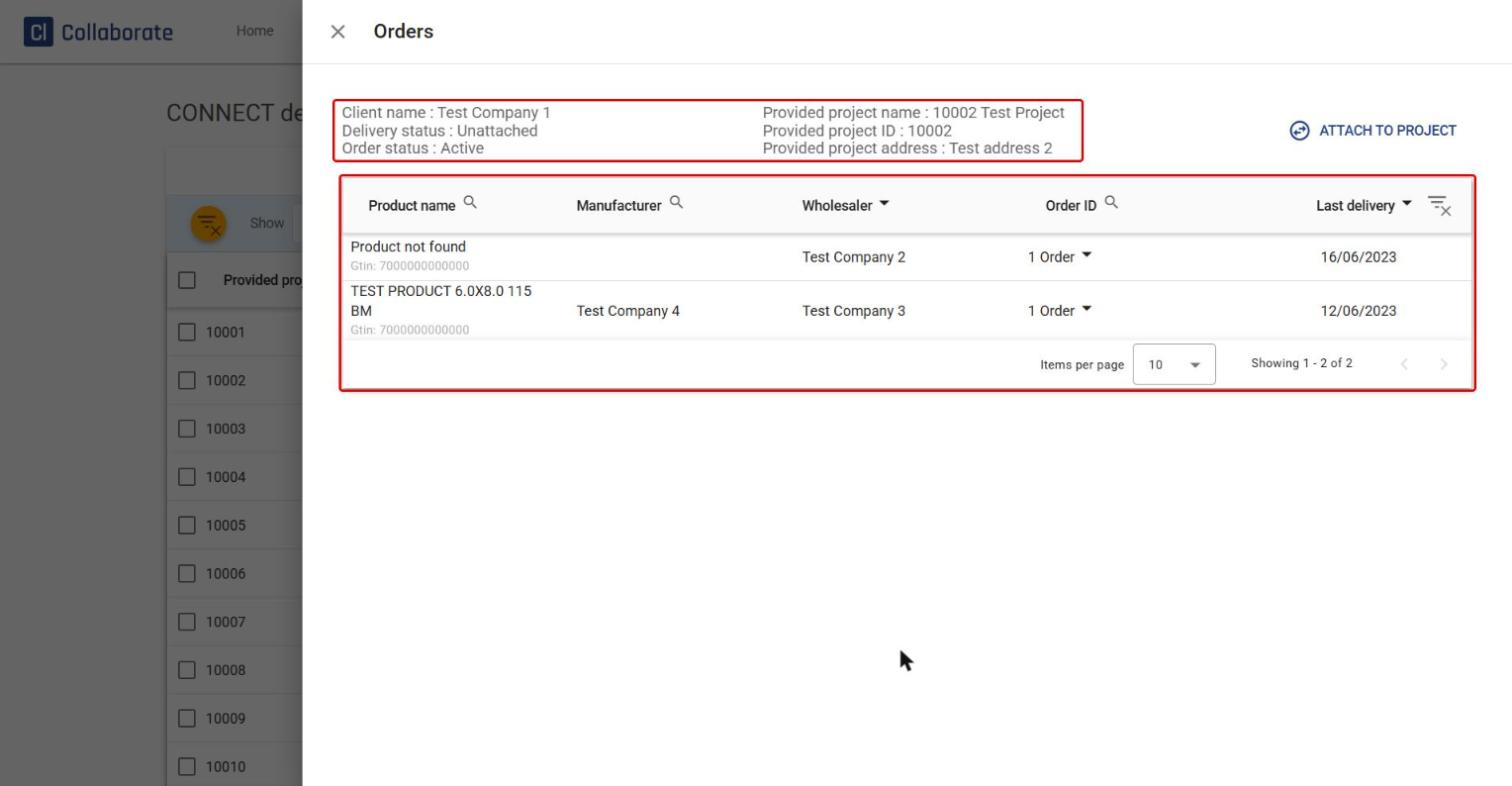
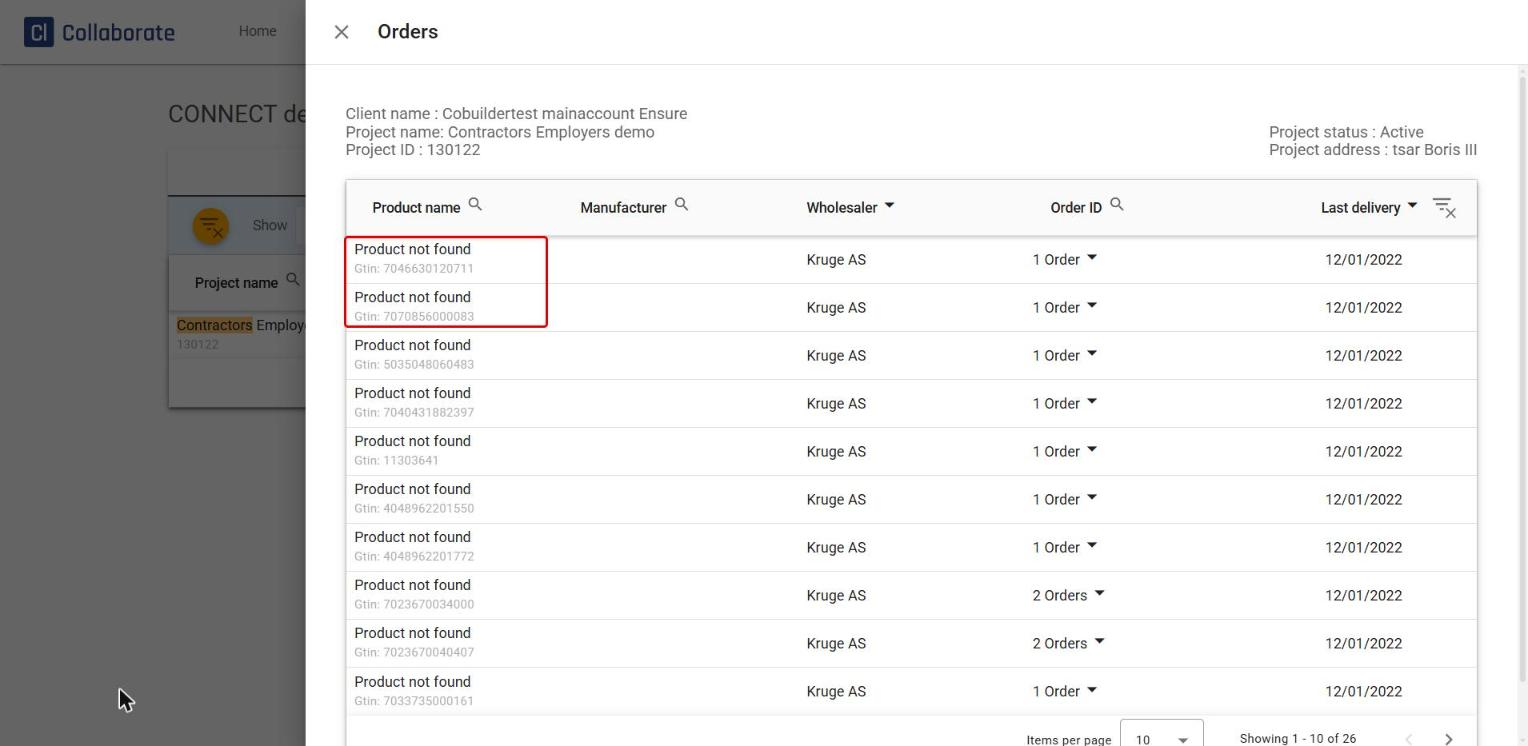
The overview that opens shows:
- the client name, and the provided project name, project ID and project address
- the delivery status and the order status
- all products in the delivery, with product name, manufacturer, wholesaler, order ID and date of the last delivery
Attach a delivery to the right project
If a delivery doesn’t show up on the project, it’s probably missing a project attachment. In that case, you’ll find it under Unattached in the Connect tab.
13
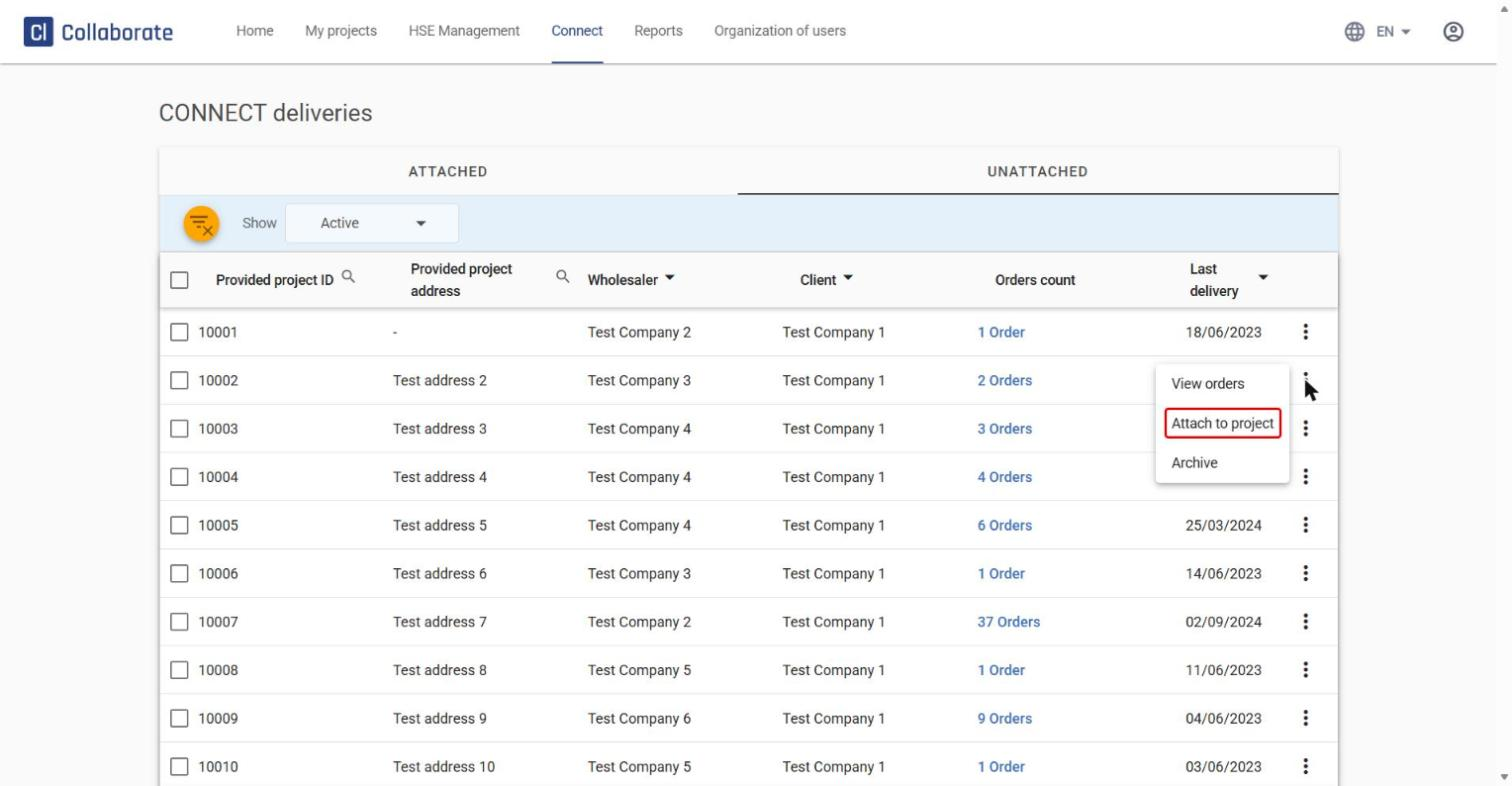
Click the menu (⋮) to the right of the delivery and select Attach to project. Here you can also select View orders to view the order details, or Archive if the delivery isn’t relevant.
14
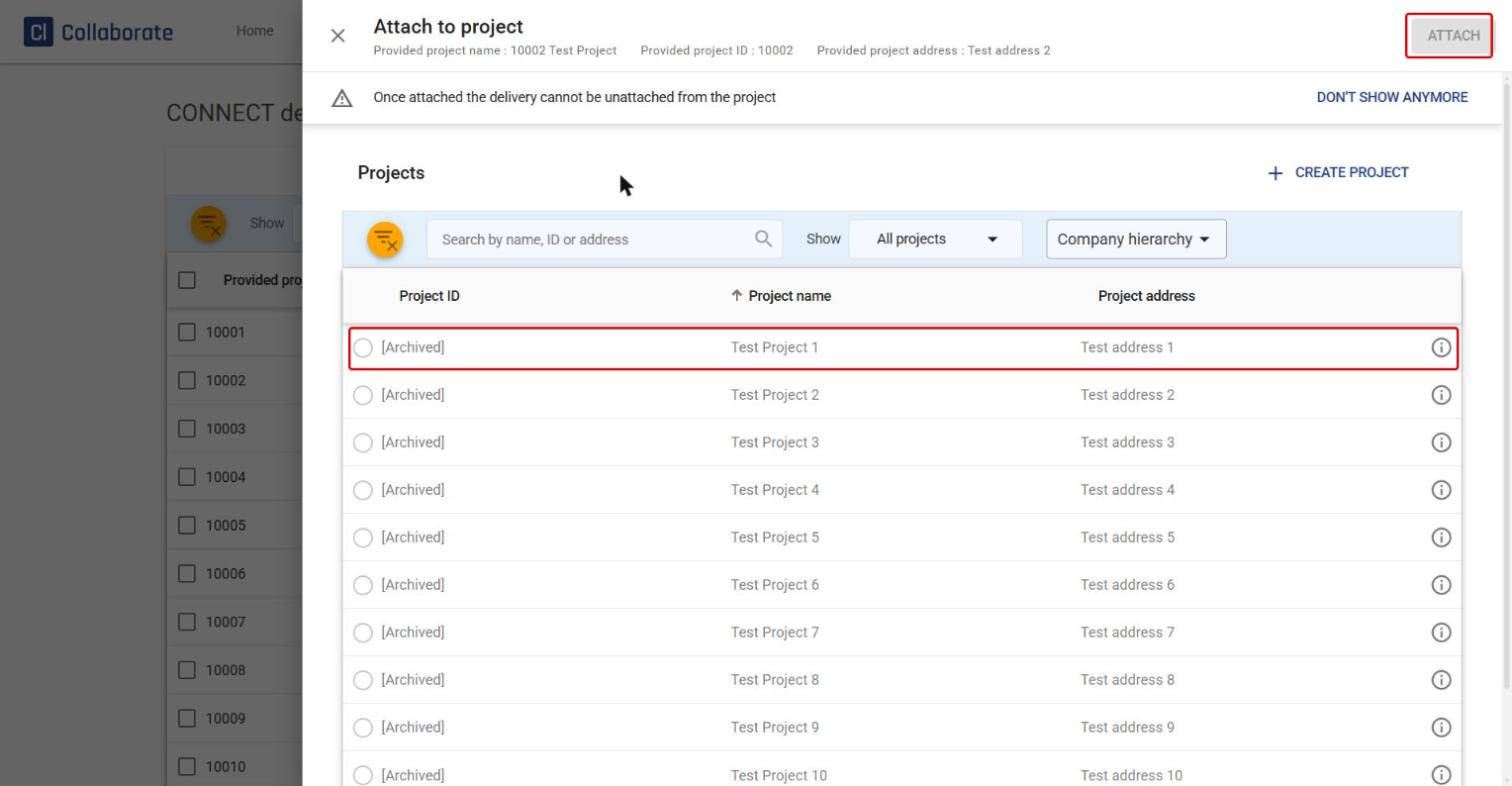
Select the right project in the Attach to project panel and click Attach. The delivery, and all the products in it, are then attached to the project.
15
If the right project isn’t in the list, click Create project in the Attach to project panel to create it, then select it and click Attach. For more on creating a project, see How to create a project.


