
Welcome to Cobuilder Training Portal
As a wholesaler, you can check the status of the CONNECT orders you’ve sent in Collaborate.
View sent orders
1
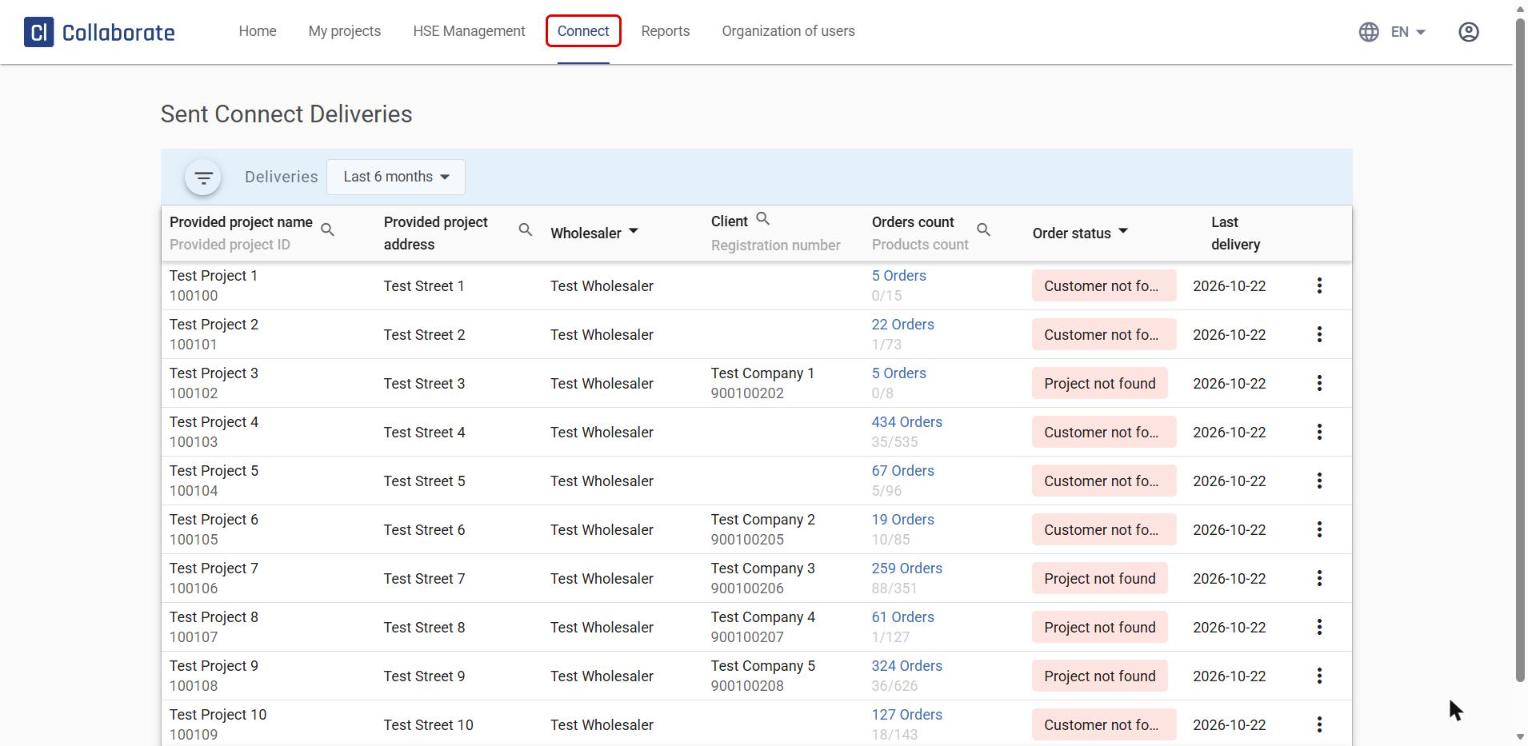
Log in to Collaborate and click Connect in the top menu. The Sent Connect Deliveries overview opens.
2
The first column, Provided project name, shows the project name the contractor gave you.
3
The Provided project address column shows the address the contractor gave you.
4
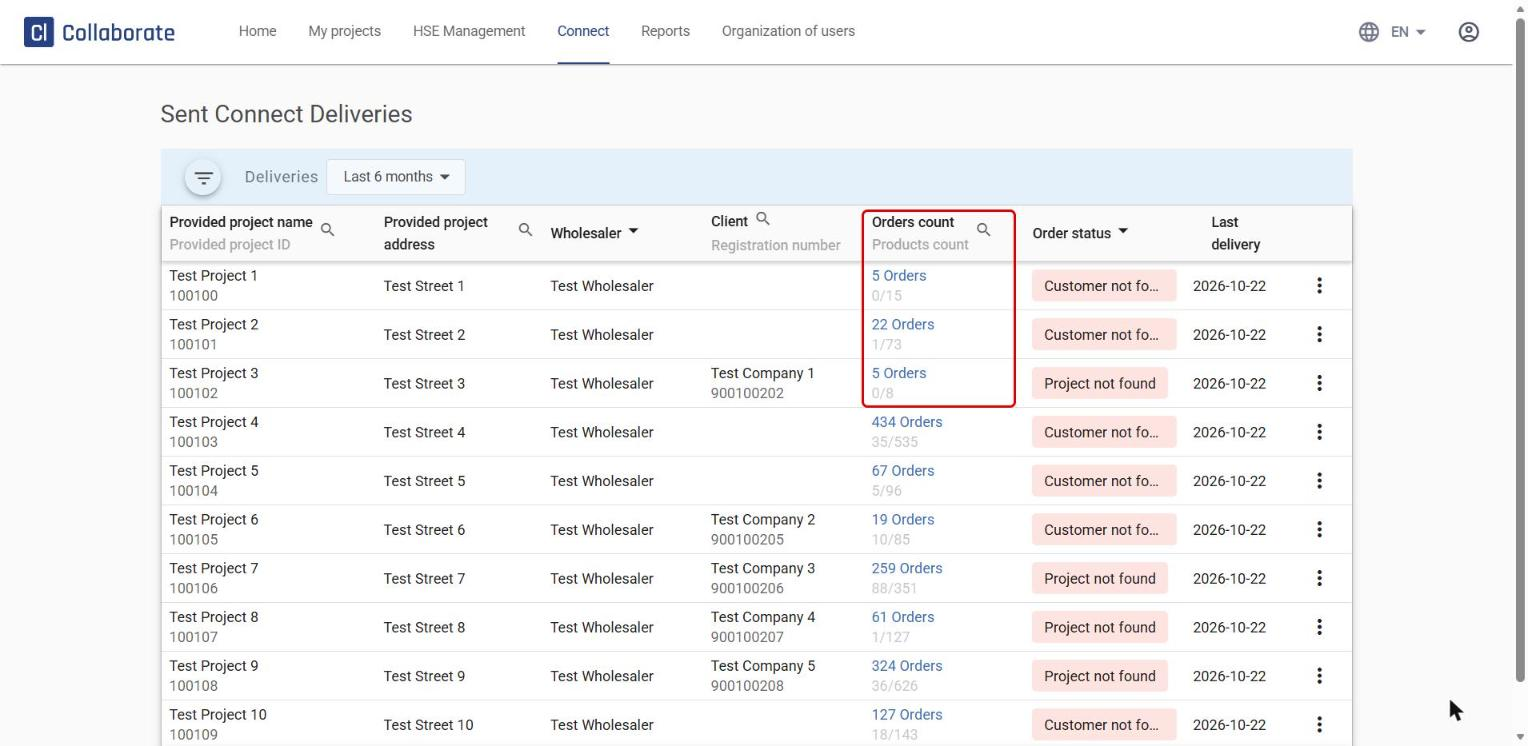
The Orders count column shows how many orders have been sent to the project. Below the number, you can see how many of the products are and aren’t found in Cobuilder’s database.
5
Click the number of orders to see more about the orders.
6
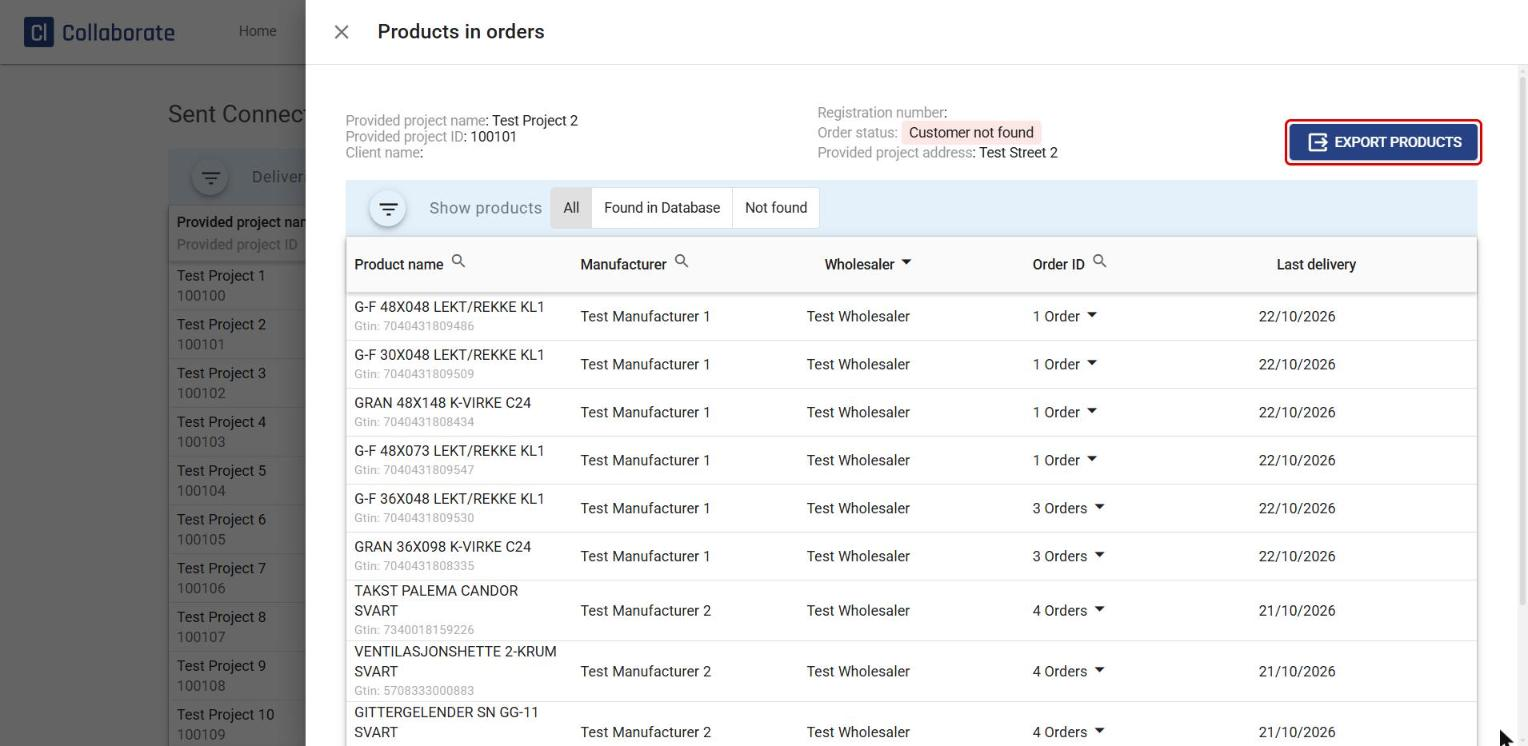
The Products in orders window shows all the products in the order. You can filter by All, Found in Database or Not found, and click Export products to download the list.
7
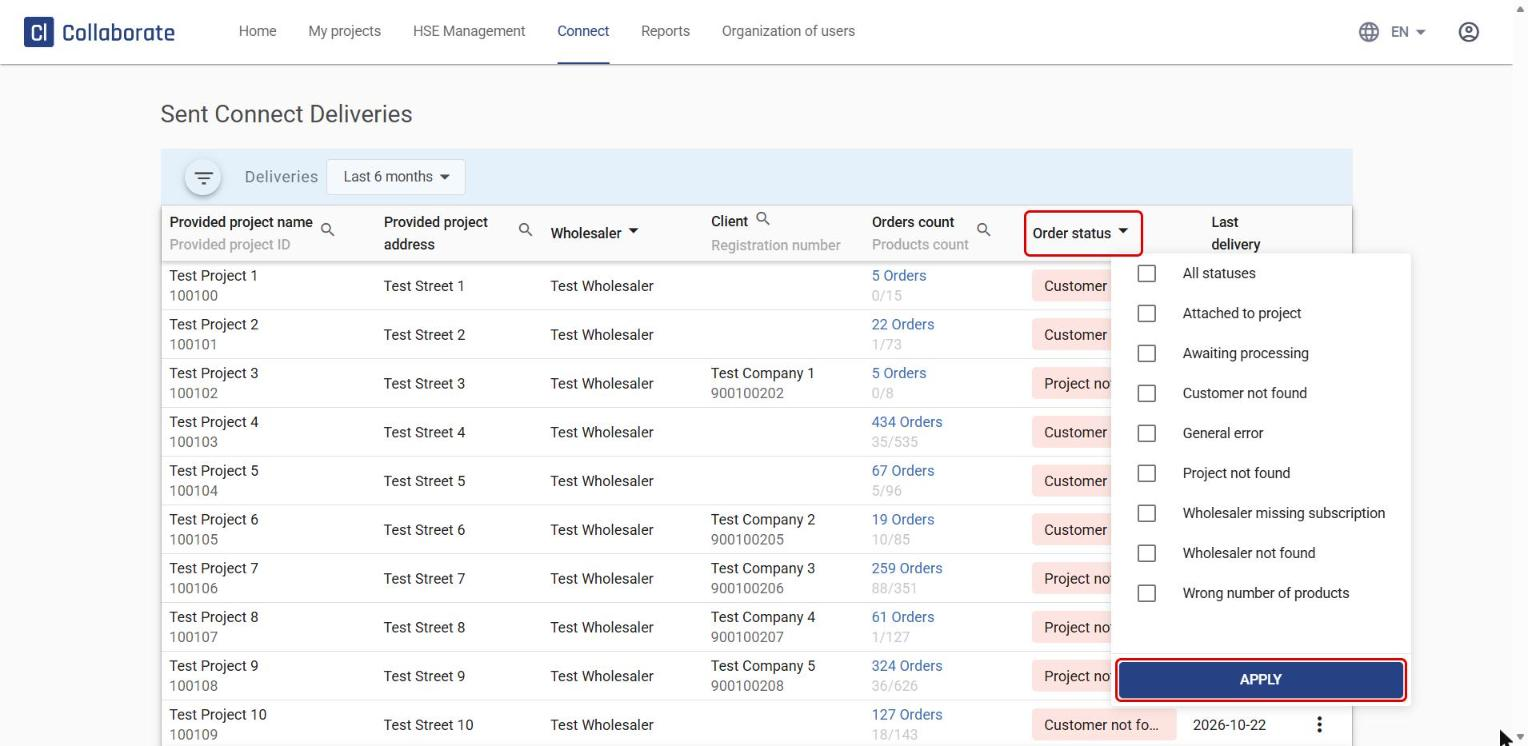
The order’s status is shown in the Order status column. You can filter by the statuses you want to see.
8
Click the status itself to see more about it.
What the statuses mean
9
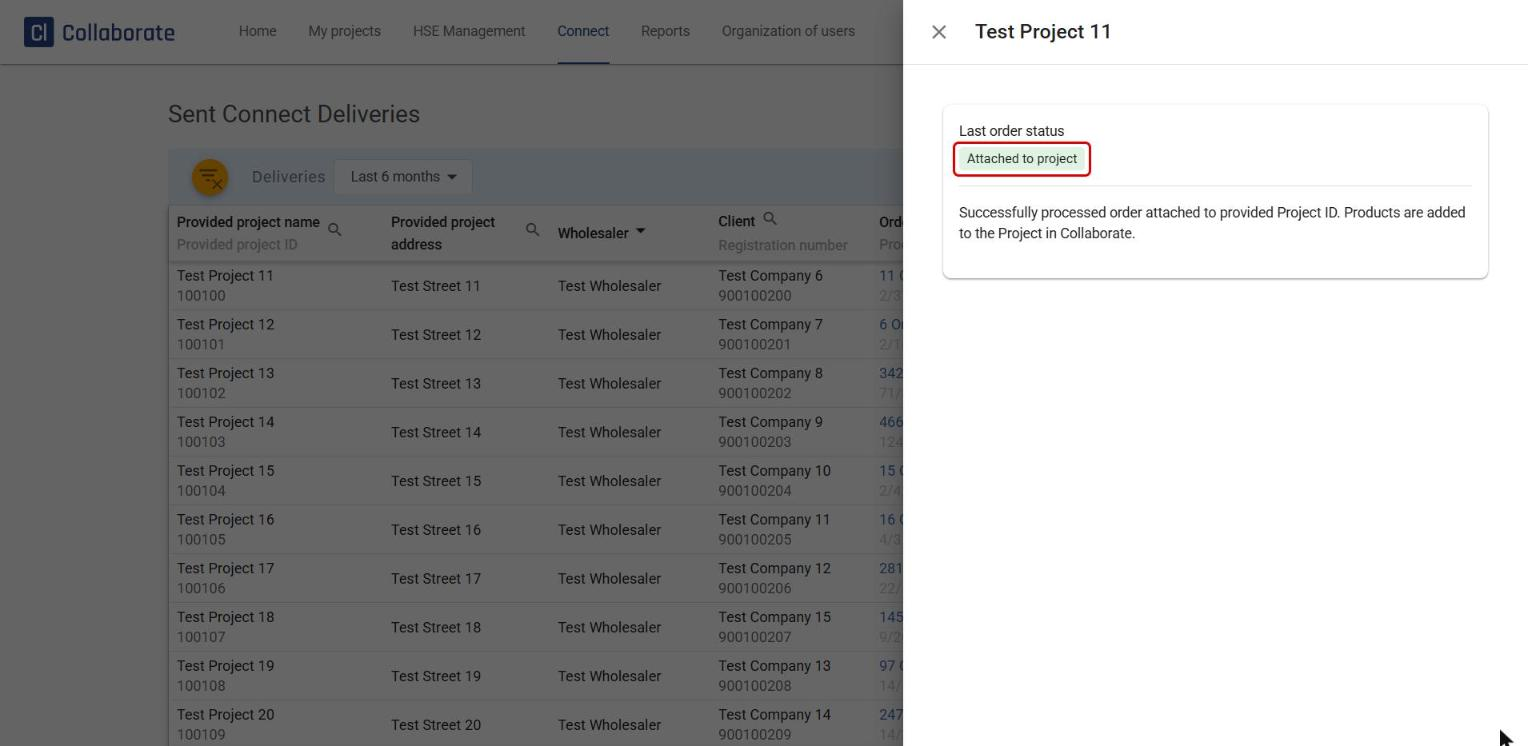
Attached to project means the order is attached to the contractor’s project in Collaborate.
10
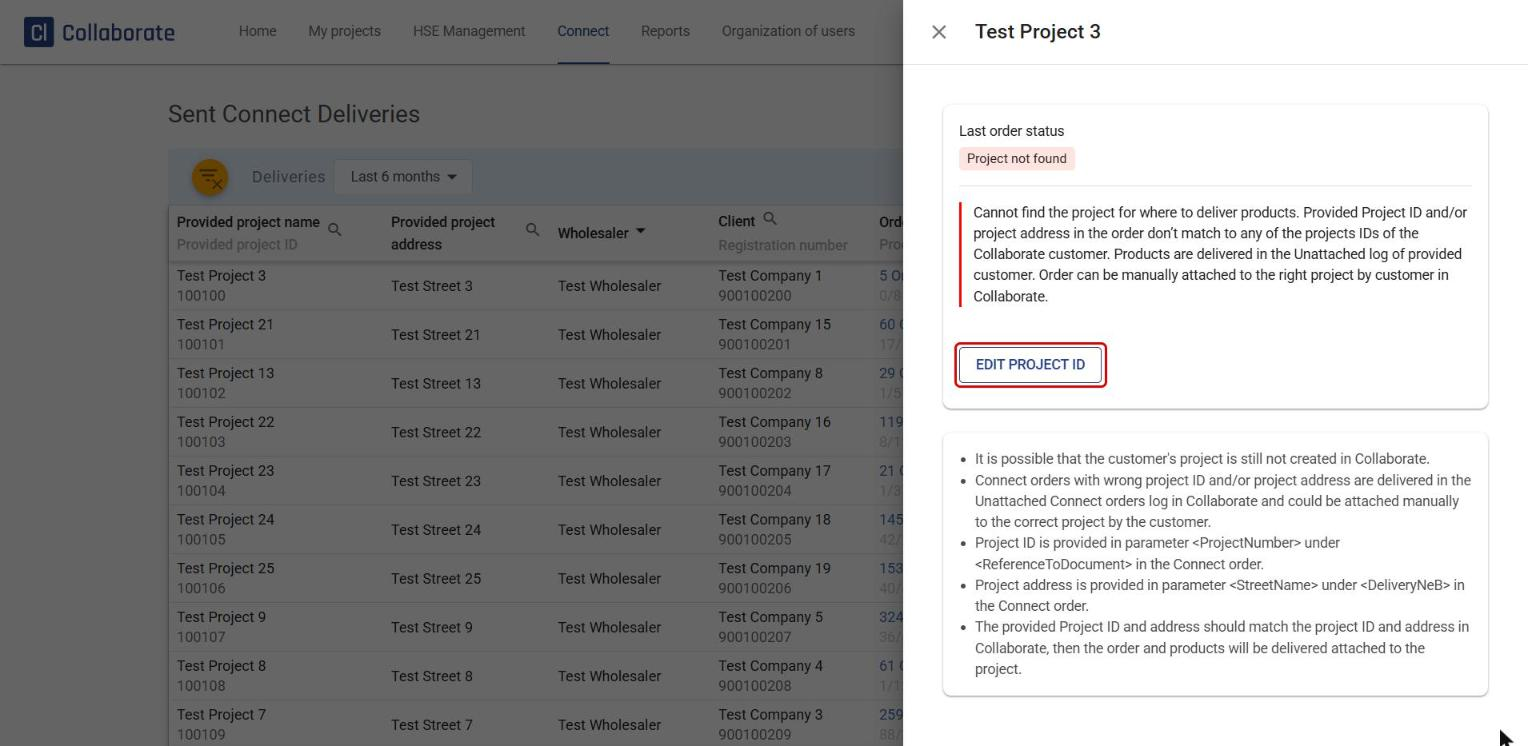
Project not found means the order has been delivered to the contractor in Collaborate, but the provided project ID or project address doesn’t match any of the customer’s registered projects. The products then end up under the customer’s unattached deliveries, and the customer can attach the order to the right project manually. You can correct the project ID yourself by clicking Edit project ID. After you edit it, the order gets the status Awaiting processing. If the system finds a match among the customer’s projects, the status changes to Attached to project.
11
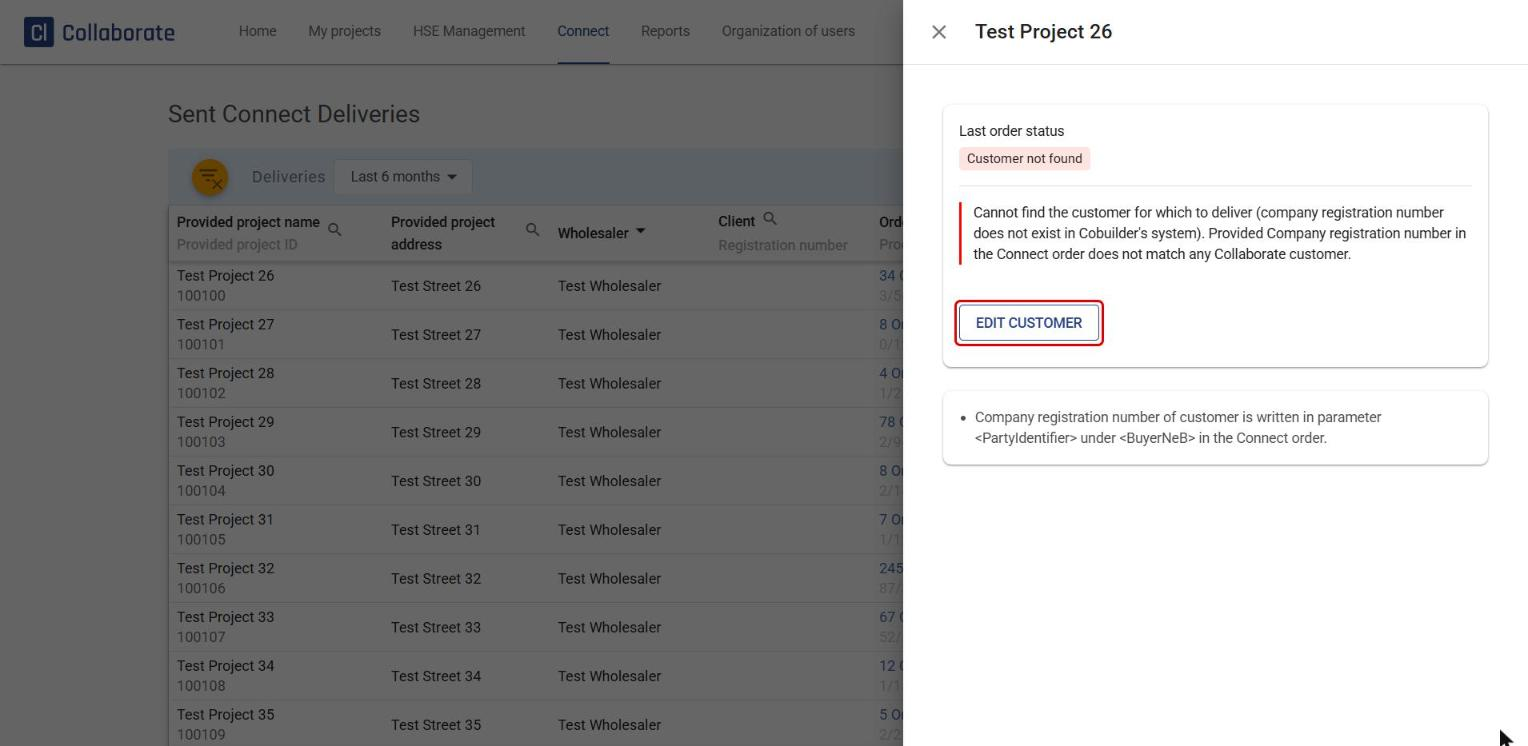
Customer not found means the system can’t find the customer the order is for: the company registration number in the CONNECT order doesn’t match any customer in Collaborate. You can correct the customer’s registration number by clicking Edit customer. After you edit it, the order gets the status Awaiting processing. If the system finds a match on both the registration number and the project ID, the status changes to Attached to project.
12
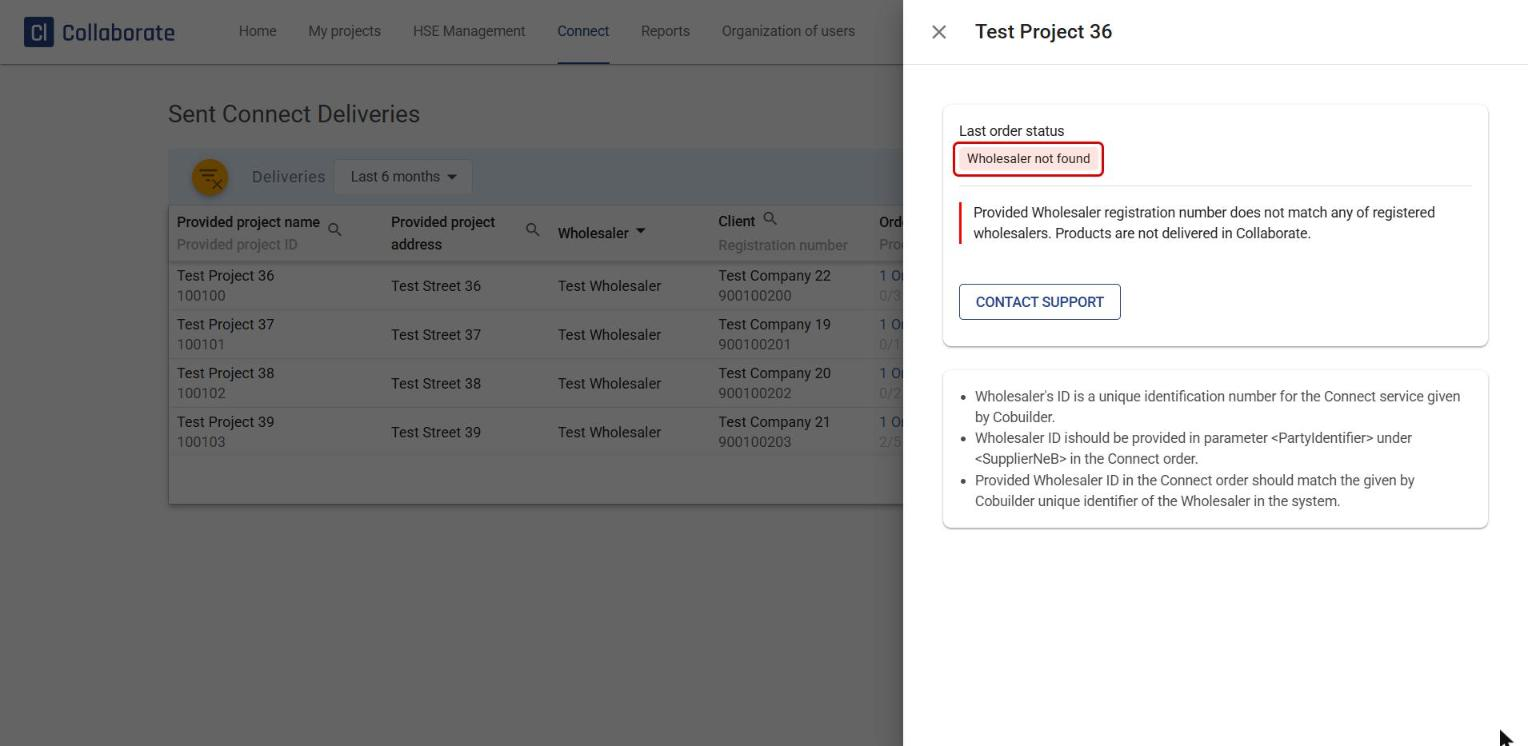
Wholesaler not found means the wholesaler’s registration number doesn’t match any registered wholesaler in Collaborate. The products are then not delivered. You can’t fix this yourself, so contact Cobuilder support.
13
General error means something went wrong while processing the CONNECT order, for example a validation error, an error in the order header or missing information in mandatory fields. The order isn’t processed, and the products aren’t delivered.


