
Welcome to Cobuilder Training Portal
If your company already has an active subscription, or has had a subscription in the past, you can activate a new subscription or reactivate the subscription you had previously.
Activate a subscription
1
Log in at portal.cobuilder.com/login.
2
Go to Subscription management.

3
Click Details to see more about the available subscriptions.

4
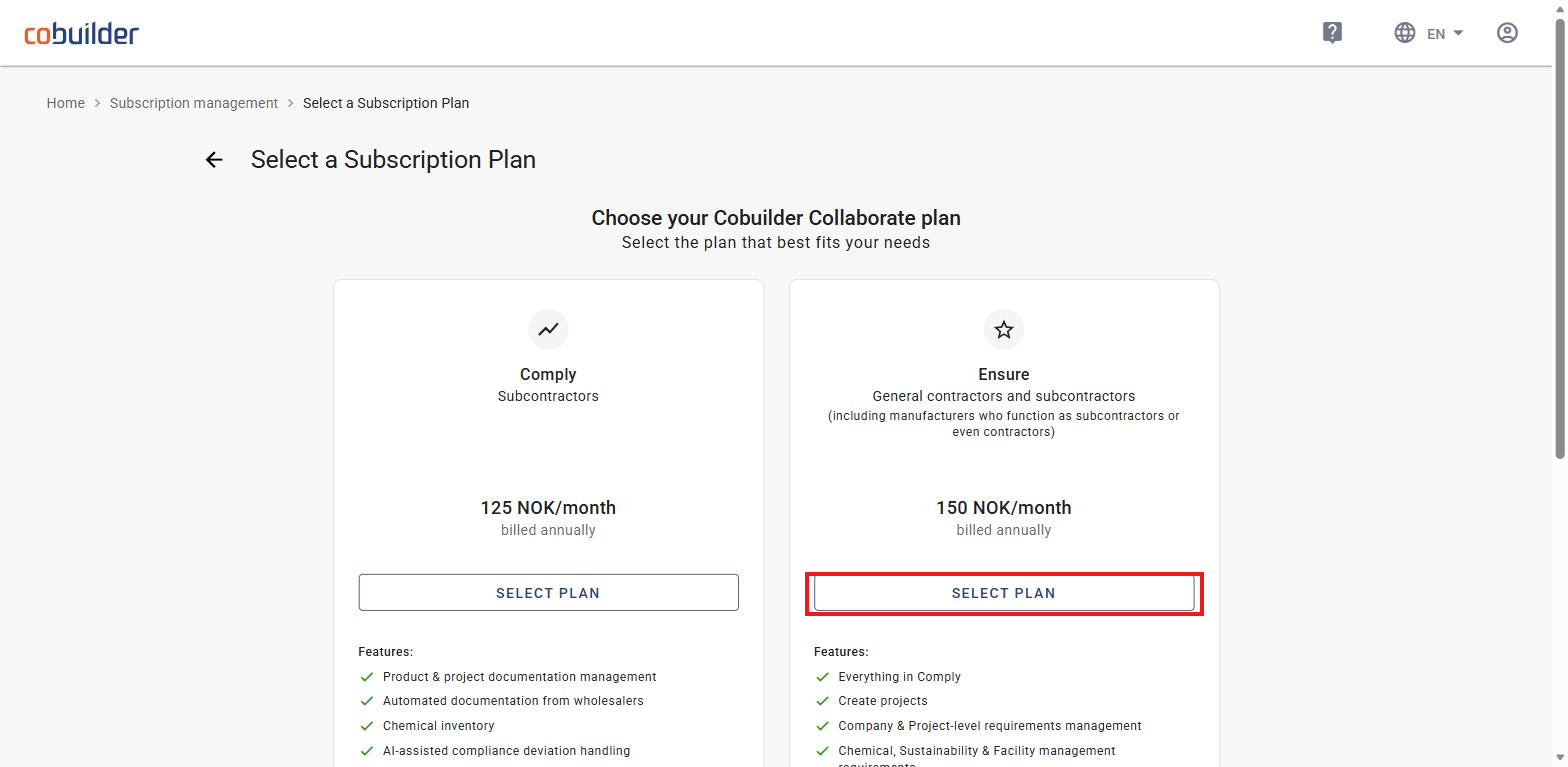
Select a plan — Comply or Ensure — and click Select plan.
5
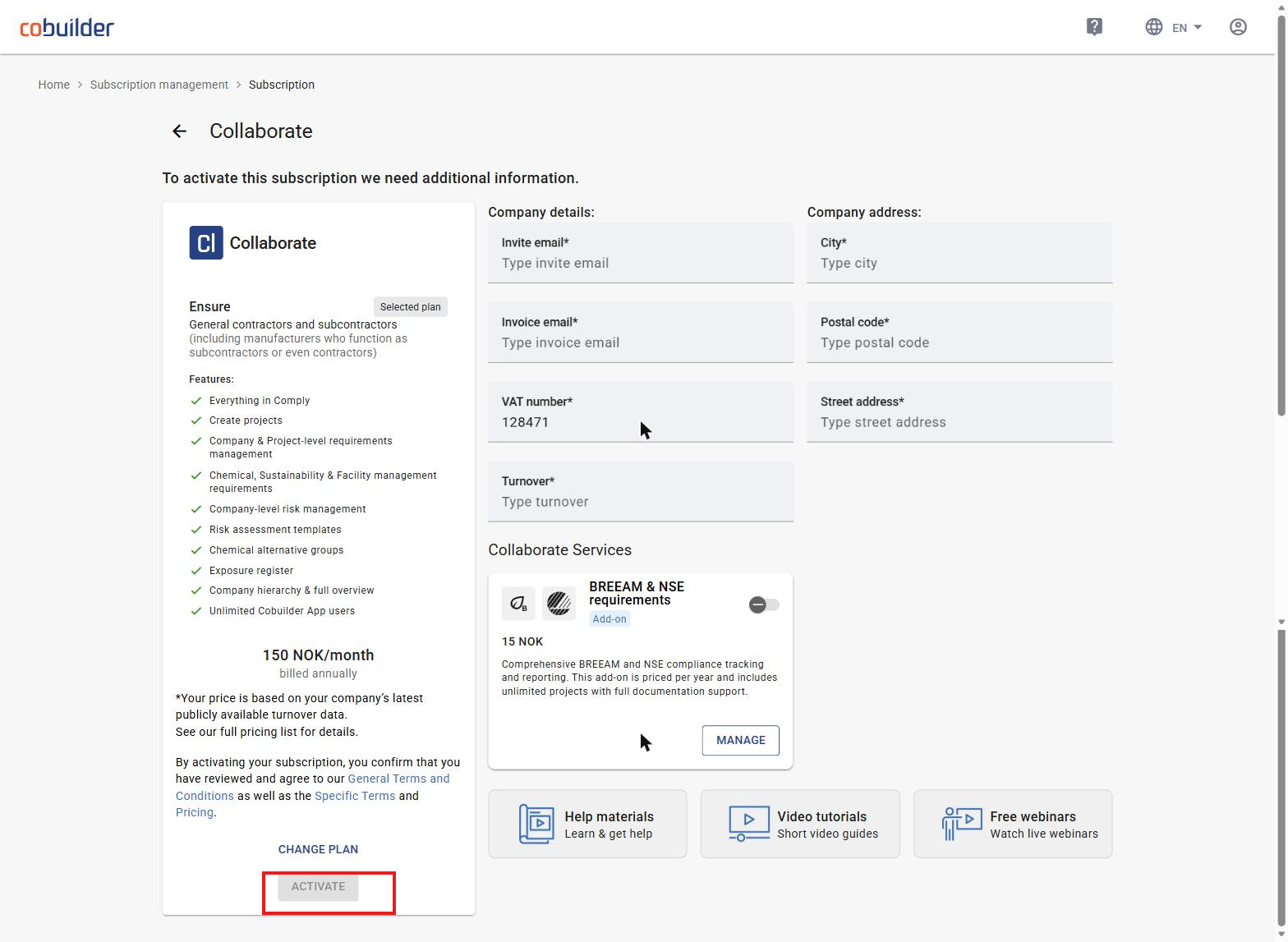
Fill in your company details, review the terms and pricing, and click Activate.
6
You’ll get a message confirming the subscription is activated. Click Go to application to open it.
If you already have a Collaborate subscription with Comply, you can upgrade to Ensure. Comply is designed for subcontractors. Ensure is designed for general contractors and subcontractors, including manufacturers who function as subcontractors or even contractors.
Change or upgrade subscription
1
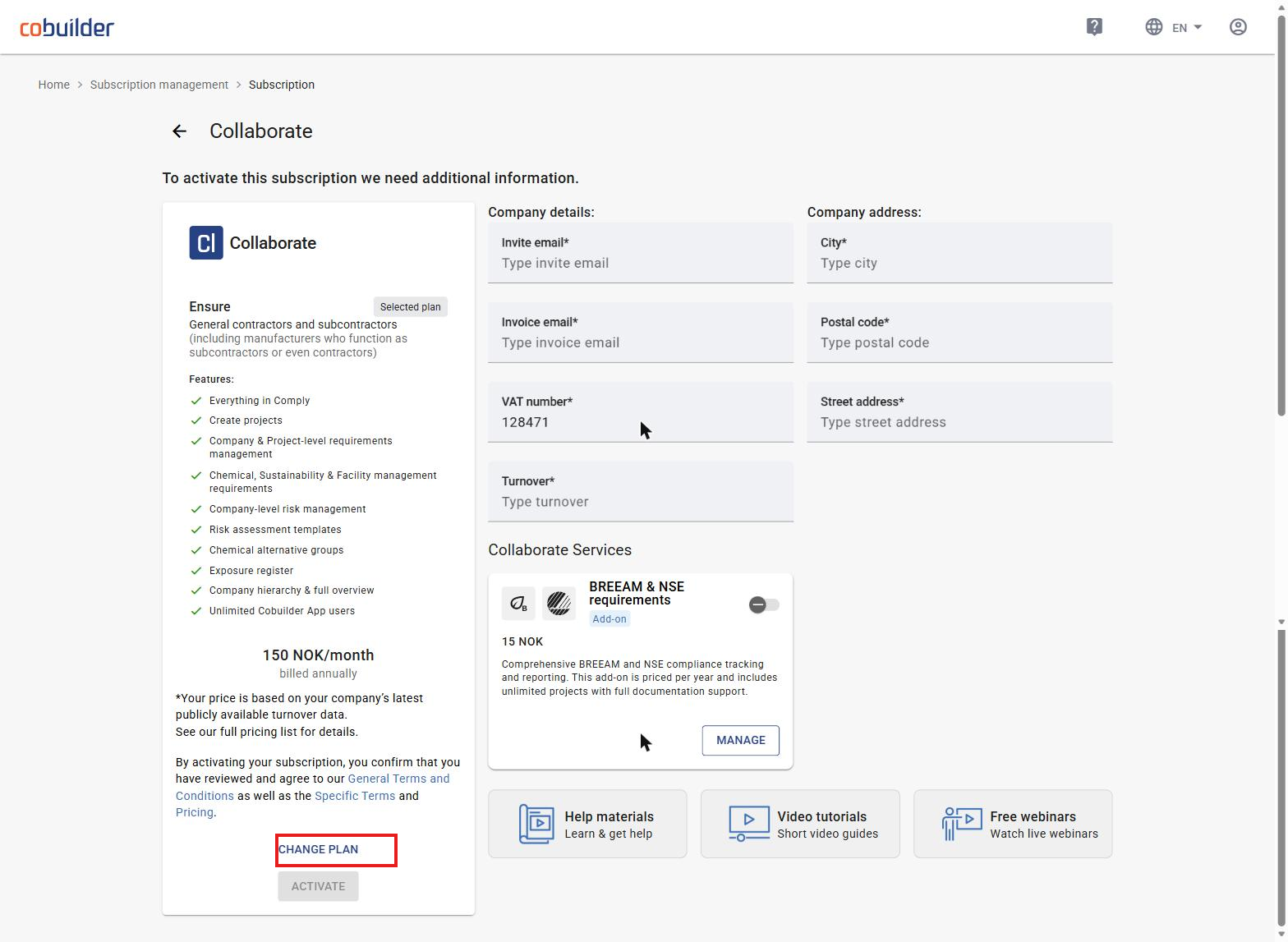
To compare features, click Change plan.
2
You’ll see an overview of your current plan and what’s included in Ensure. Click Select plan to upgrade.
3
Review the plan overview and click Activate.
4
You’ll get a confirmation that the subscription is activated. Click Go to application to open Collaborate.


