Welcome to Cobuilder Training Portal
When you upload an updated edition of a document in Cobuilder Supply, you can link it to the old edition as a new version. This keeps the version history in one place, and the old edition is deactivated automatically.
Add a new version
1
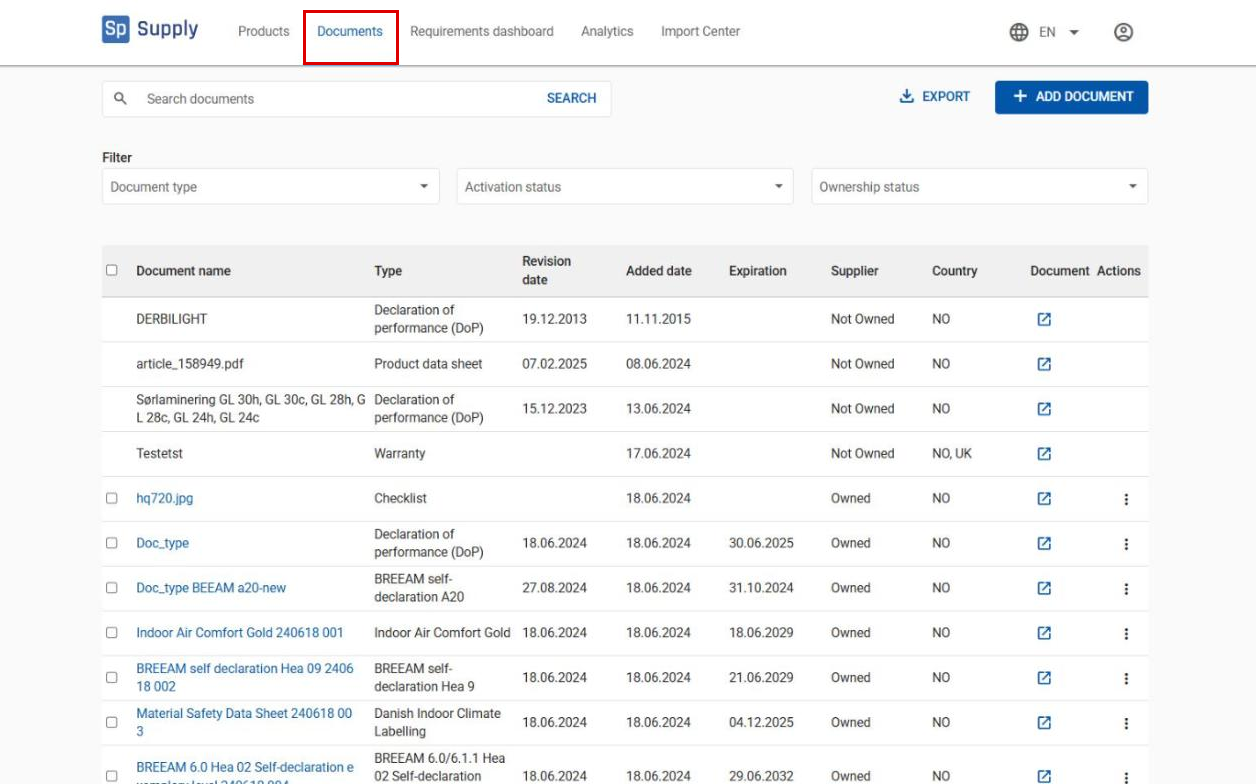
Go to Documents in the top menu.
2
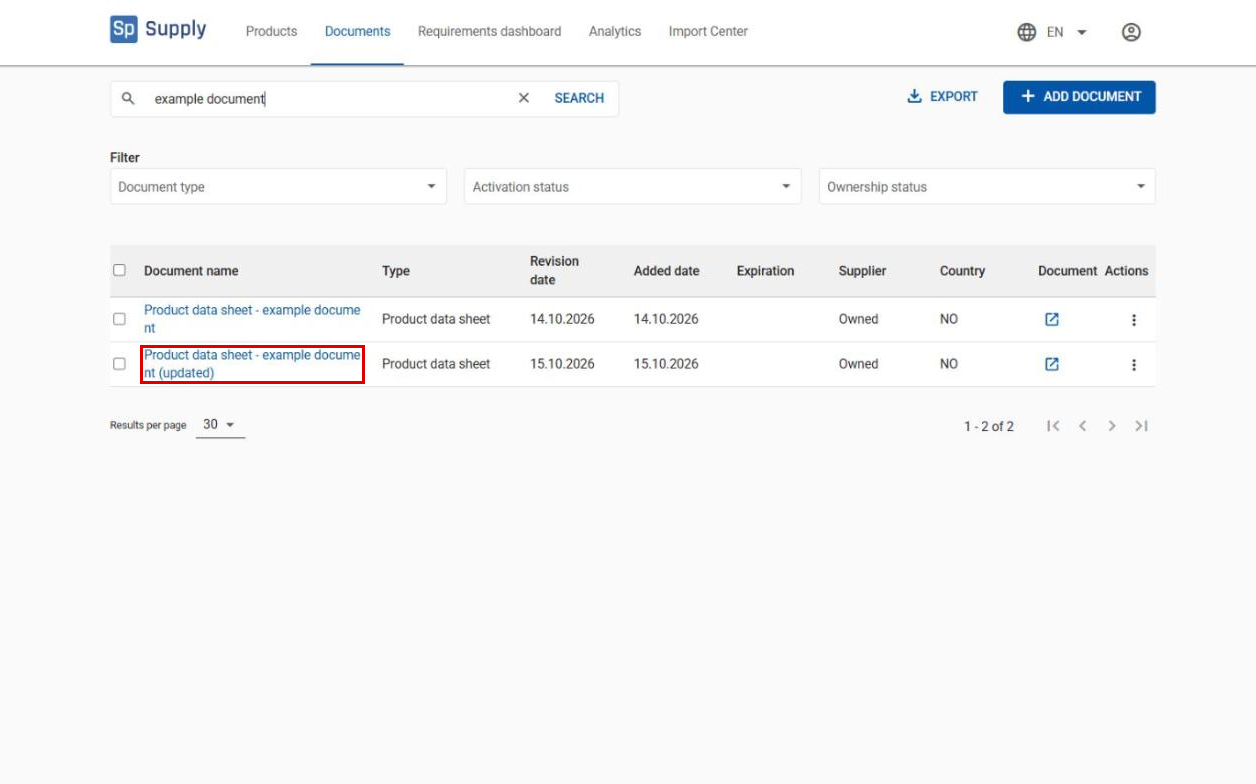
Click the document you want to update to open its details page.
3
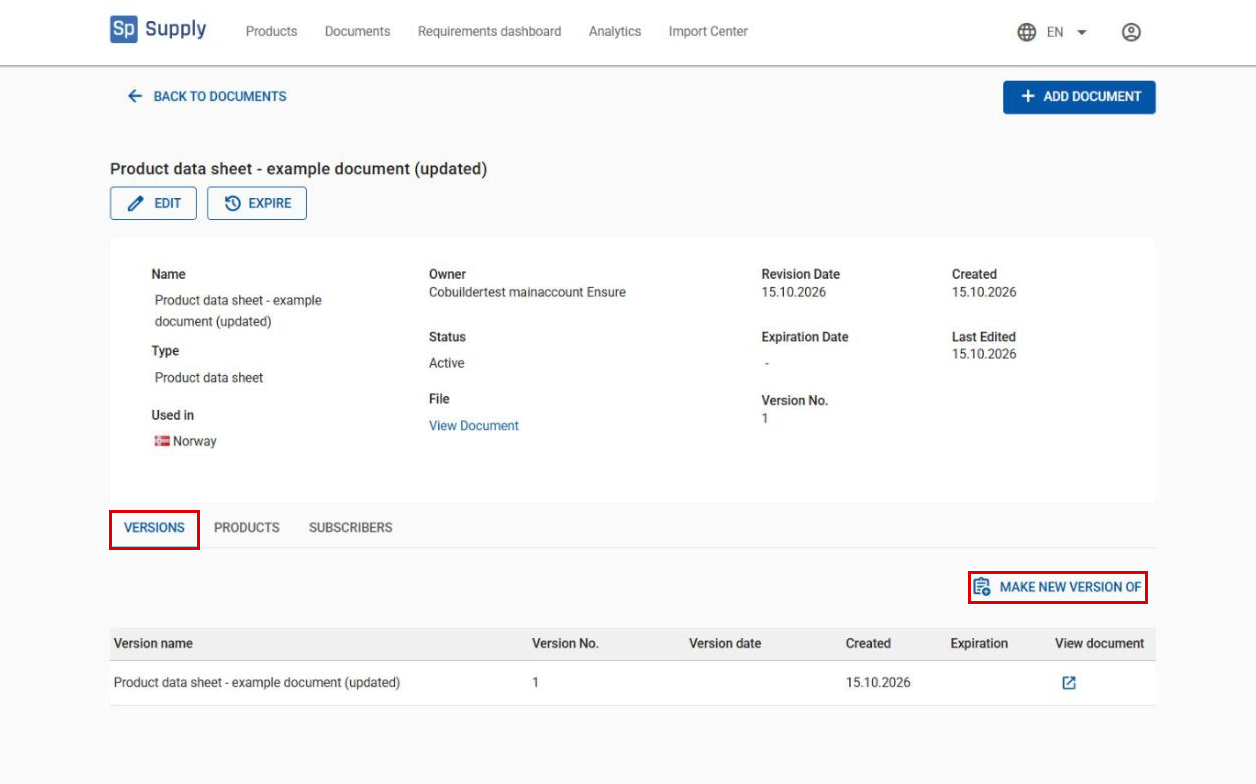
Go to the Versions tab and click Make new version of. This opens an overview of all active documents you have uploaded in Cobuilder Supply.
4
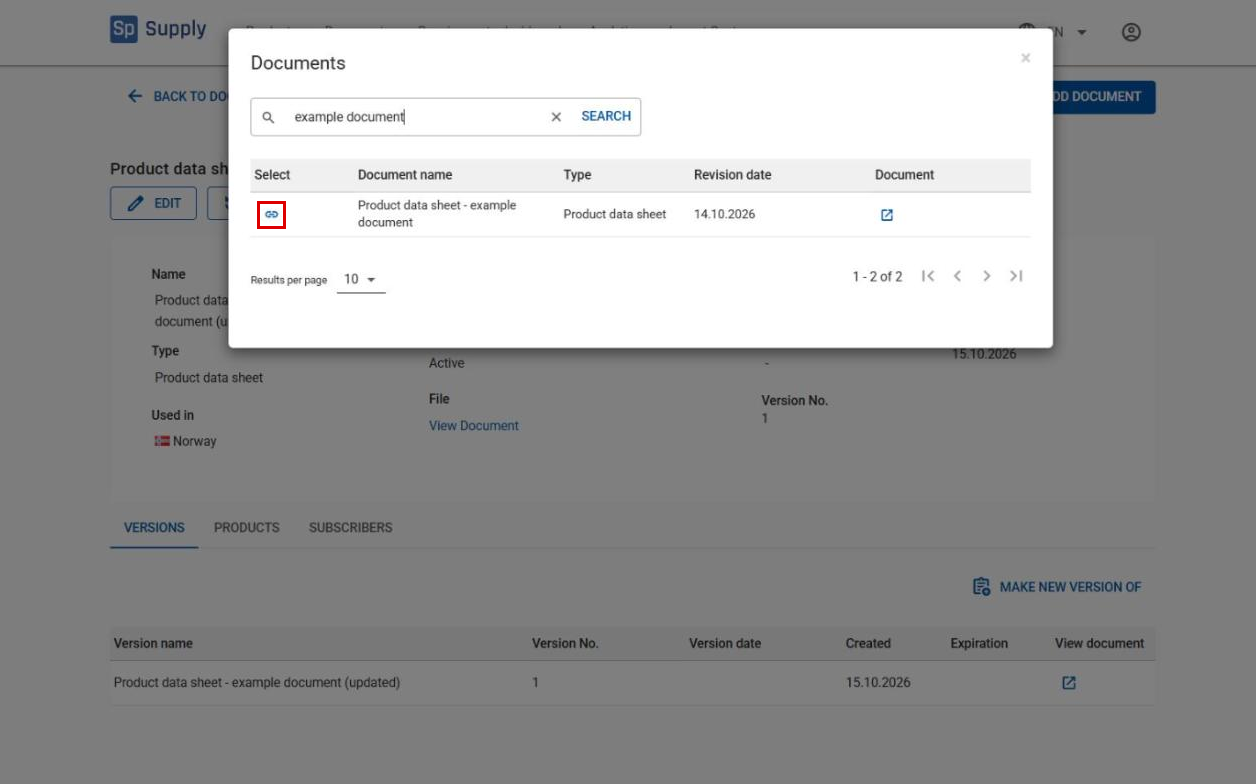
Find the old version of the document, and click the chain icon in front of the document name to set the new document as a new version of it.
5
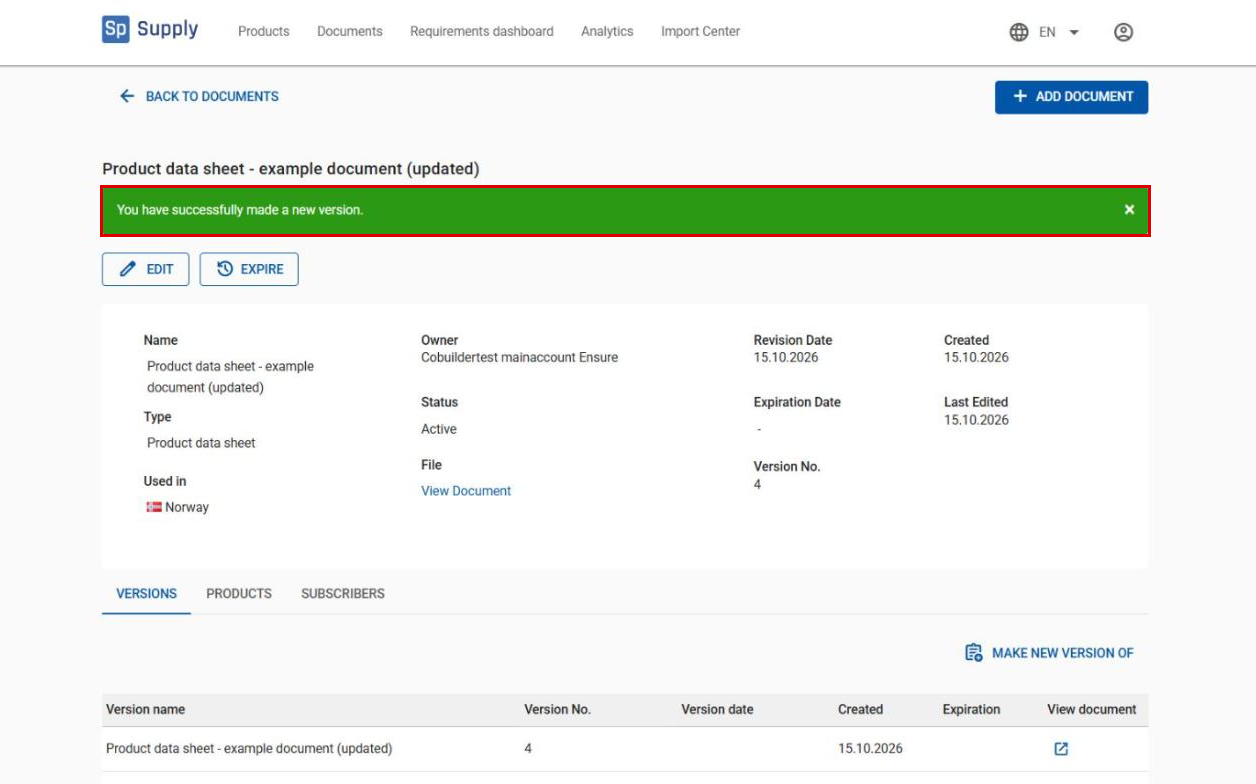
You now get the confirmation You have successfully made a new version. The new document gets a higher version number, and the old version gets an expiration date.
6
If you chose the wrong document as the new version, click Undo in the versions table.
7
You then get a message that the documents are no longer versions. This means the version link has been removed, and both documents are back in their original state.
Important to note
8
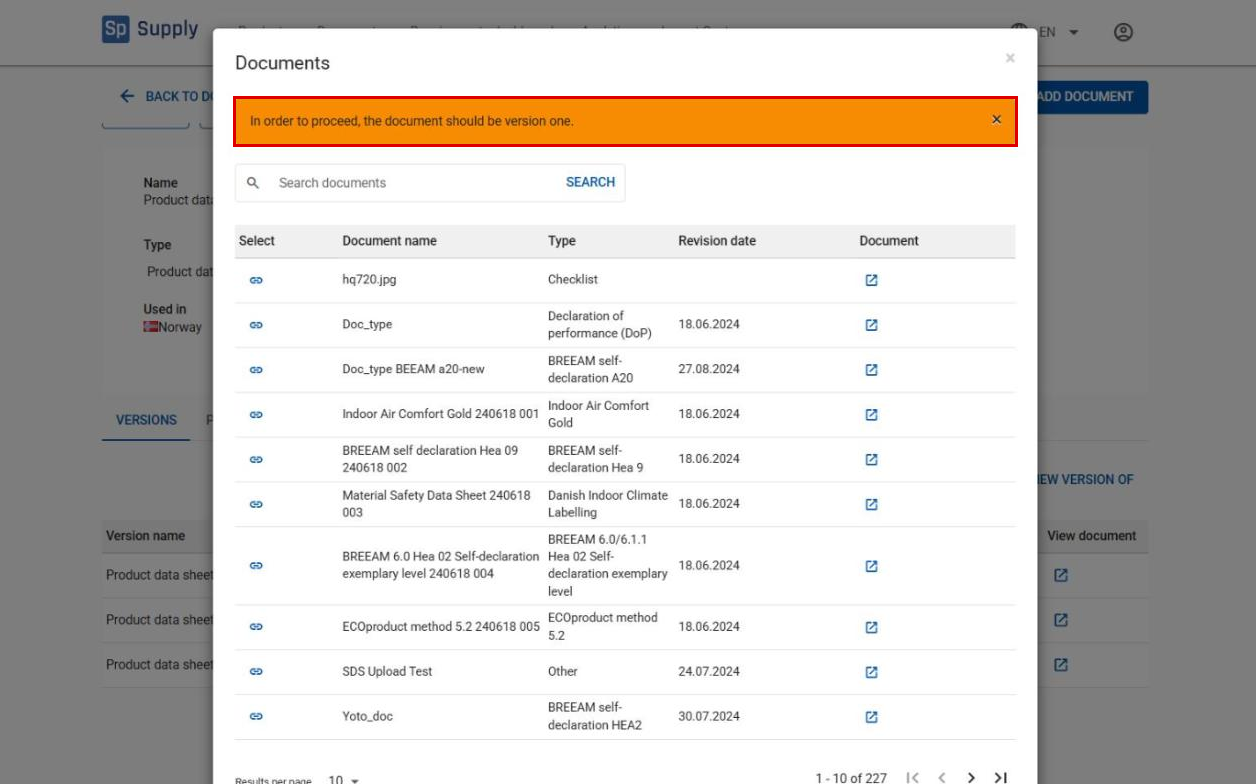
You can only add a document as a new version if the document itself is Version 1. If you try to use a document that already has Version 2 or higher, you get the error message In order to proceed, the document should be version one. as soon as you open Make new version of.
9
When you set a new document as a new version of another document, the old document is deactivated automatically.