Welcome to Cobuilder Training Portal
In Cobuilder Collaborate, you can quickly see which products in your project are relevant for Nordic Swan Ecolabel certification and what status each product has.
Open the overview
1
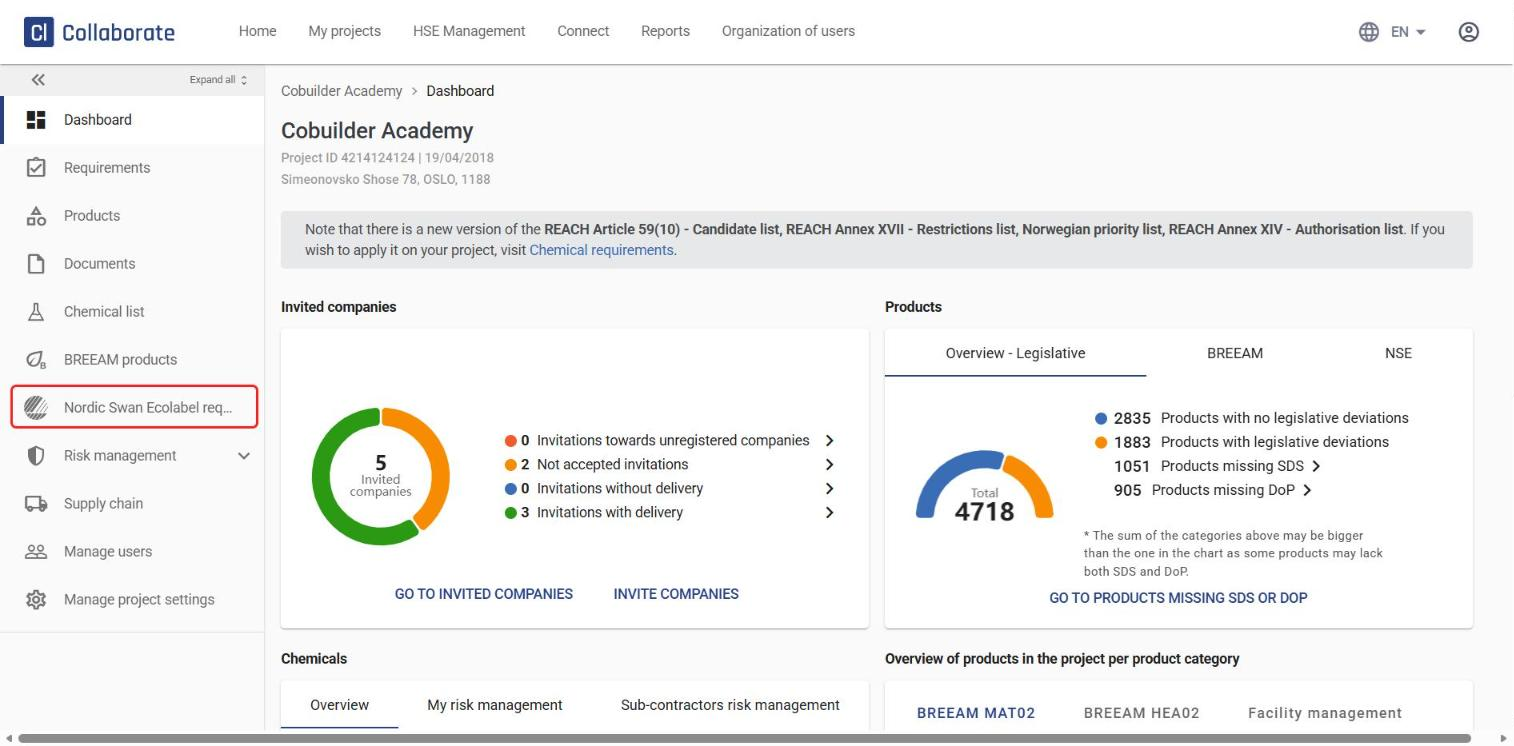
Go to your project and click Nordic Swan Ecolabel requirements in the left-hand menu.
2
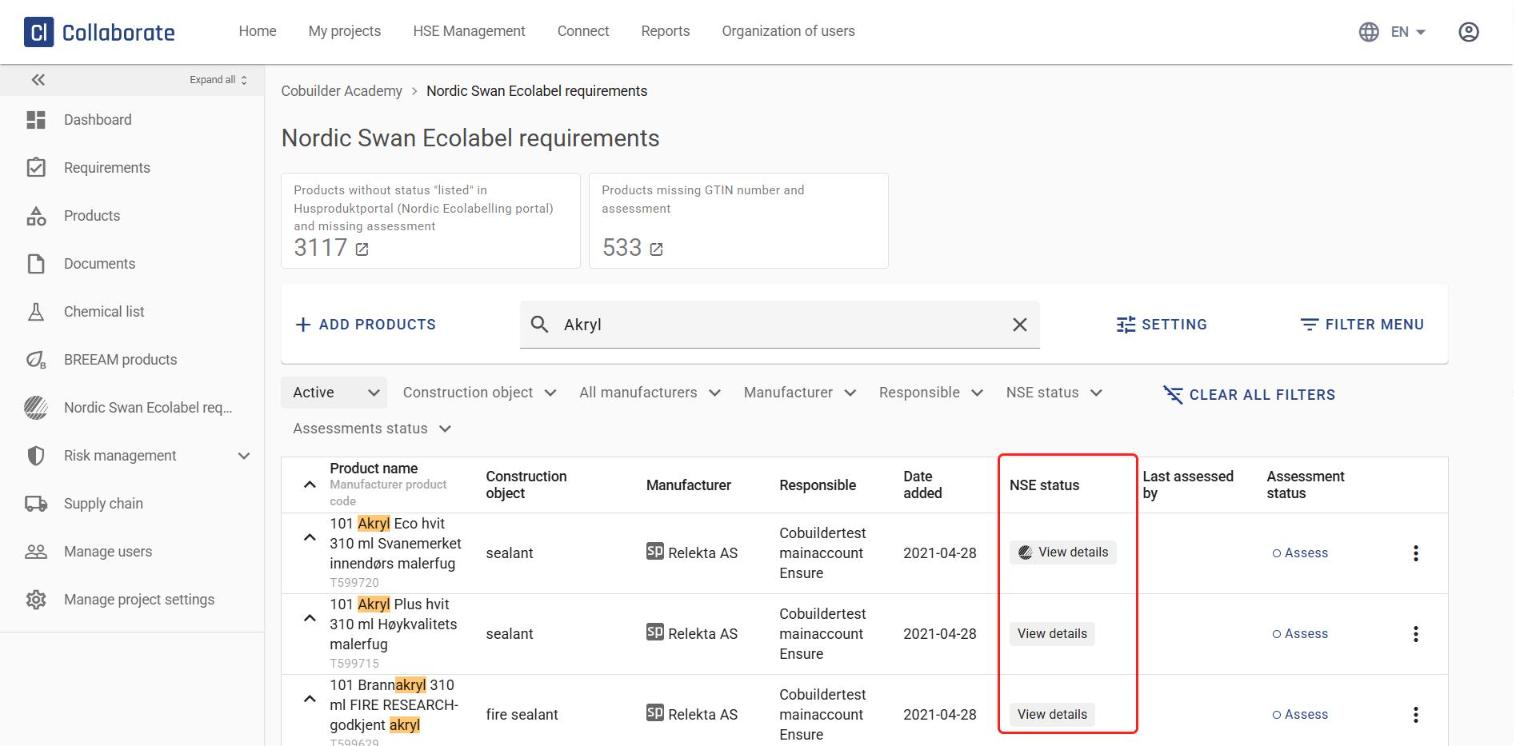
You’ll see an overview of the products in the project that are relevant for the Nordic Swan Ecolabel. The NSE status column shows the status of each product. Click a status to see more details.
Understand the statuses
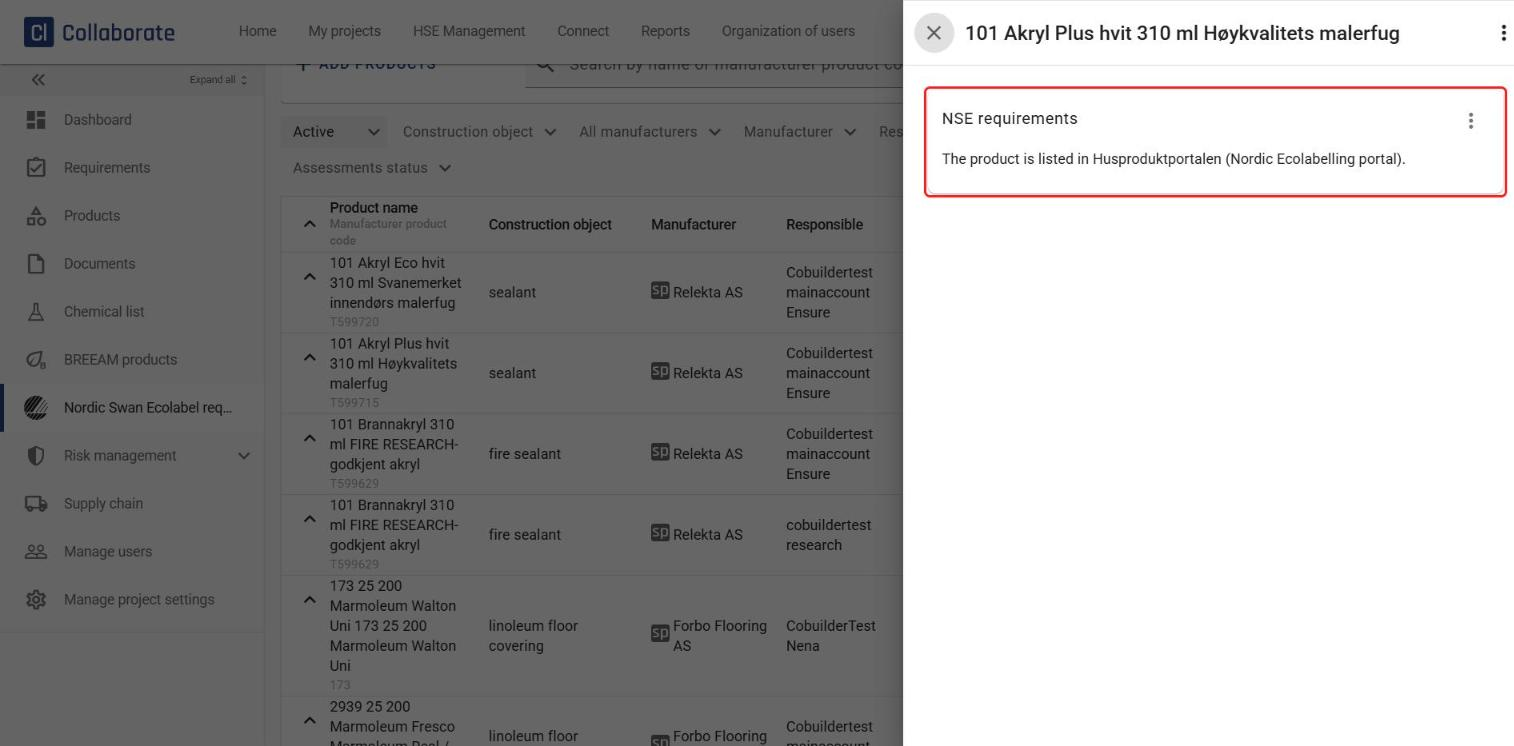
View details – The product is listed in Husproduktportalen (the Nordic Ecolabelling portal).
View details (with the Nordic Swan Ecolabel icon) – The product is Nordic Swan Ecolabelled.
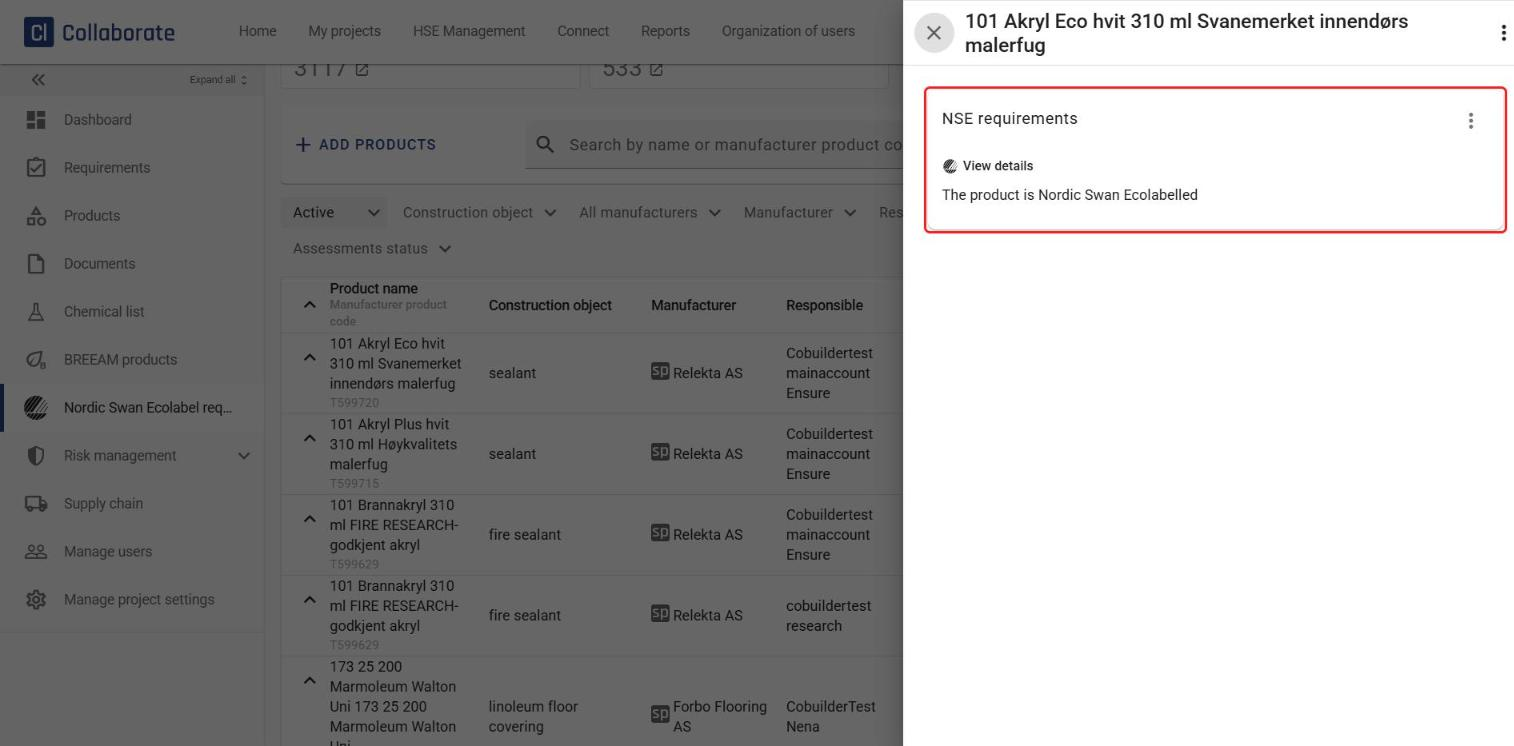
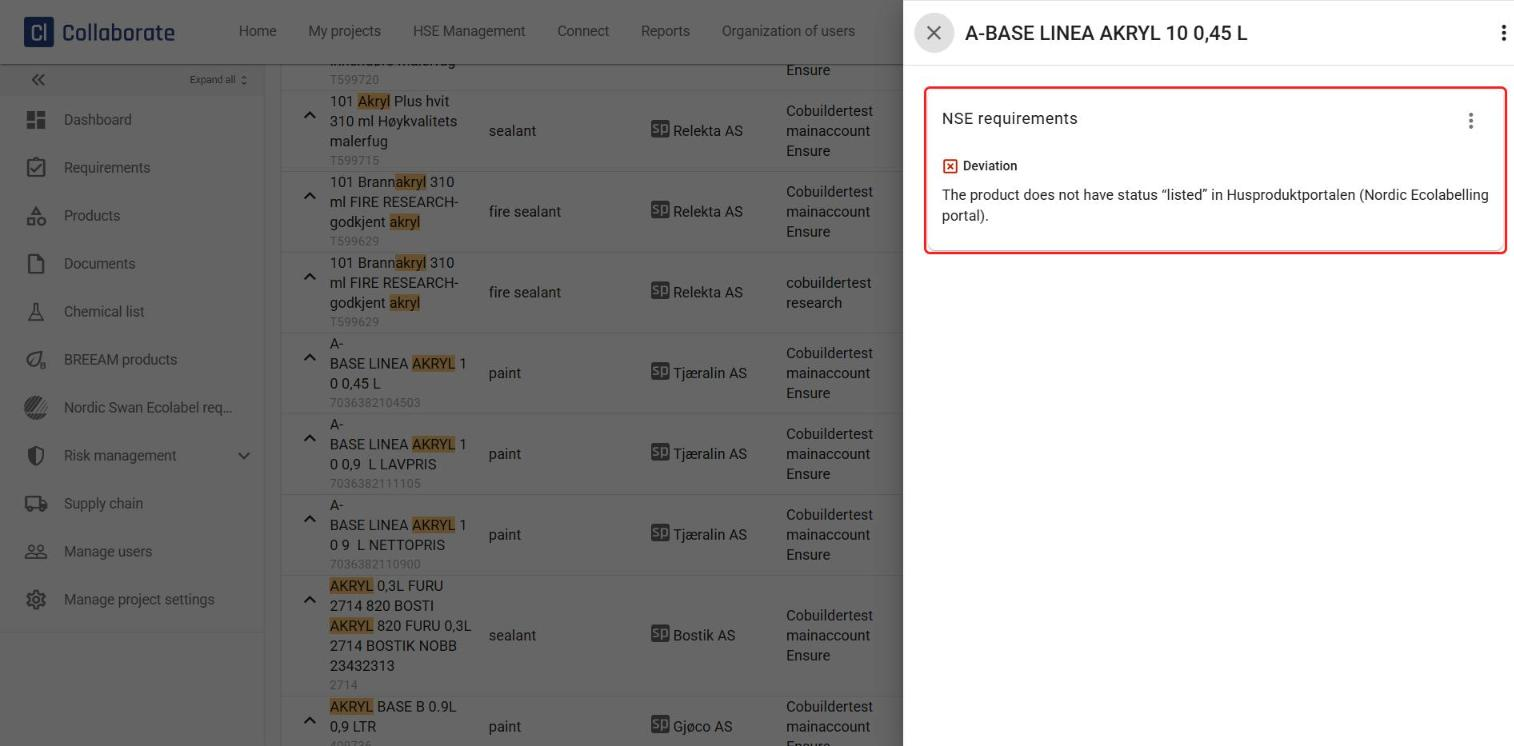
Deviation – The product doesn’t have the status “listed” in Husproduktportalen.
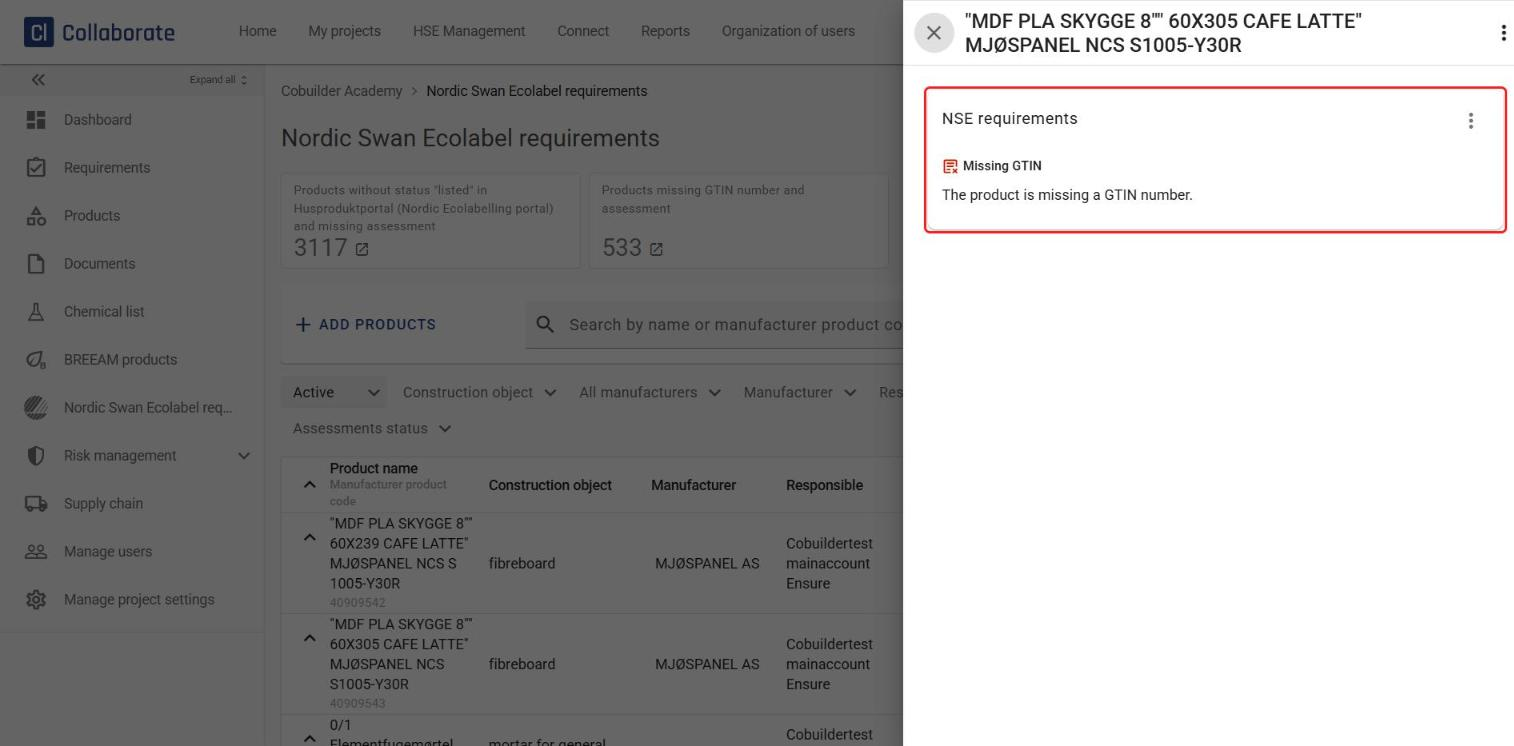
Missing GTIN – The product is missing a GTIN number.
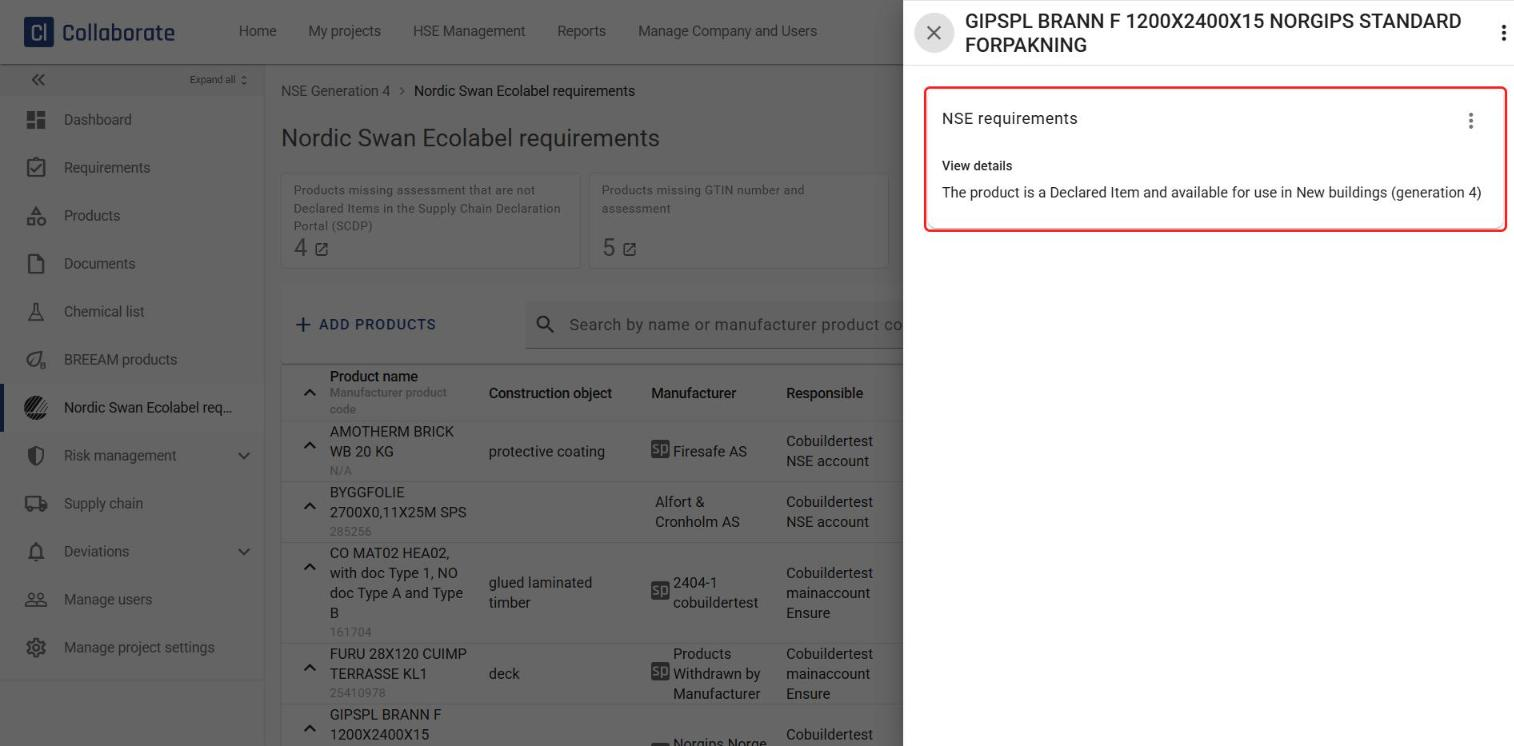
View details (New buildings – generation 4) – The product is a declared item and is available for use in New buildings (generation 4).
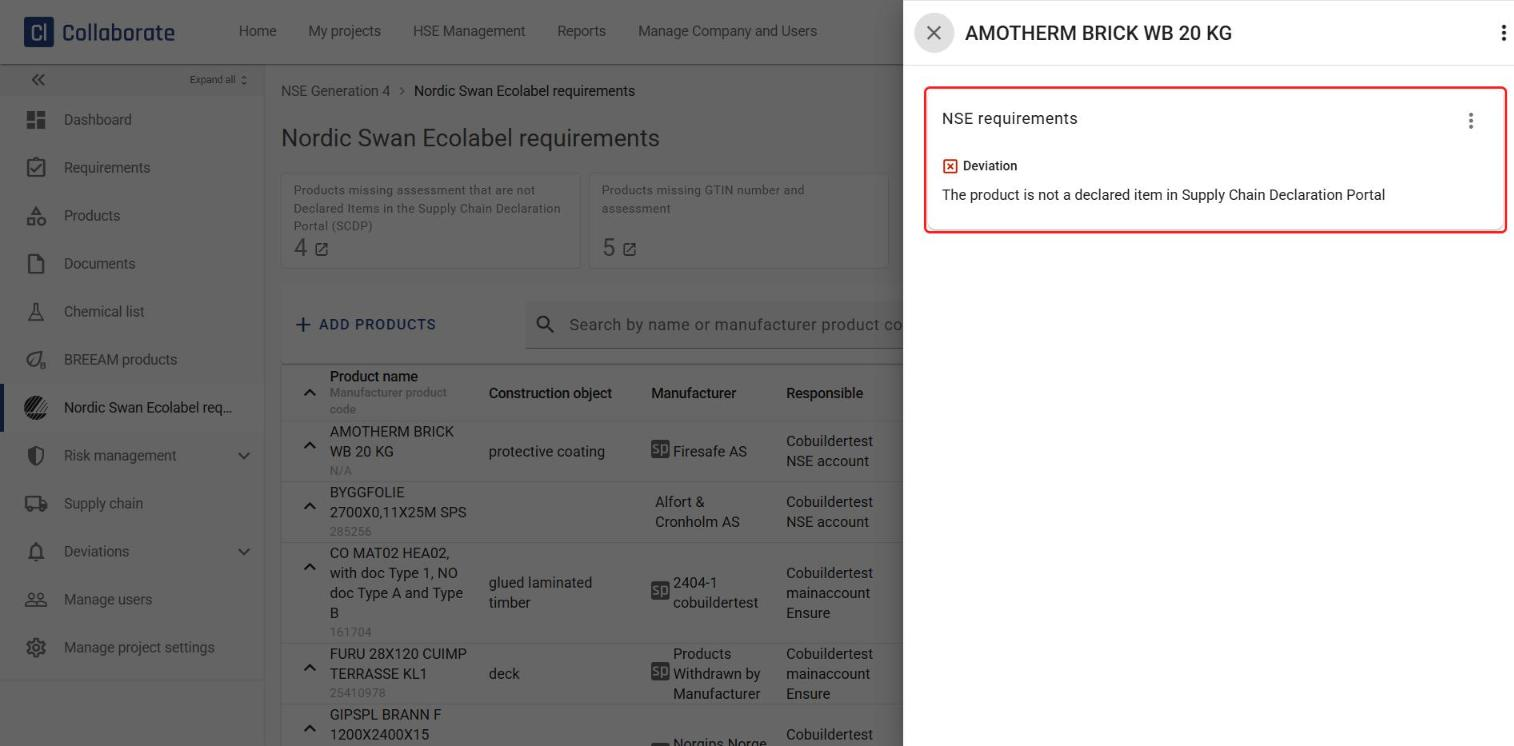
Deviation (New buildings – generation 4) – The product is not a declared item in the Supply Chain Declaration Portal (SCDP).
Find products that need follow-up
Above the table, you’ll find two counters: Products without status “listed” in Husproduktportal (Nordic Ecolabelling portal) and missing assessment and Products missing GTIN number and assessment. In generation 4 projects, the first counter is called Products missing assessment that are not Declared Items in the Supply Chain Declaration Portal (SCDP).
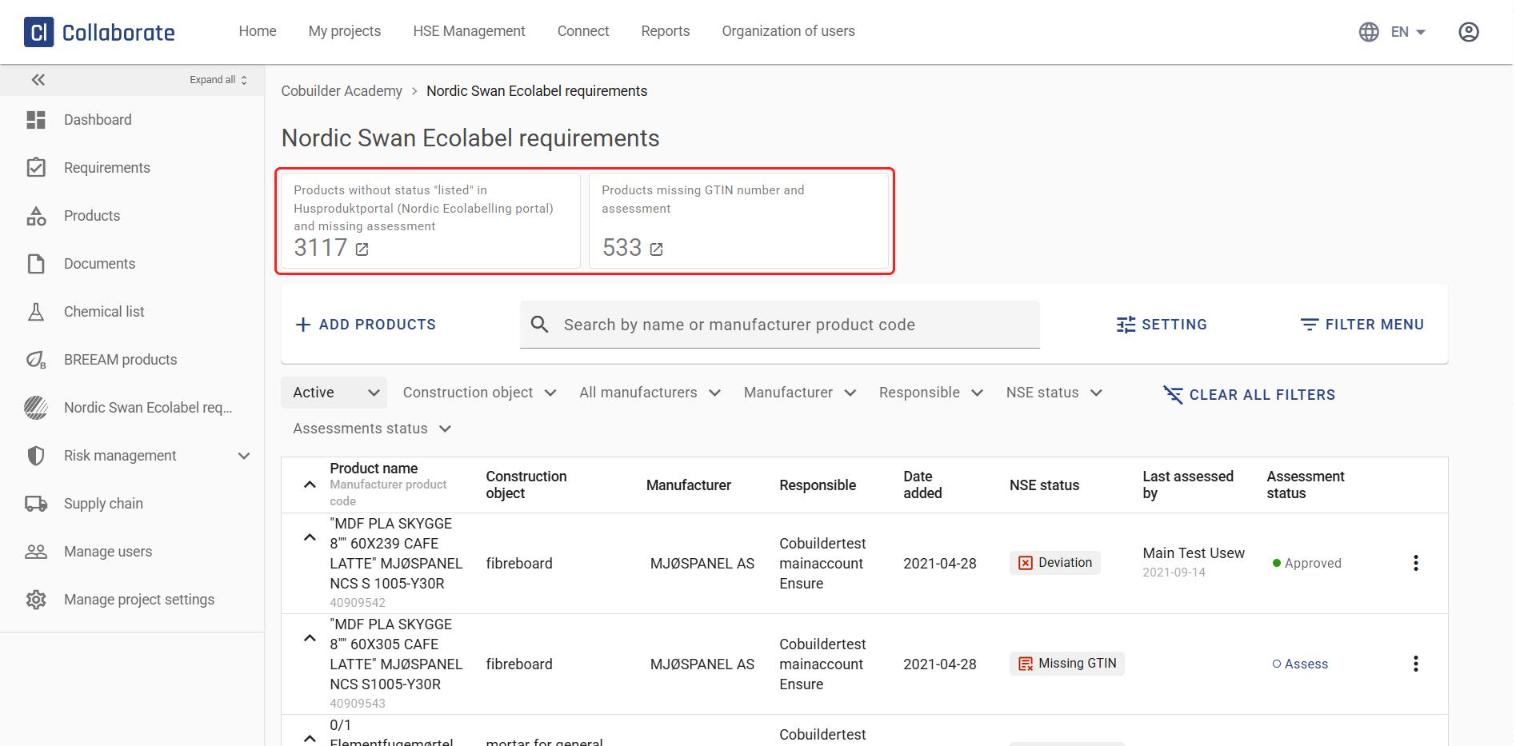
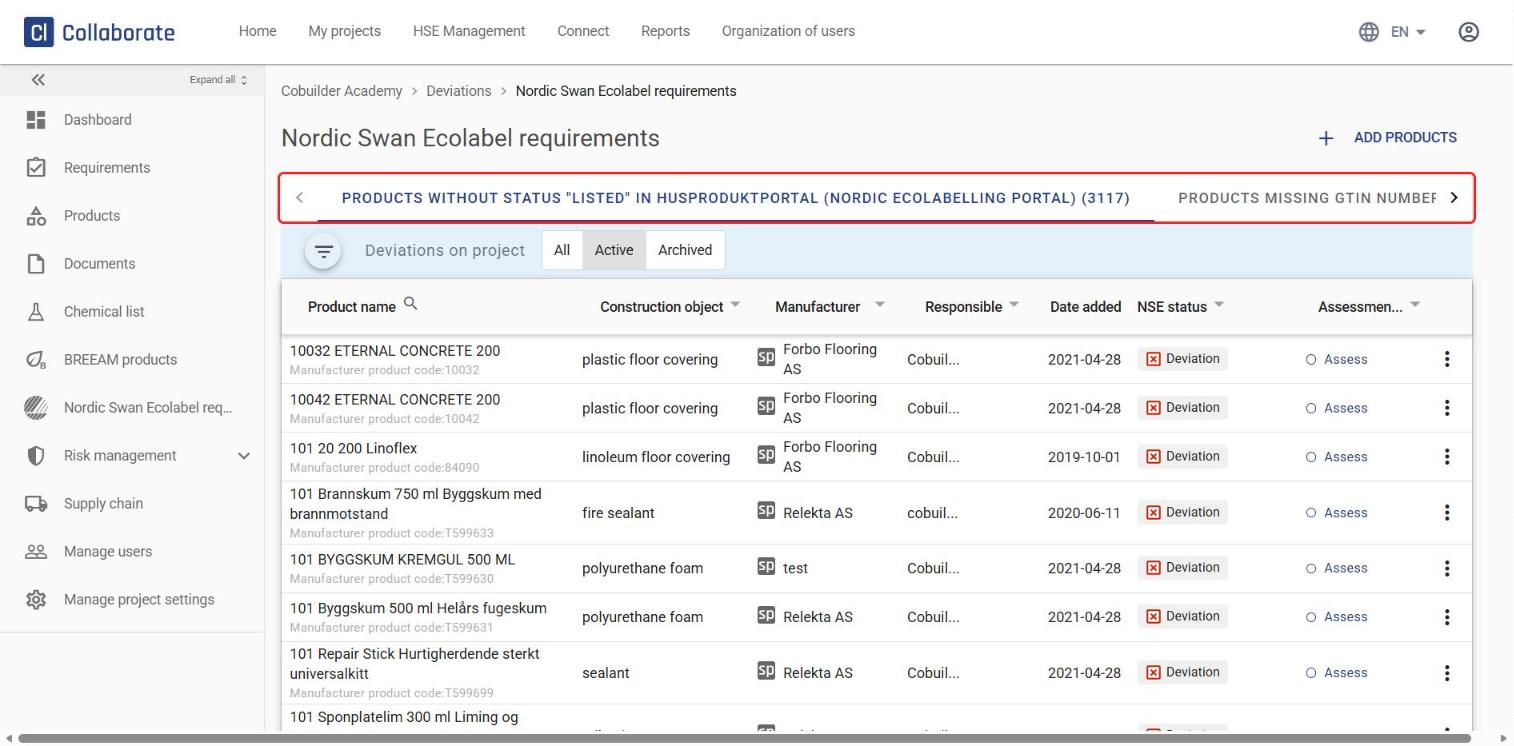
Click either counter to go to the Deviations page, where each category has its own tab.
Send feedback to the manufacturer
3
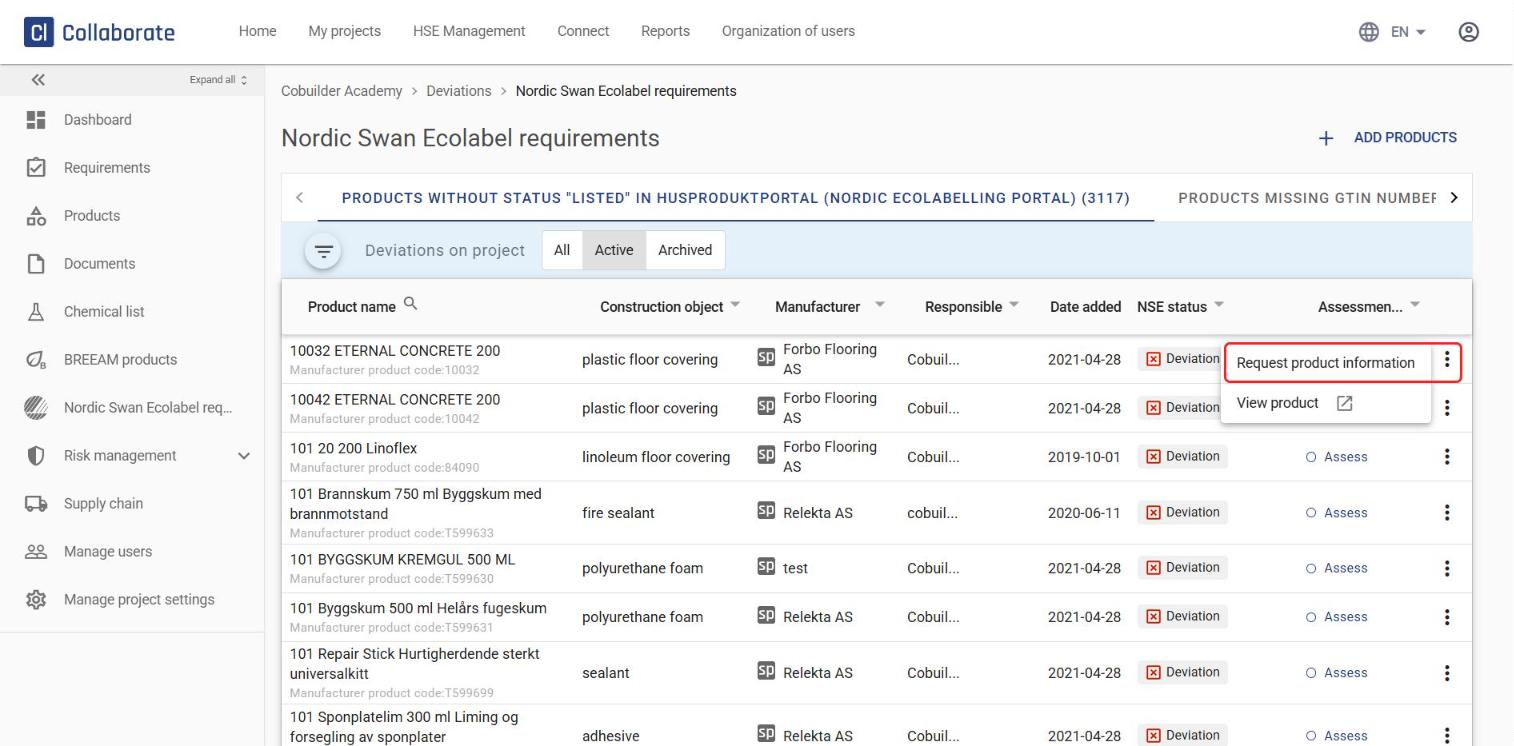
Click the three dots to the right of the product and select Request product information.
4
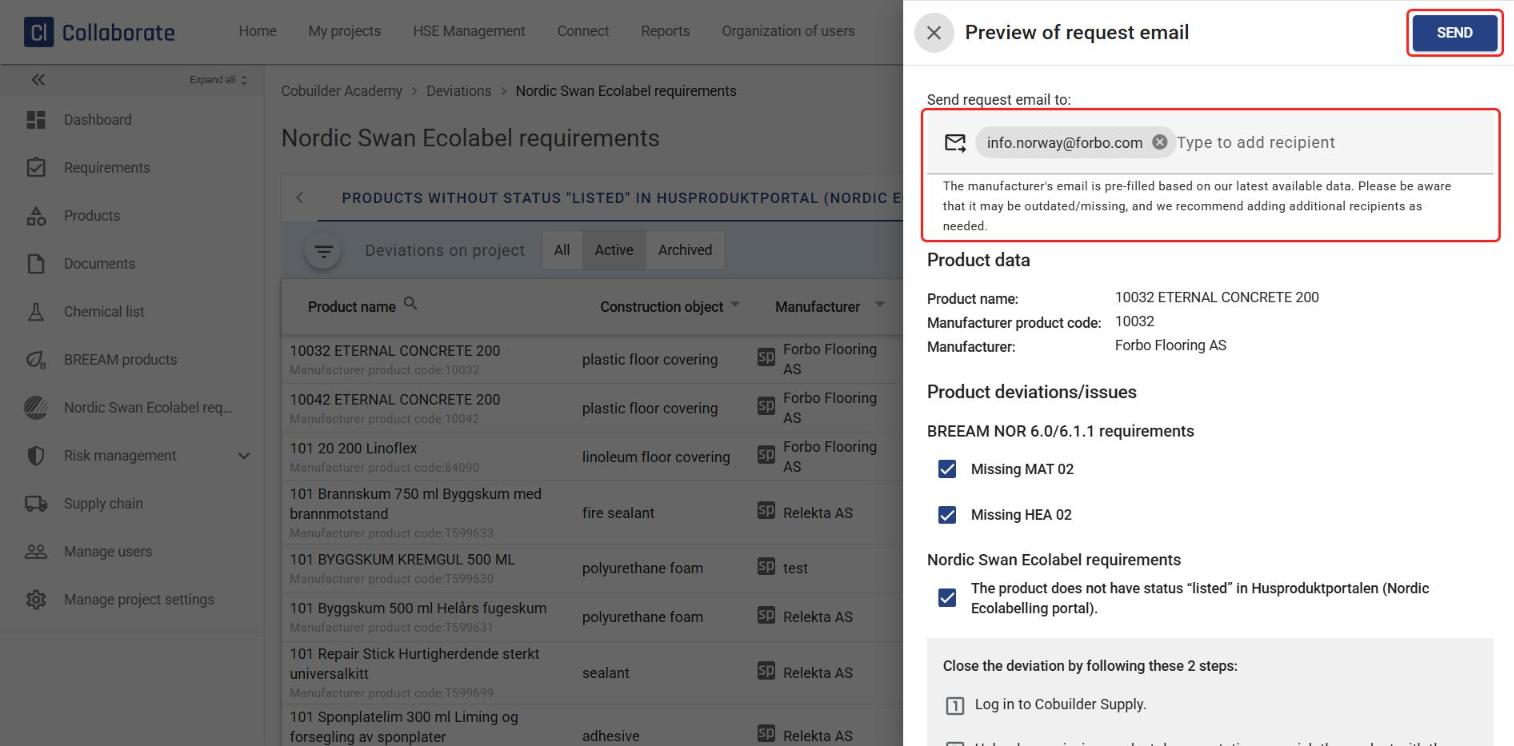
A preview of an email template opens, informing the manufacturer about the product deviation. The manufacturer’s email address is pre-filled based on the latest available data. It may be outdated, so add more recipients as needed. Click Send when you’re done.