Welcome to Cobuilder Training Portal
In My Suppliers, you see all the manufacturers you distribute products for. You can see which of them are on Supply, invite the ones who aren’t, and view their products in your catalogue.
See your suppliers
1
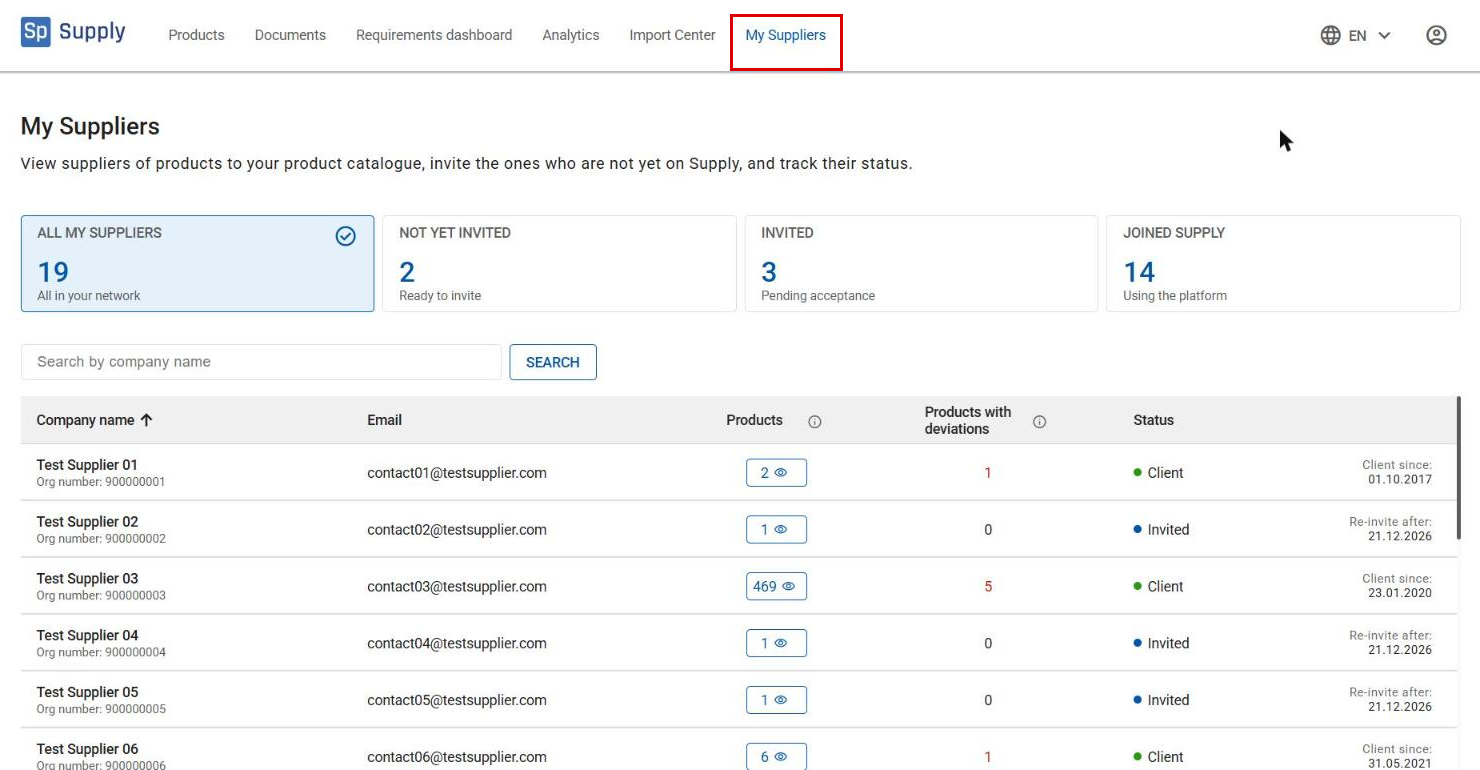
Click My Suppliers in the top menu.
2
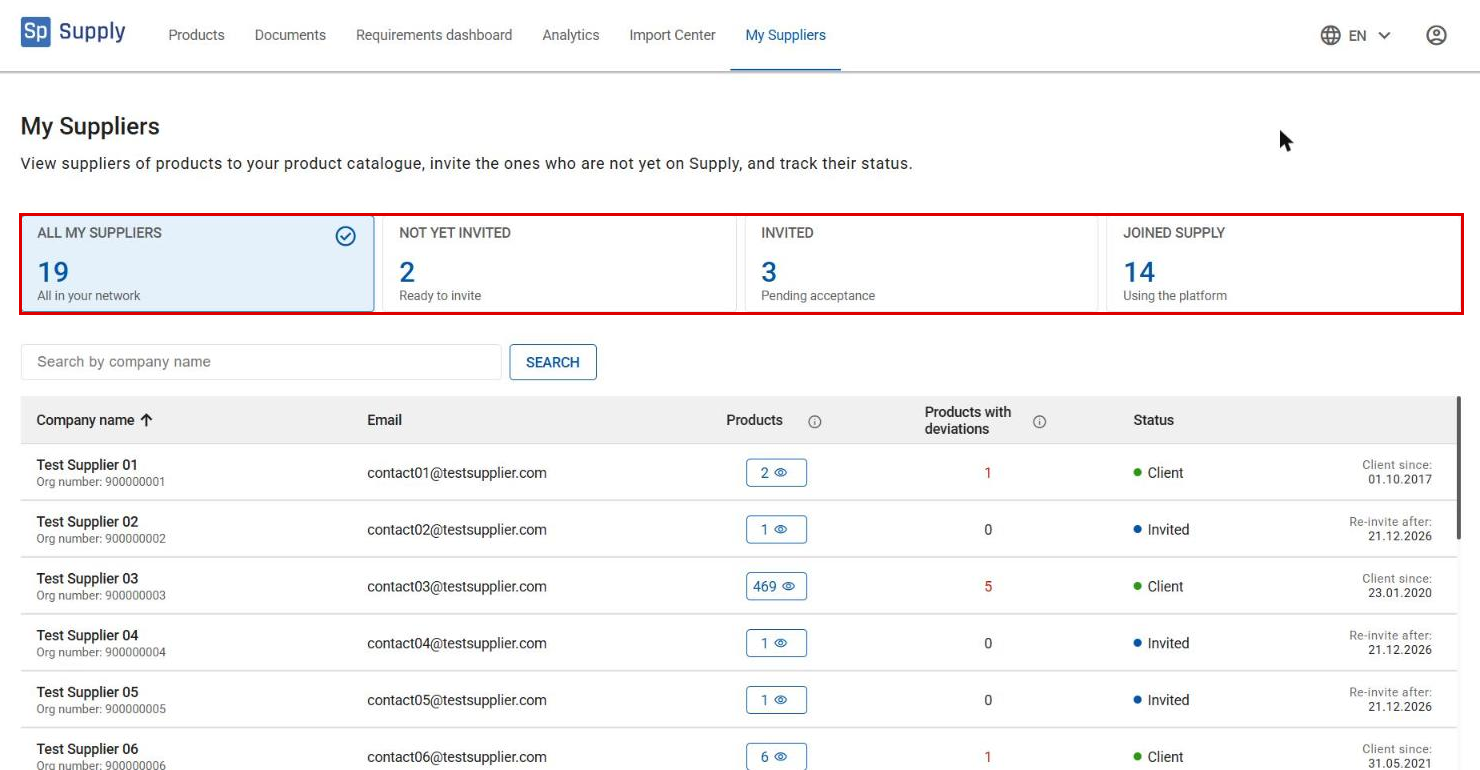
Click on a card at the top to see the manufacturers in each group.
3
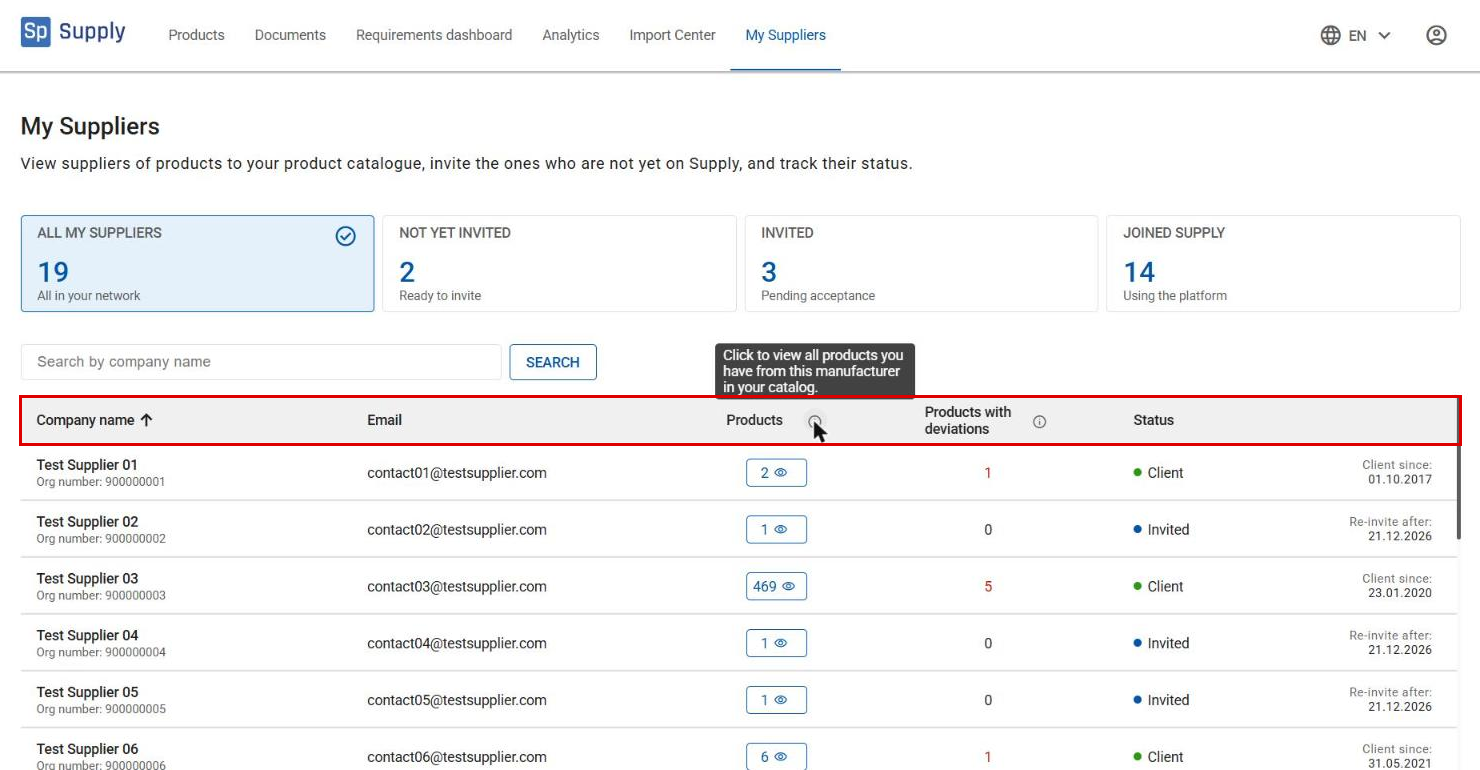
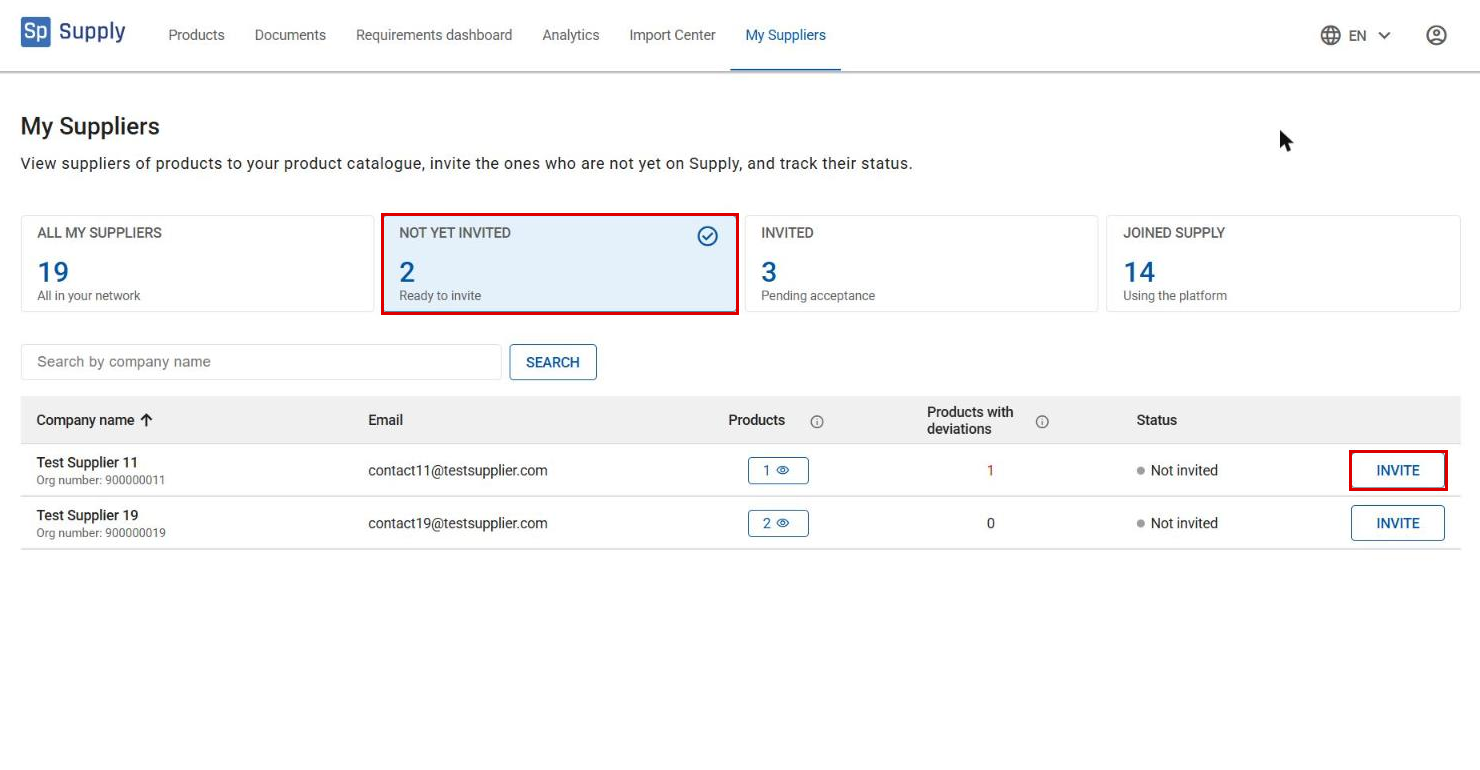
The table lists every manufacturer you distribute products for, with company name, organisation number, email, the number of products, how many of them have deviations, and the current client status. Search by company name, or click a column heading to sort.
Invite a manufacturer
4
Click Not yet invited, and then Invite next to the manufacturer.
5
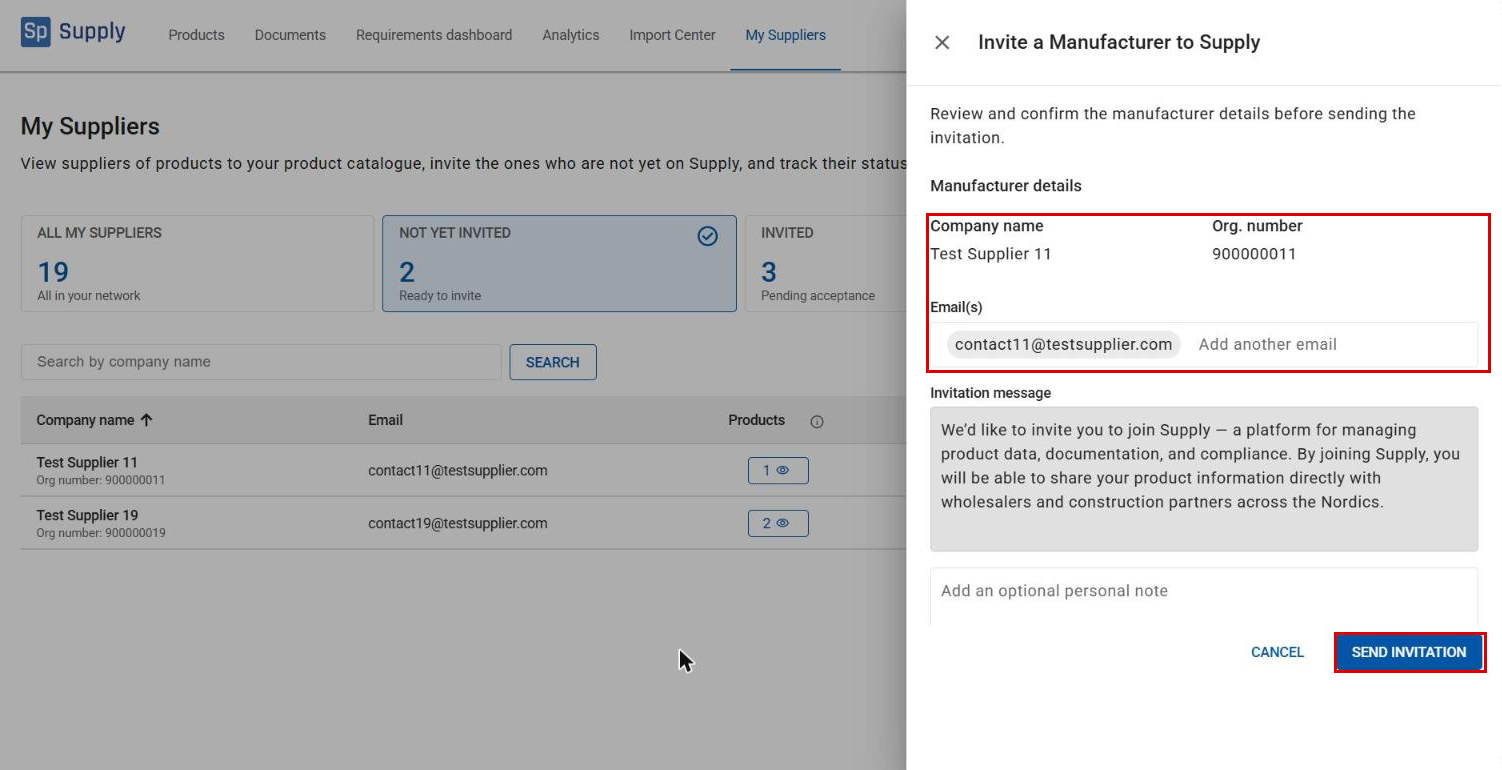
The company name, organisation number and email are filled in automatically. Click Send invitation.
6
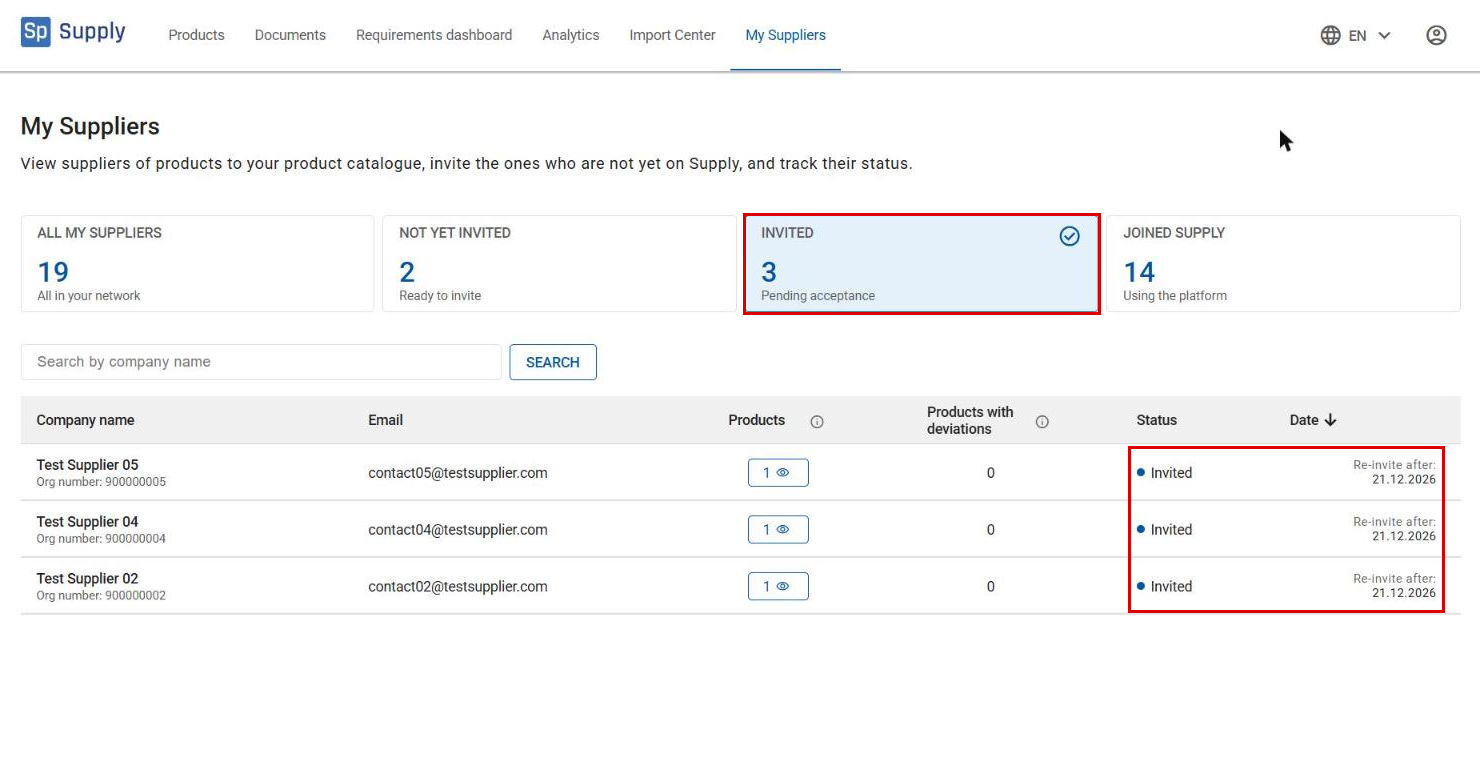
The manufacturer moves to Invited. Re-invite after shows when you can invite them again, if they haven’t accepted the first invitation.
View a manufacturer’s products
7
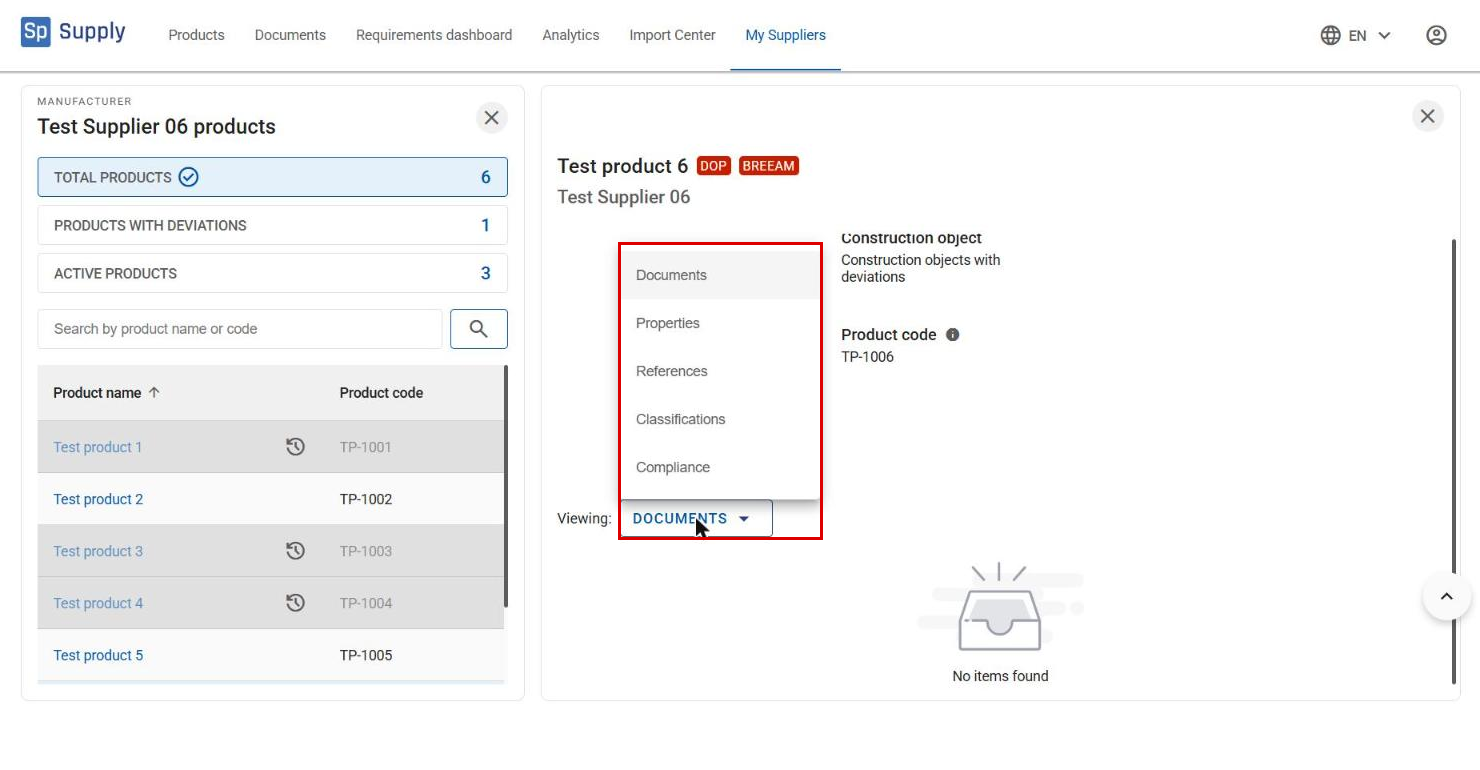
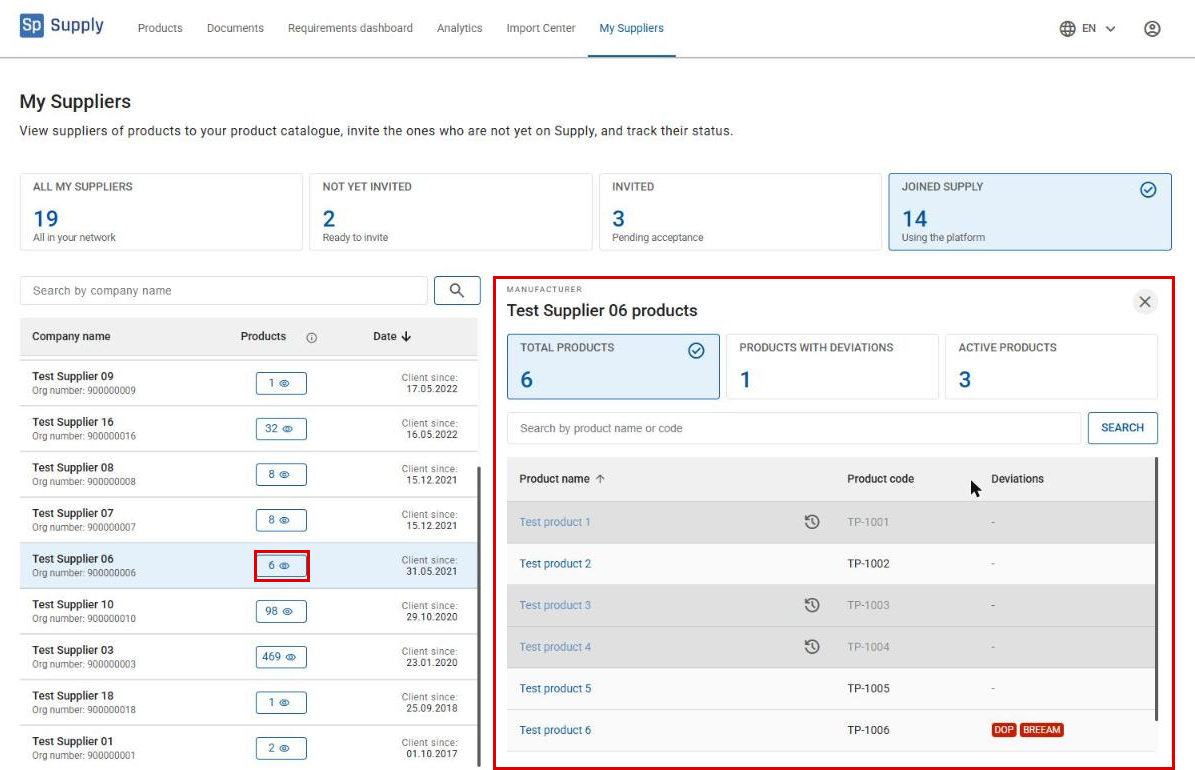
Click the number of products for a manufacturer to see their products in your catalogue.
8
Click a product to see its details. Use Viewing to switch between Documents, Properties, References, Classifications and Compliance.