Welcome to Cobuilder Training Portal
In Collaborate, you can keep track of which SDS versions are used in your projects. When a newer version of an SDS becomes available, you can choose to update to it or keep the current version.
How to update to a newer version
1
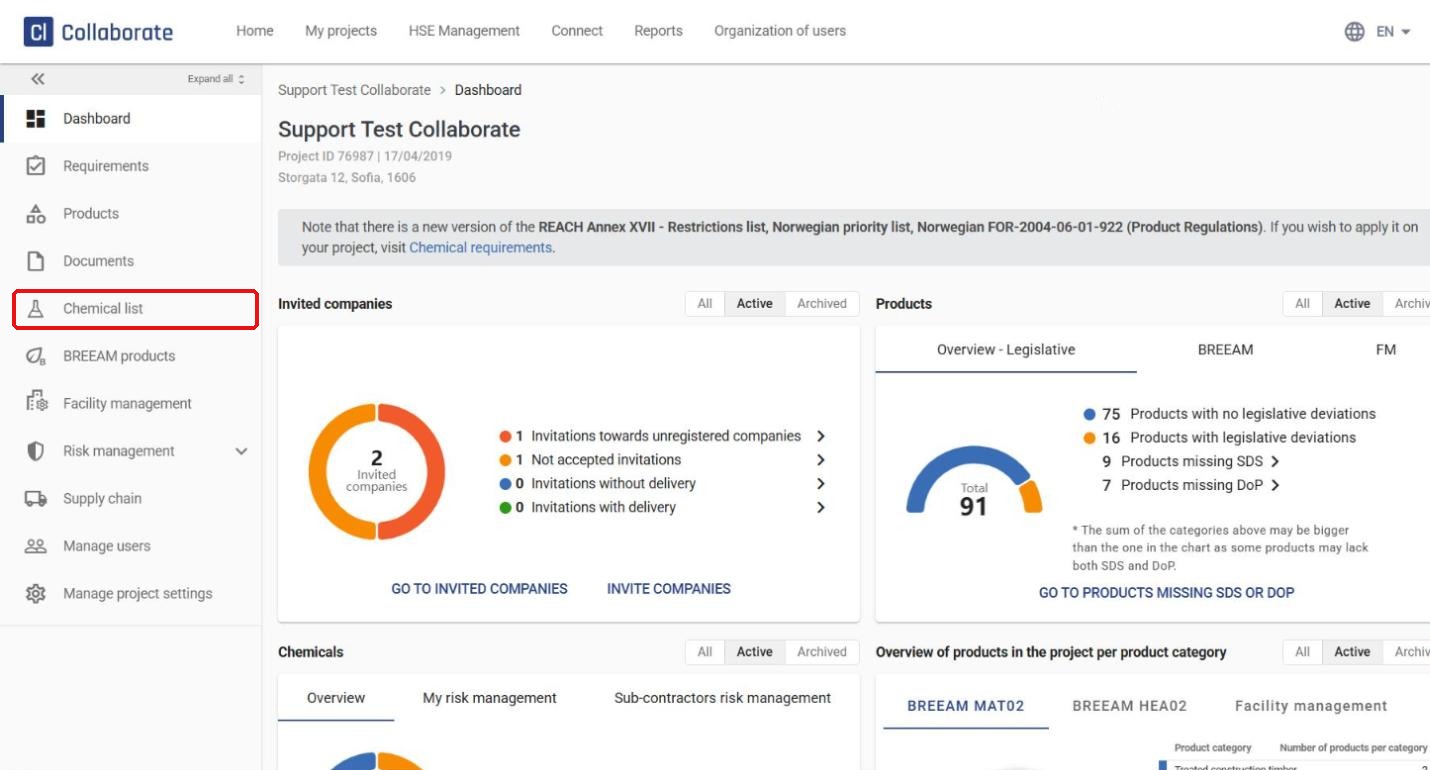
Open the project and go to Chemical list.
2
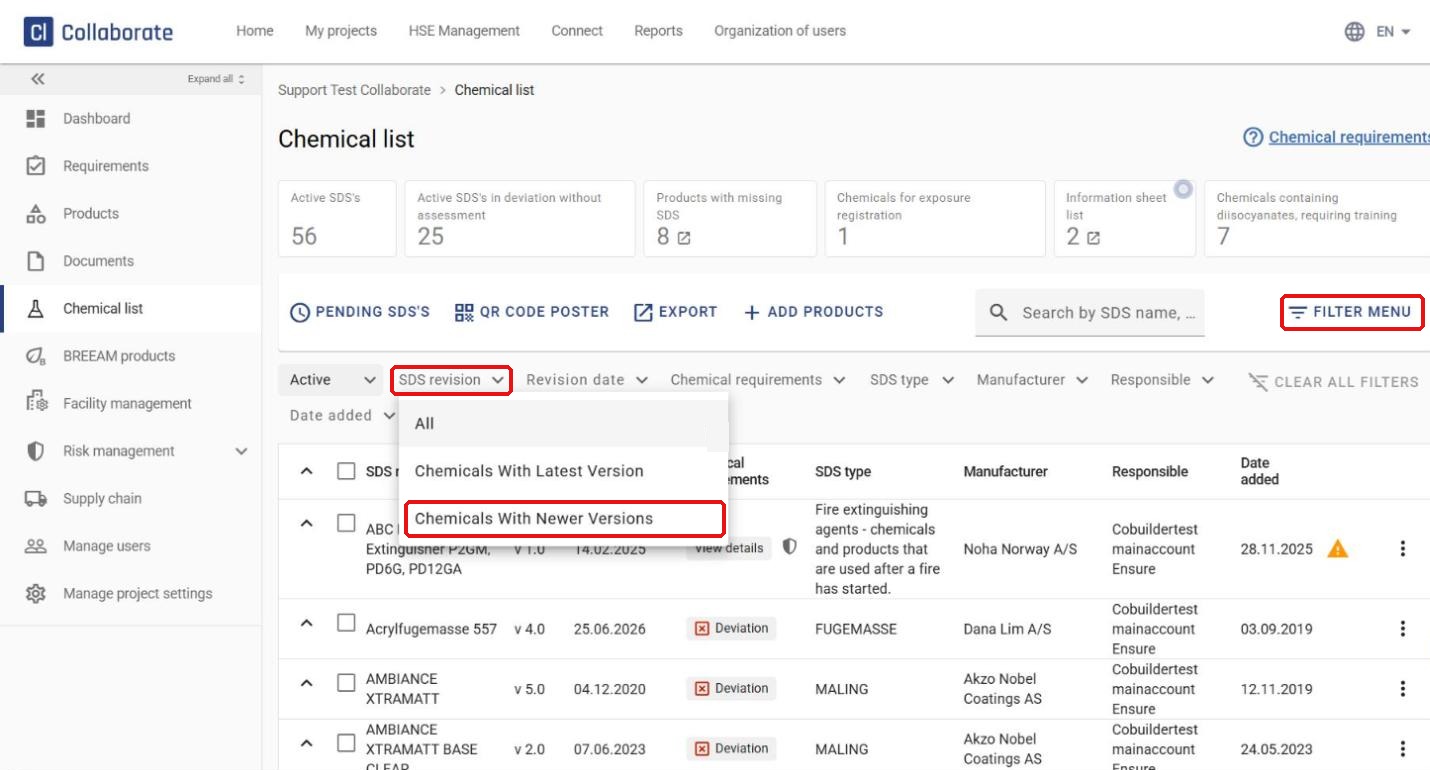
Click Filter menu, open the SDS revision filter and select Chemicals With Newer Versions.
3
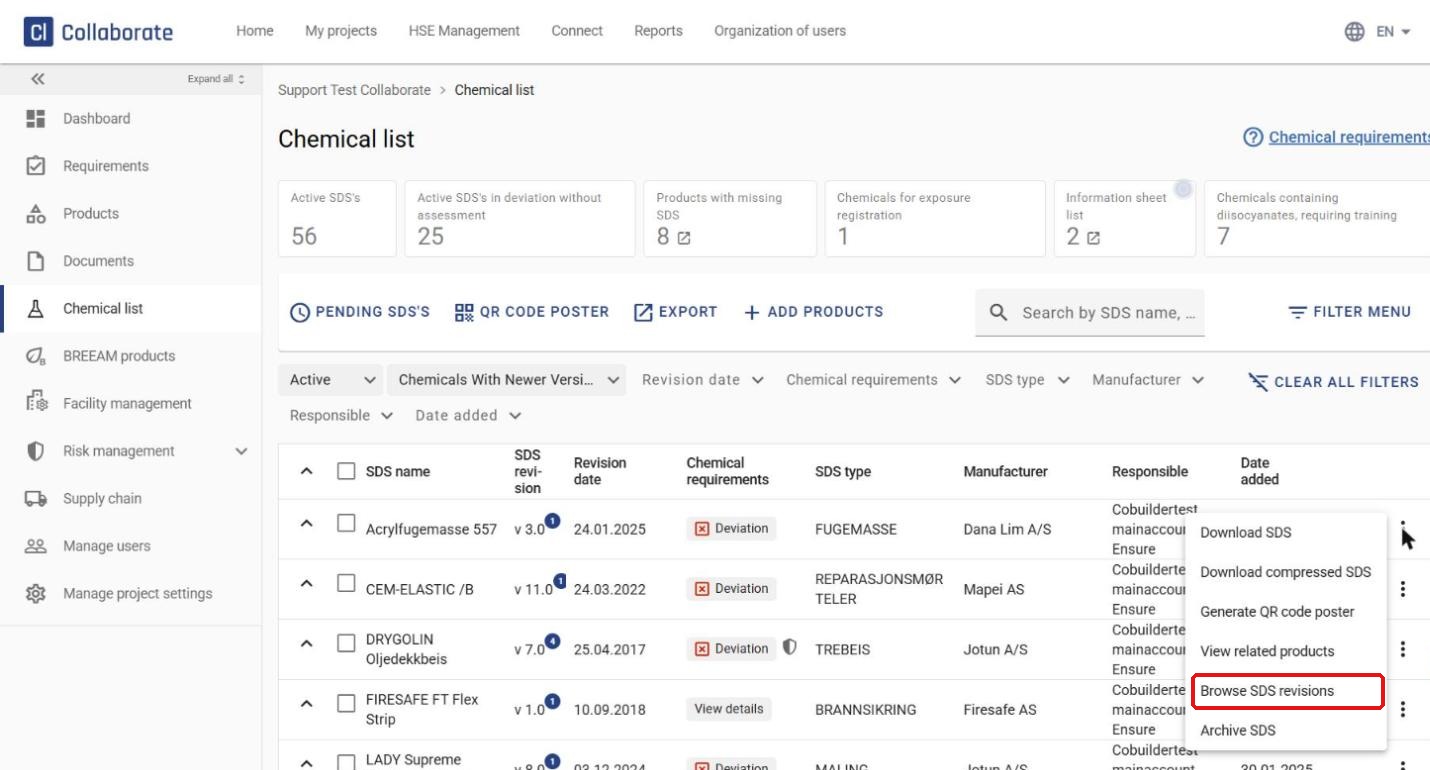
You now see all SDSs in the project that have a newer version. Click the three-dot menu (⋮) on the SDS row and select Browse SDS revisions.
4
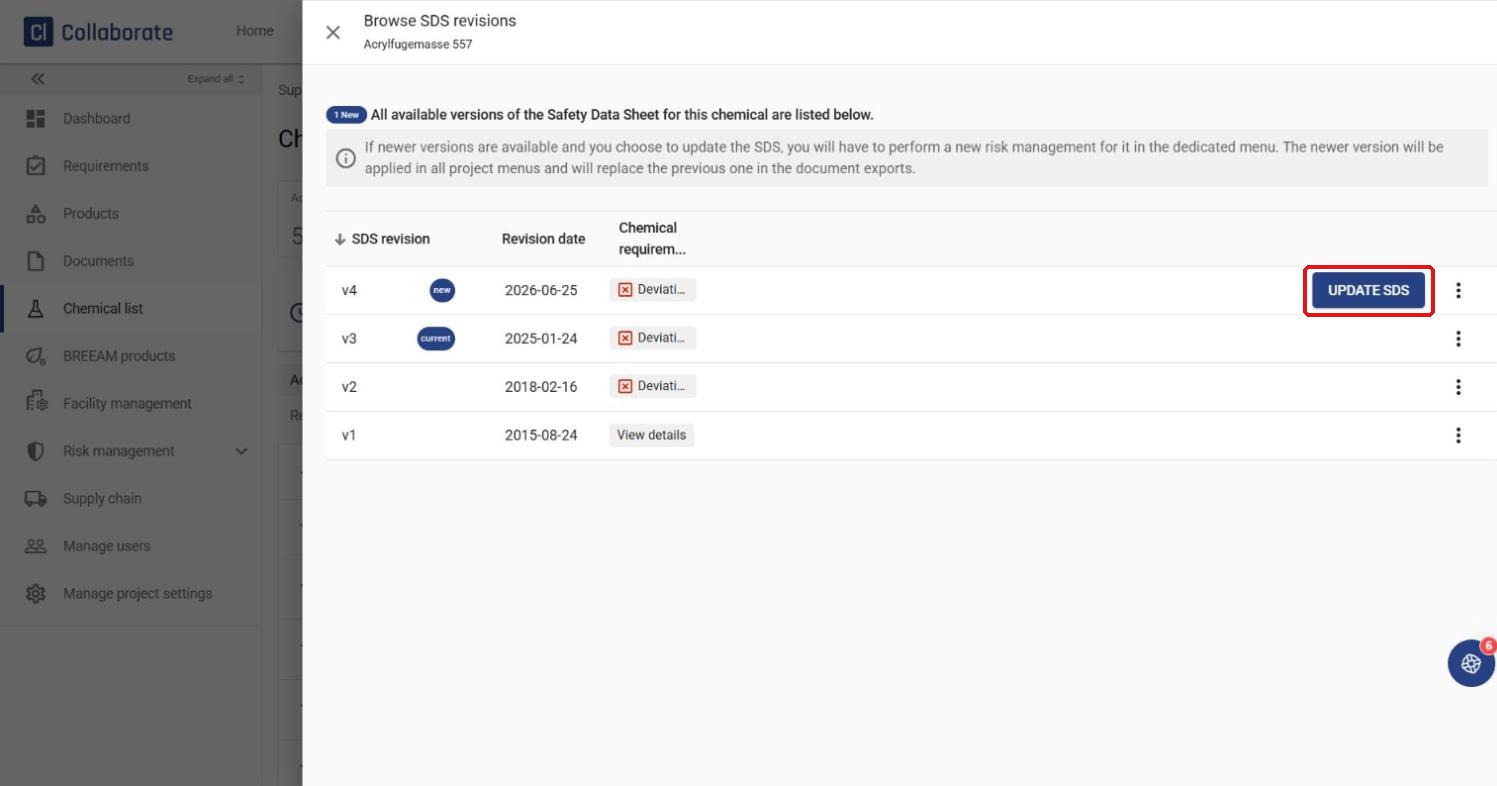
You now see an overview of all available versions of the SDS: earlier versions, the current version and any newer versions. Click Update SDS to switch to a newer version.
5
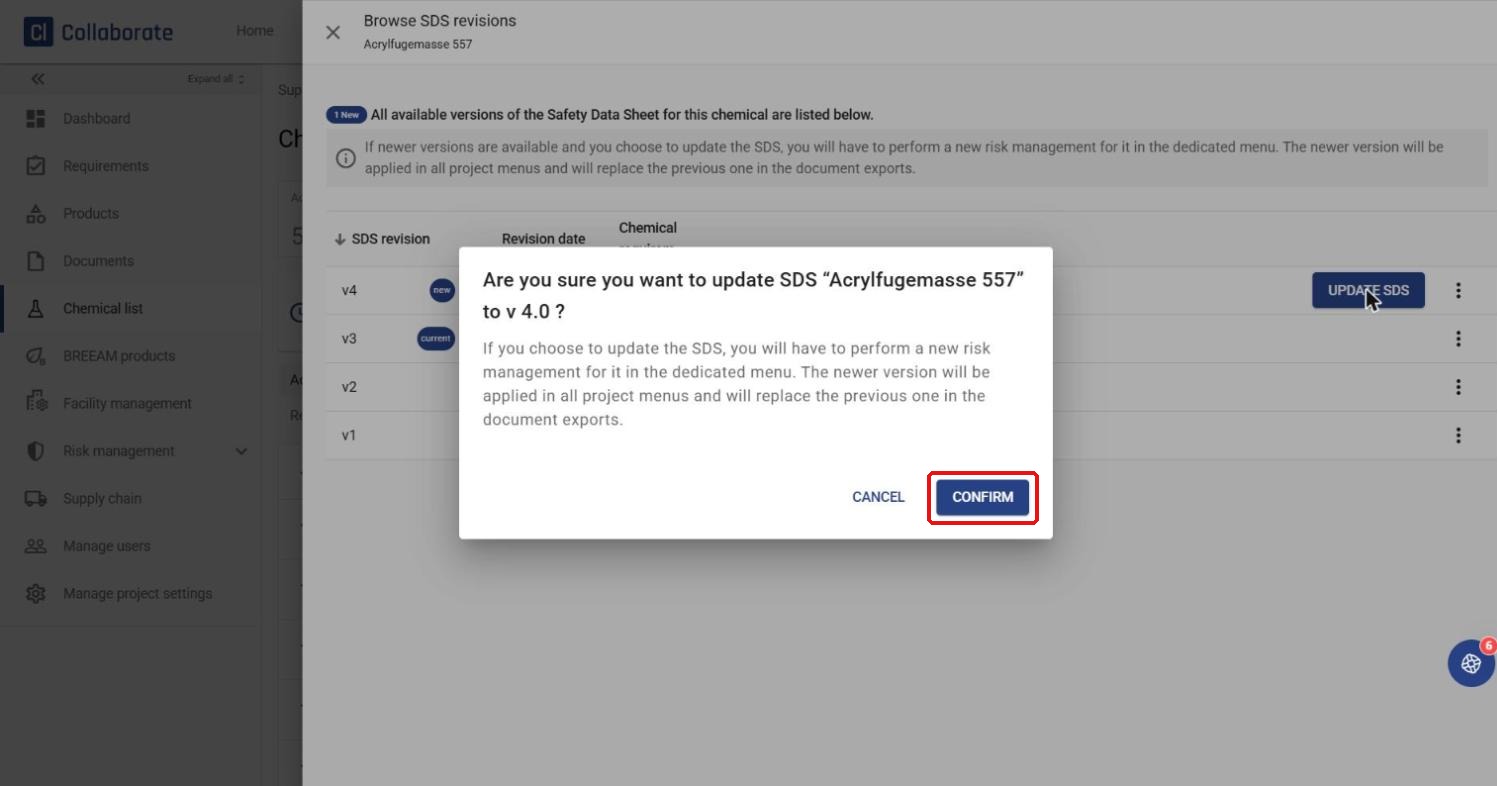
Confirm your choice by clicking Confirm. If the SDS has a deviation, you must carry out a new risk assessment for it under Risk management. The new version is then used in all project menus and replaces the previous version in the document export file.
6
The updated version of the safety data sheet now appears in the Chemical list and in all other menus in the project.