
Welcome to Cobuilder Training Portal
As a Platform administrator, you invite new users to your company’s Cobuilder platform from the Team members page. When you send an invitation, you also decide what the new user can access — their Collaborate role, and, for project-related roles, which projects they can work on.
How to do it
1
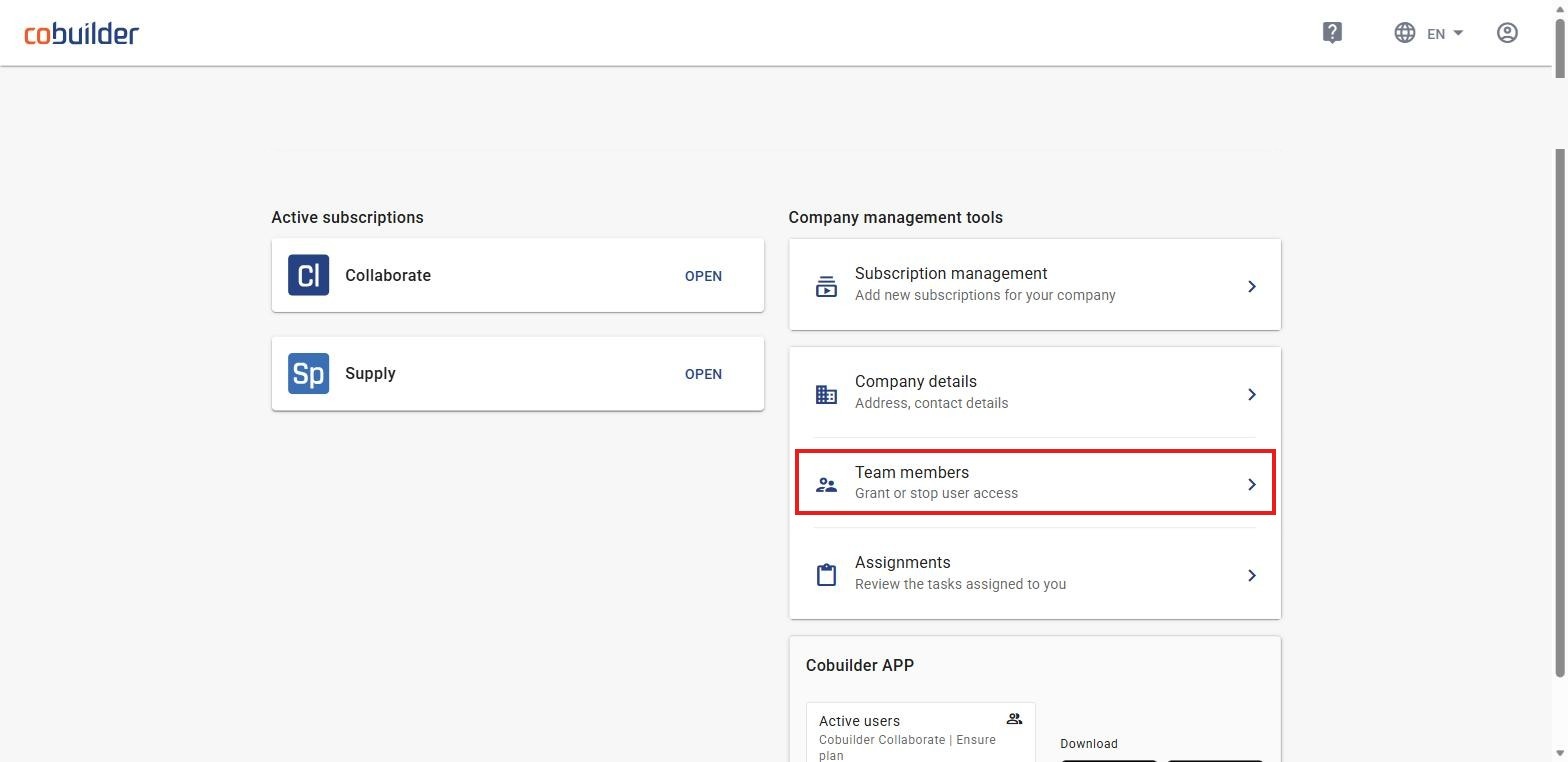
From the Home page, open Team members.
2
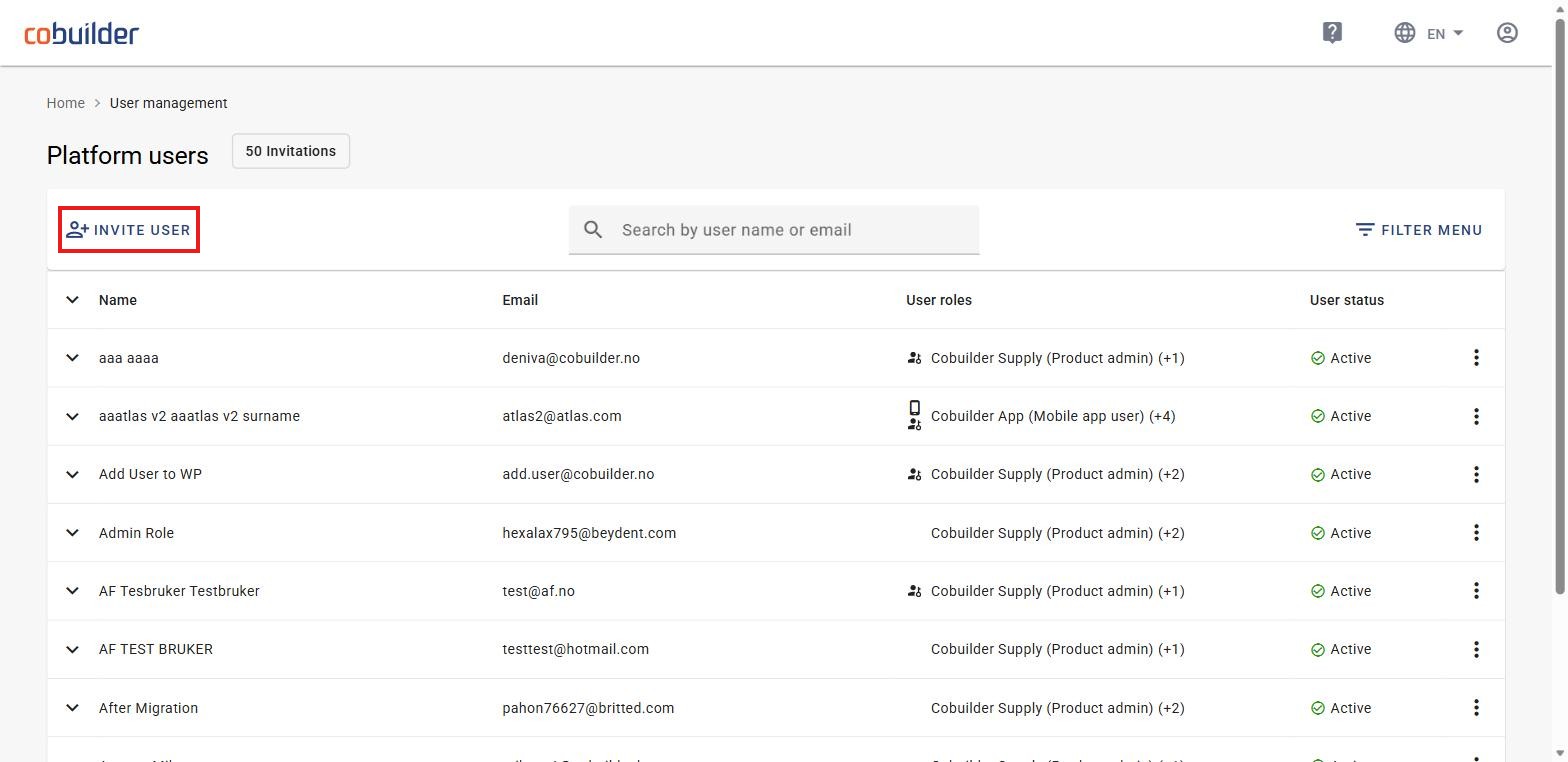
On the Platform users page, click Invite user.
3
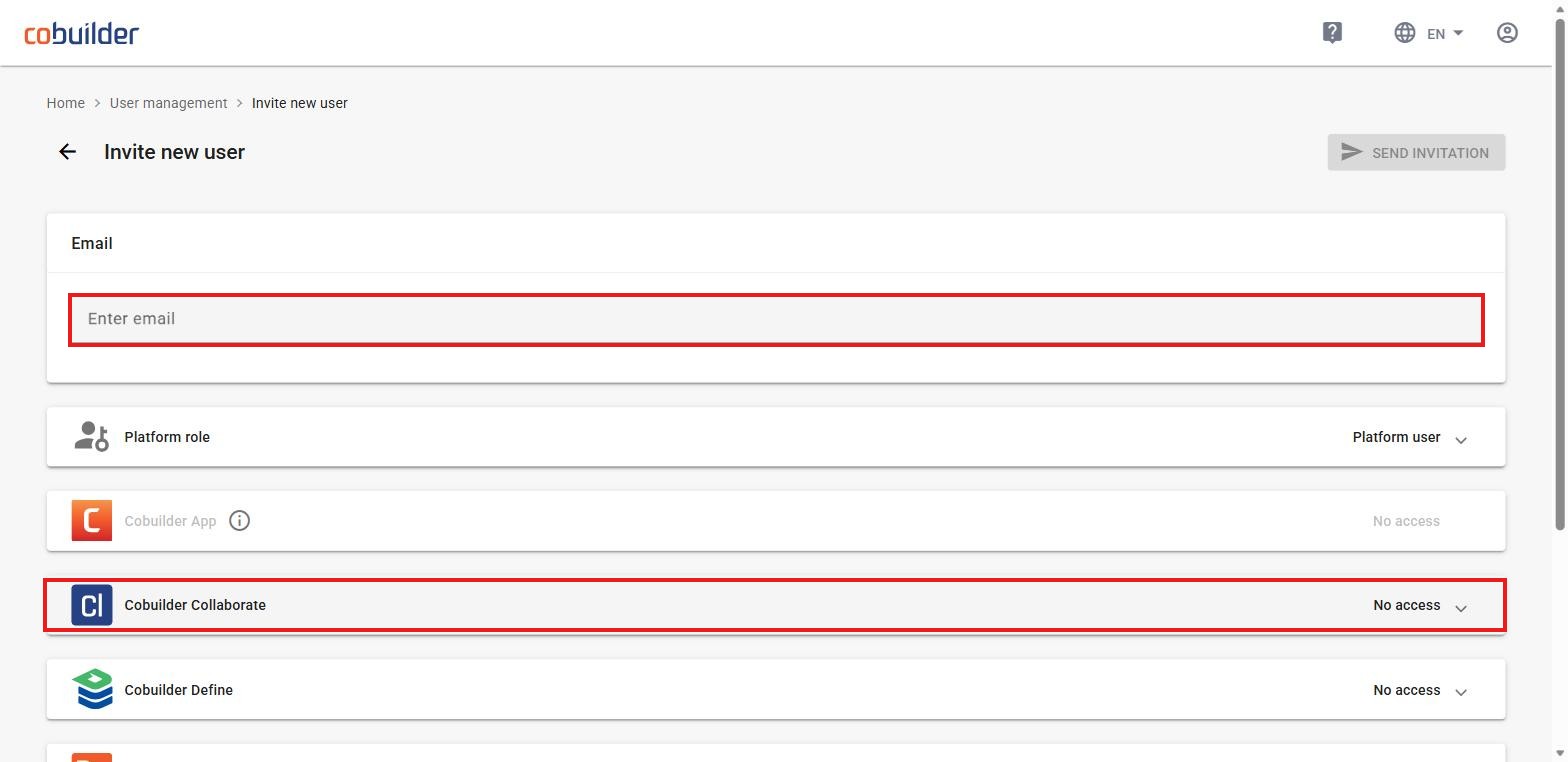
Enter the person’s email address, then set their role for Cobuilder Collaborate.
Note: You can invite several people at once by entering multiple email addresses in this field. They’ll all get the same role. If an address turns red, that person already has an account.
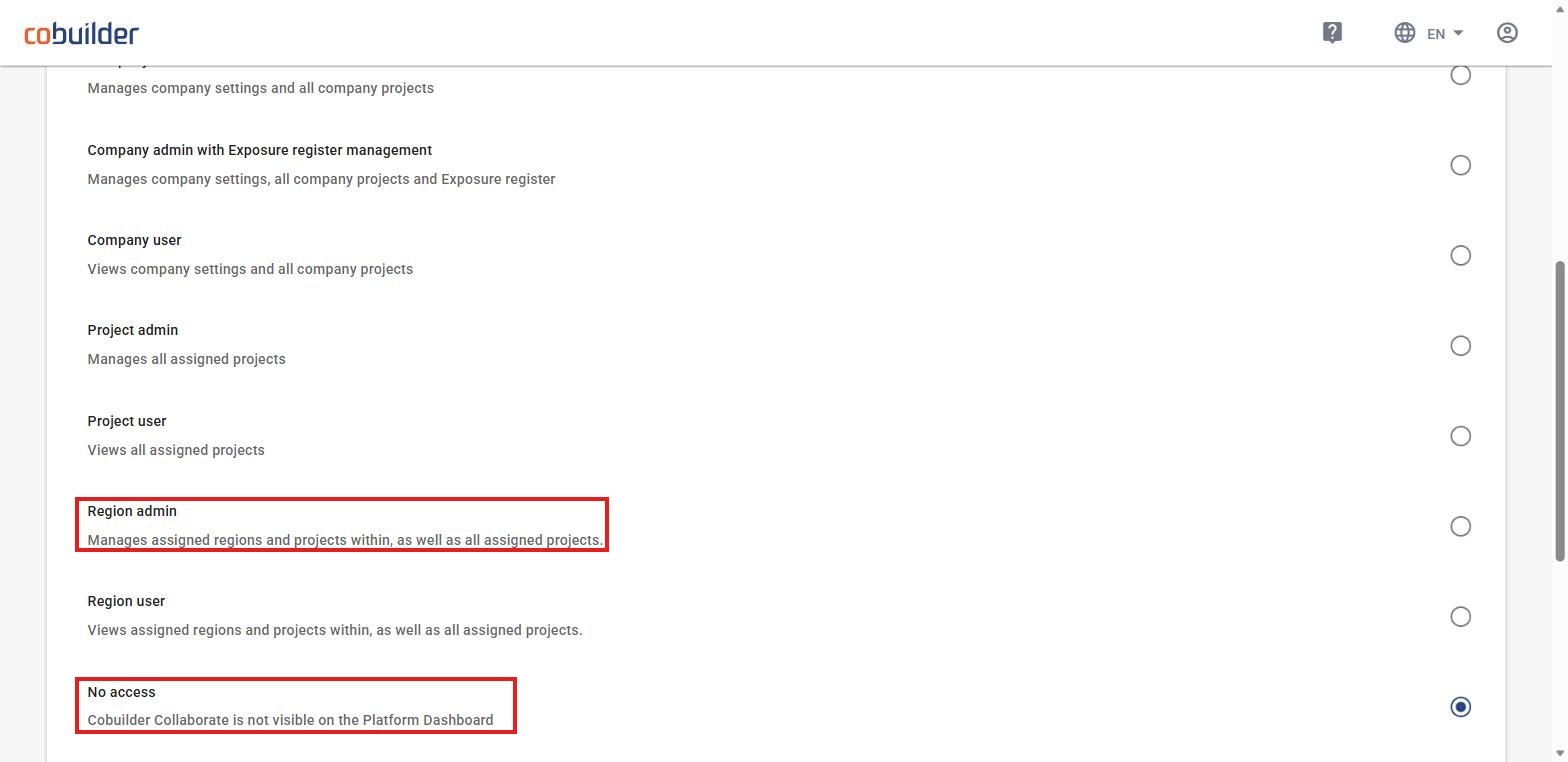
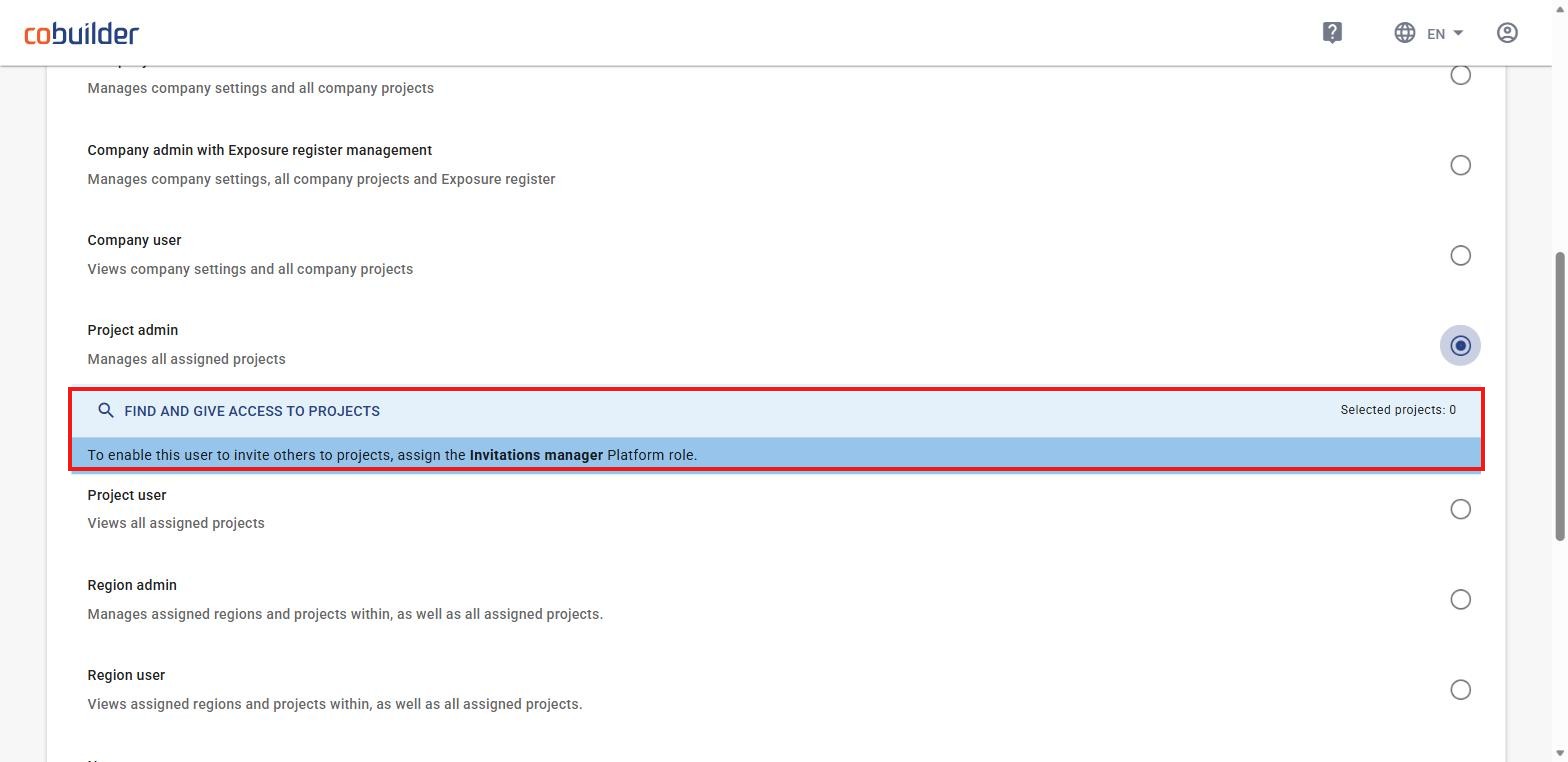
The Collaborate role list has eight options, from full administrative access down to No access, which lets you add someone to the platform without giving them access to any project yet.
4
If you chose Project admin or Project user, use Find and give access to projects to search for and select the projects this person should have access to.
5
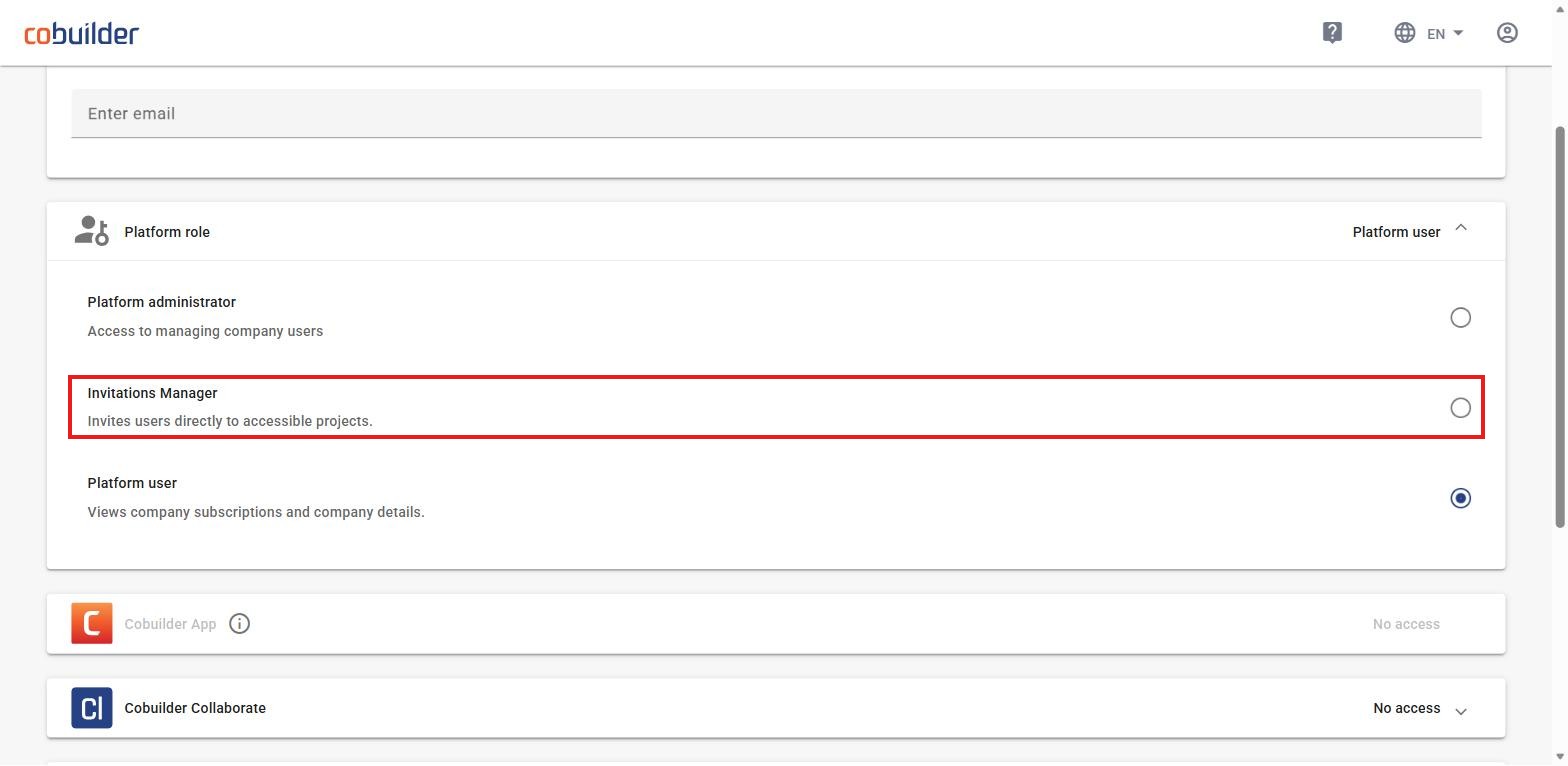
Set the person’s Platform role. There are three options: Platform administrator, Invitations Manager, and Platform user.
6
Click Send Invitation.
Managing a pending invitation
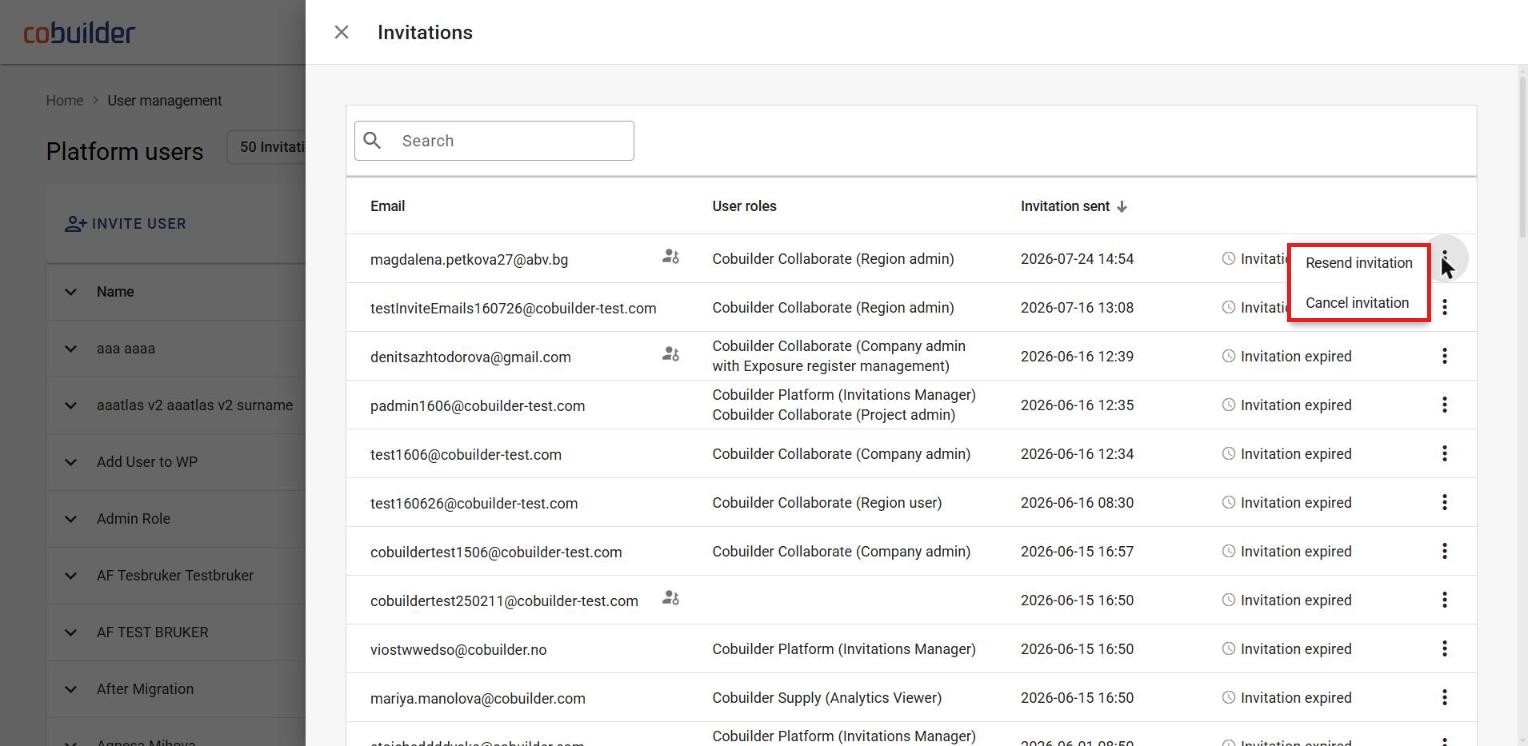
If someone hasn’t accepted their invitation yet, open the menu next to their name on the Platform users page to resend or cancel it.
Assigning regions to a user
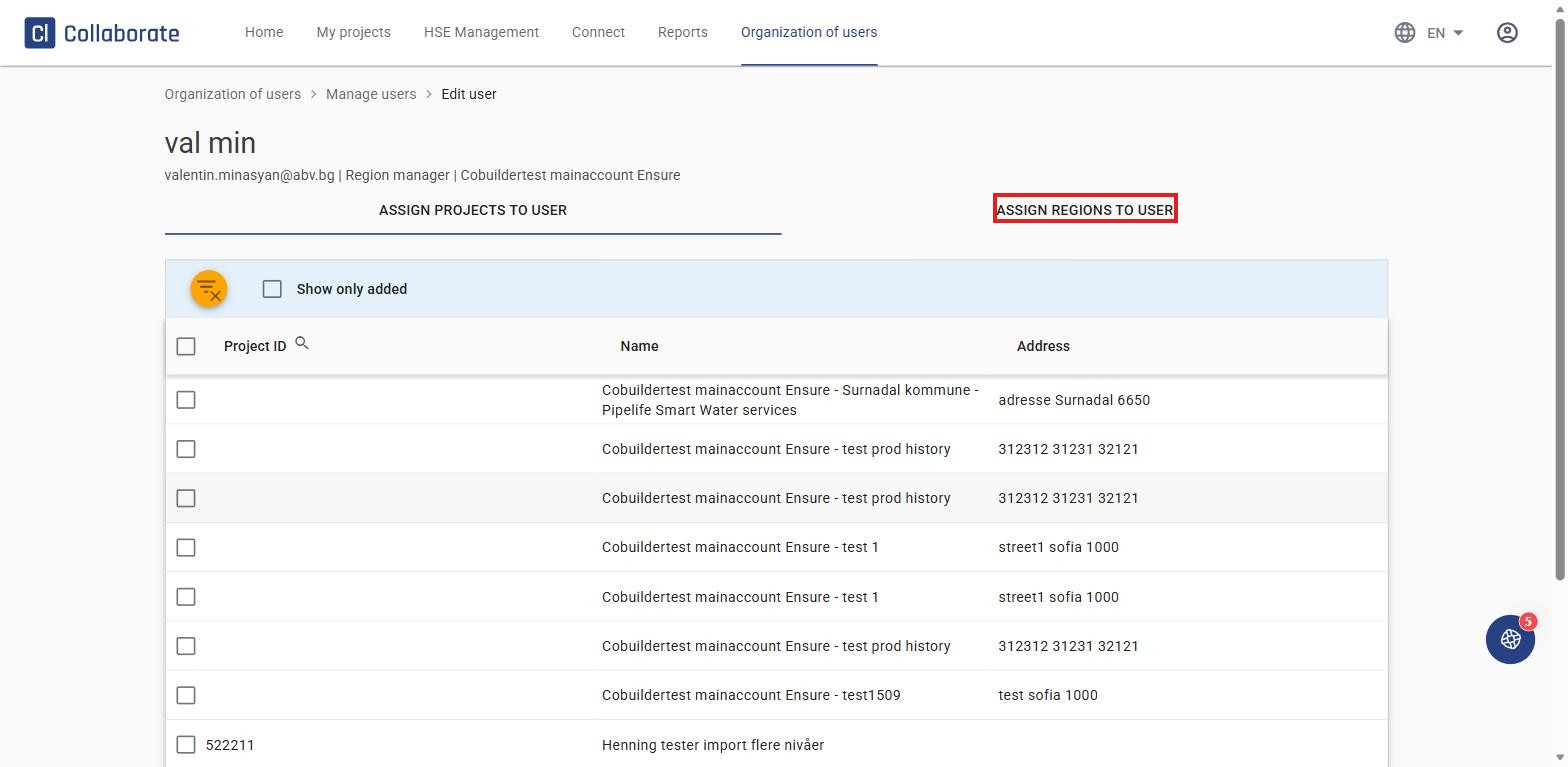
Regions aren’t part of the invitation — they’re assigned afterwards. Open the user from the Platform users page and go to the Assign regions to user tab to give them access to one or more regions.
User roles
Platform roles
- Platform administrator — Access to managing company users.
- Invitations Manager — Invites users directly to accessible projects.
- Platform user — Views company subscriptions and company details.
Cobuilder Collaborate roles
- Company admin — Manages company settings and all company projects.
- Company admin with Exposure register management — Manages company settings, all company projects and Exposure register.
- Company user — Views company settings and all company projects.
- Project admin — Manages all assigned projects.
- Project user — Views all assigned projects.
- Region admin — Manages assigned regions and projects within, as well as all assigned projects.
- Region user — Views assigned regions and projects within, as well as all assigned projects.
- No access — Cobuilder Collaborate is not visible on the Platform Dashboard.


