Welcome to Cobuilder Training Portal
If you want other companies to receive updates on a document you have published, you can add them as subscribers. This makes sure they always have access to the latest version of your document.
Add a subscriber
1
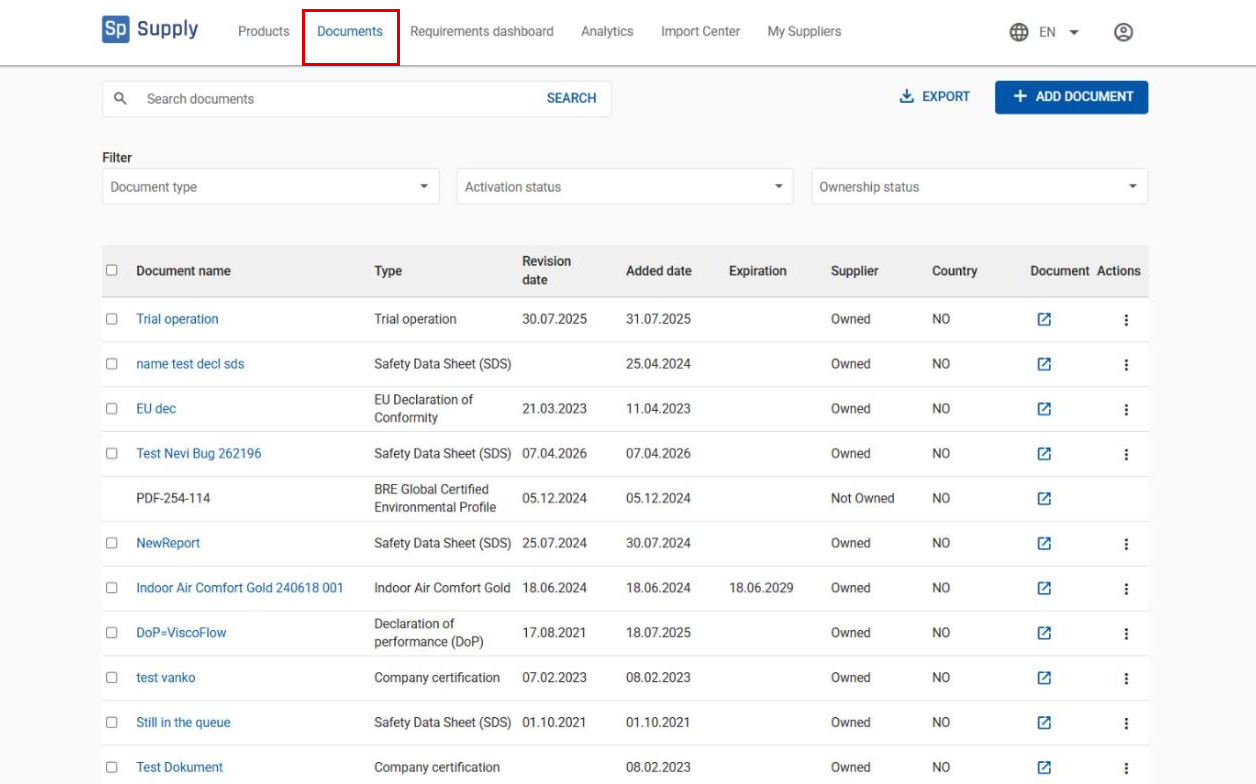
Click Documents in the main menu to open the document list.
2
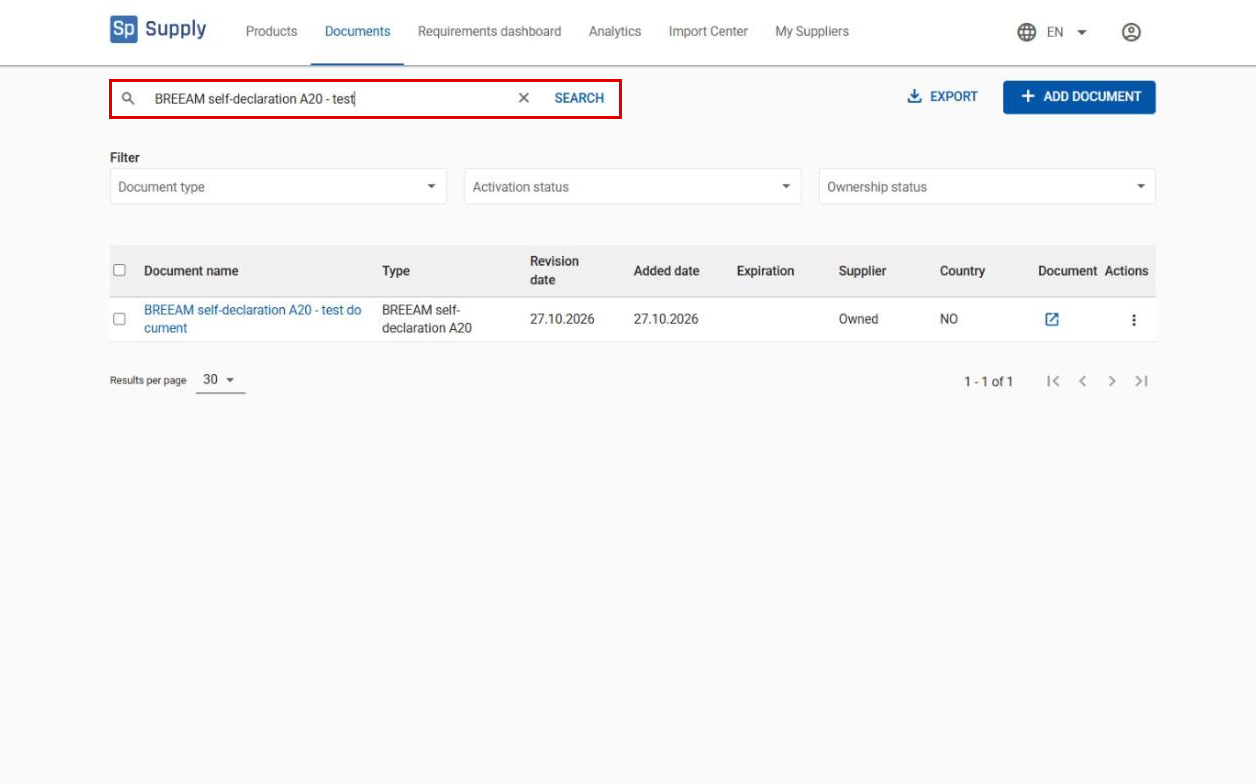
Scroll through the list, or use the search field to find the document you want to share.
3
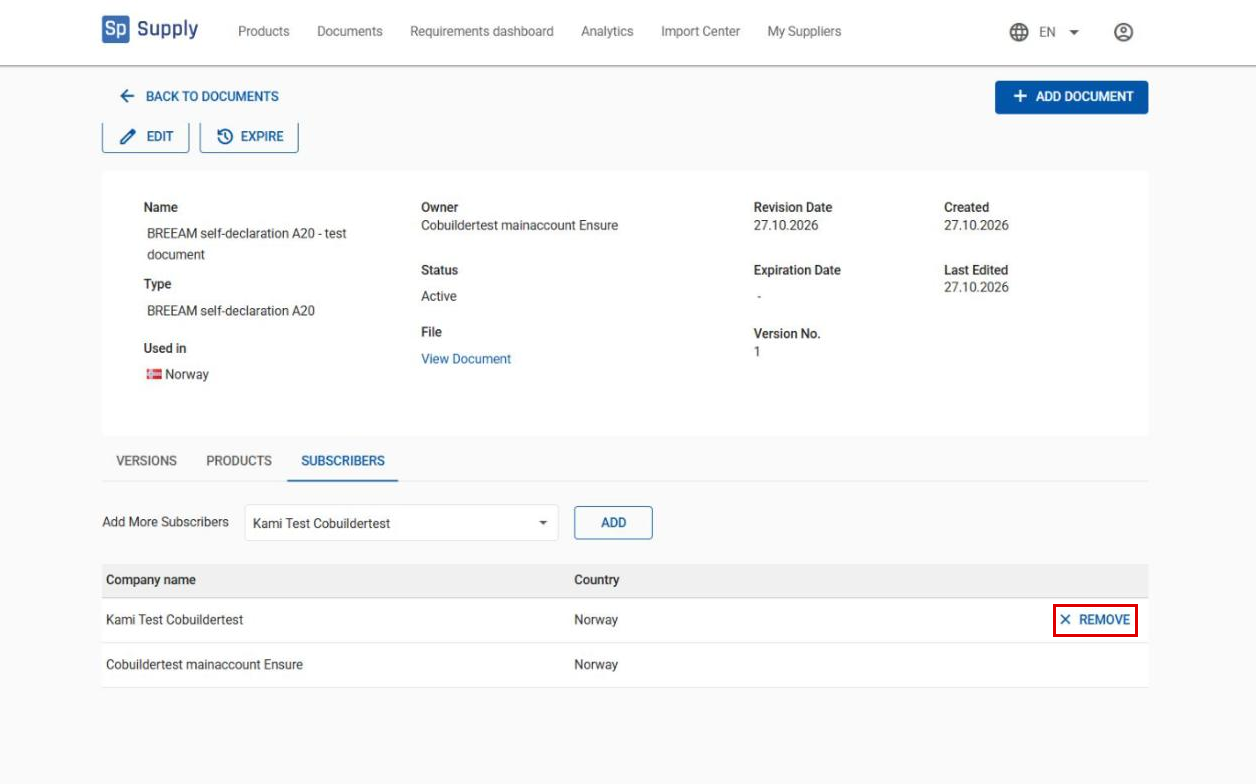
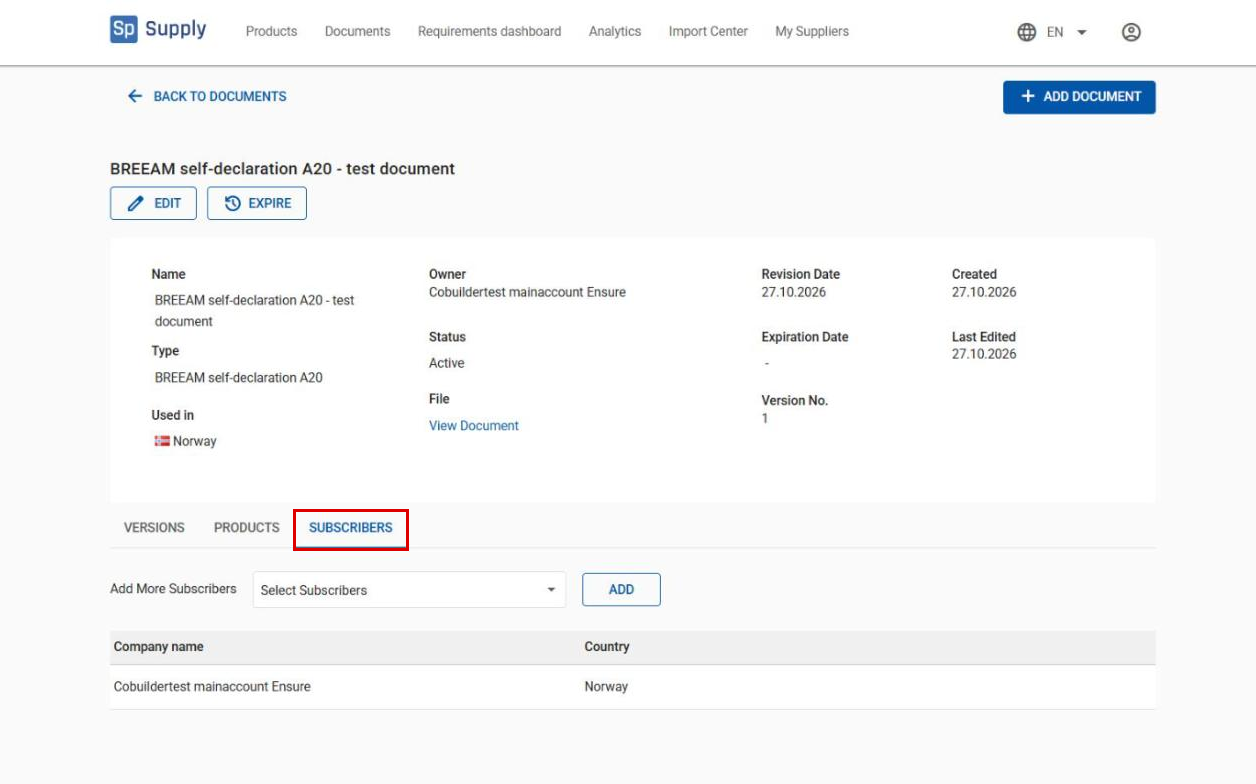
Open the document, and click the Subscribers tab.
4
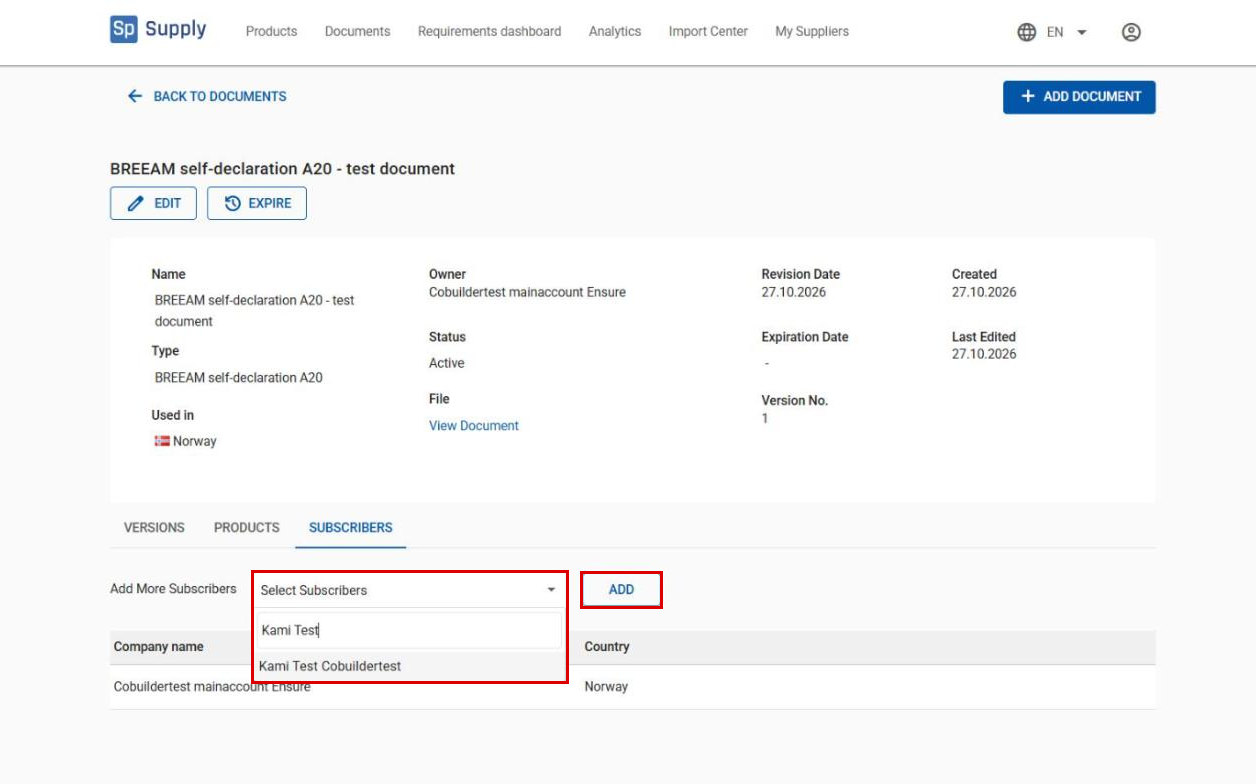
Type the company name in the Select Subscribers field, select the company in the results, and click Add.
Remove a subscriber
1
Go to the Subscribers tab for the document, and click Remove next to the company you want to remove.