Welcome to Cobuilder Training Portal
With Document import, you can import several documents at once and link them directly to products in Cobuilder Supply. This makes it easier to keep product documentation up to date and available on the right products.
How to do it
1
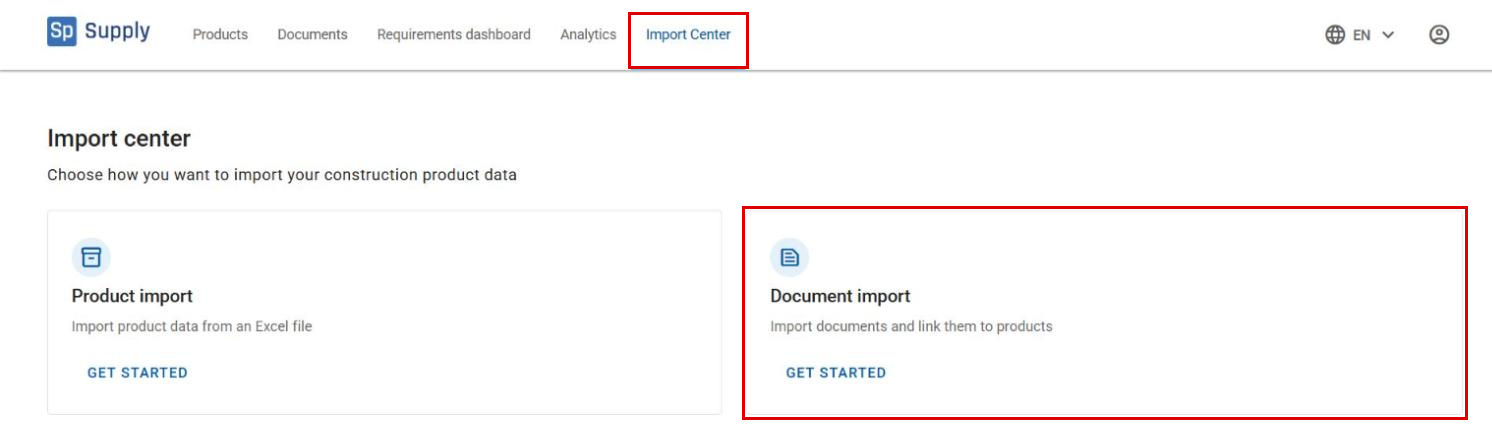
Go to Import Center and click Get started under Document import.
2
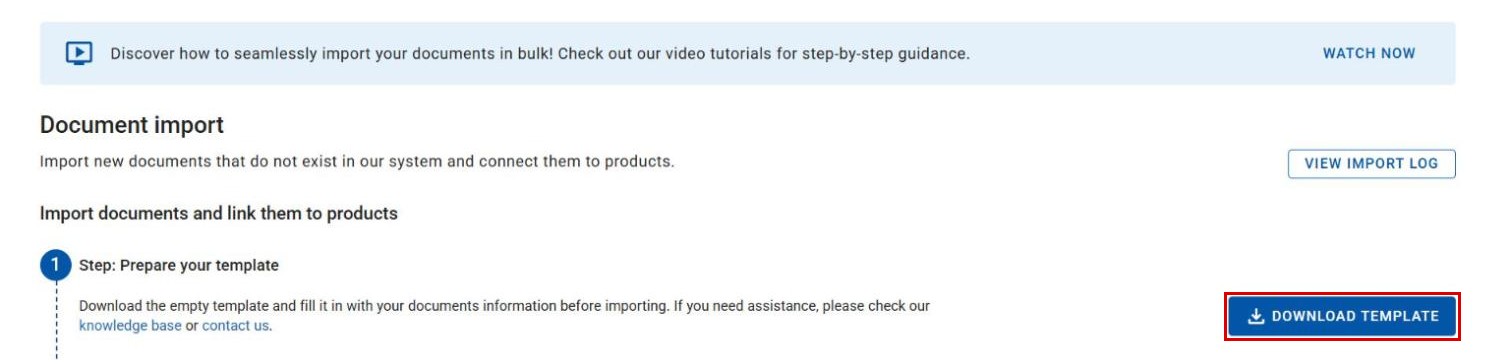
Prepare your template. Click Download template to download the empty Excel template, and fill it in with information about your documents.
On the Documents sheet, fill in:
- Import document key – a temporary numeric ID used only in the Excel file to identify the document and link it to the right products
- Document name
- Document type – select it if you know it. If the field is left empty, AI can suggest a document type during verification
- Country of use, Revision date and Expiration date (optional)
- File path (URL) – a public link where the document can be downloaded. The link must be accessible without logging in
The sheet also has the columns Errors and Warnings, which are filled in automatically after verification.
Then go to the Documents – Products sheet and link the documents to your products: enter the Import document key for each document (the document name and type are then filled in automatically), and enter at least one product identifier: Product GTIN, Product Nobb nr., Product SPN, Product NRF nr. or Product EL nr.
Need help with the template? See the Help sheet in the Excel file, visit the training portal, or contact us.


3
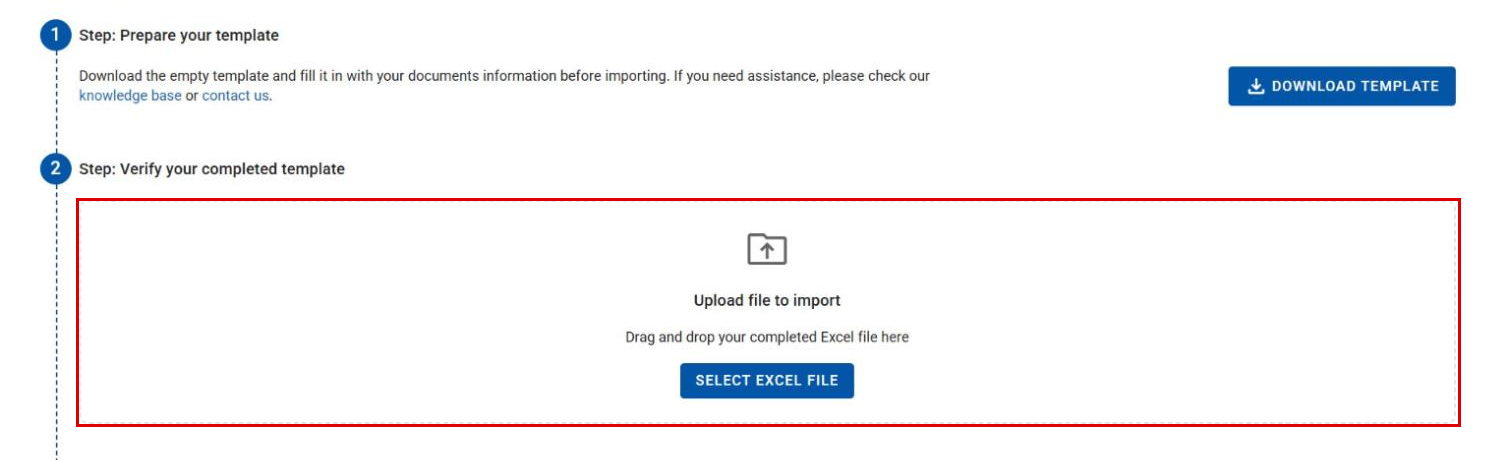
Verify your completed template. Upload the completed Excel file by dragging it into the upload area or clicking Select Excel file. The verification then starts. You can follow the progress on screen, and if you close the page and come back later, the verification is still available.
4
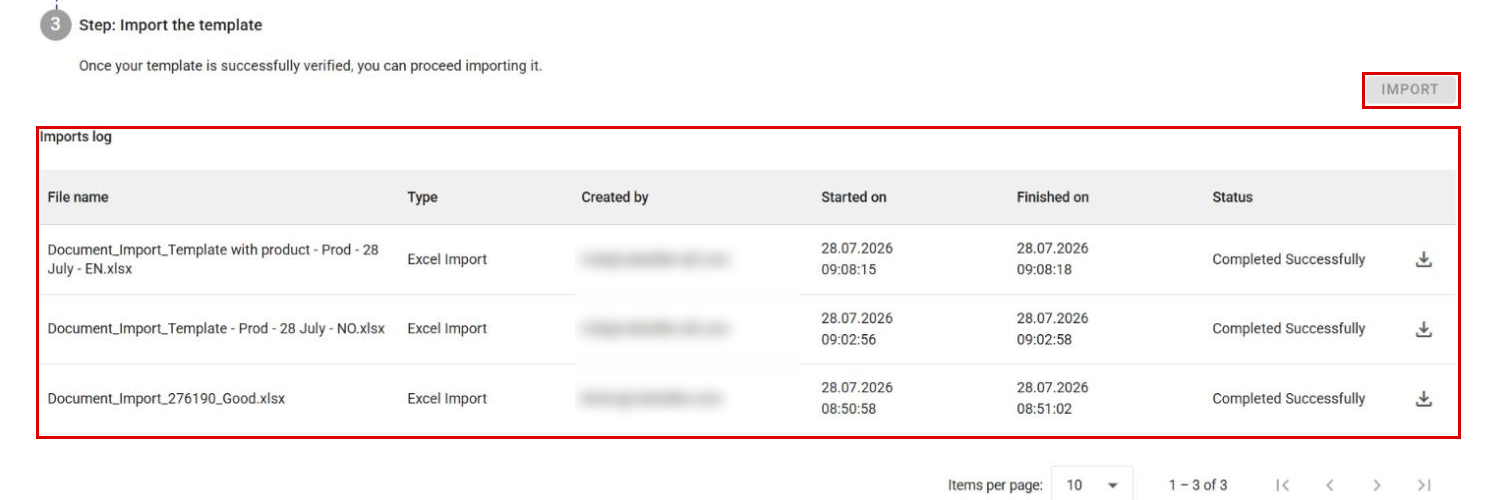
Import the template. When the verification is complete, you can download the result file to see any errors or missing information and make the necessary changes. Click Import to complete the import. You can follow the progress in the Imports log at the bottom of the page, or see the full history with View import log at the top of the page.