Welcome to Cobuilder Training Portal
You can add or update many products in Cobuilder Supply at once by importing them from an Excel template.
Go to Import Center
1
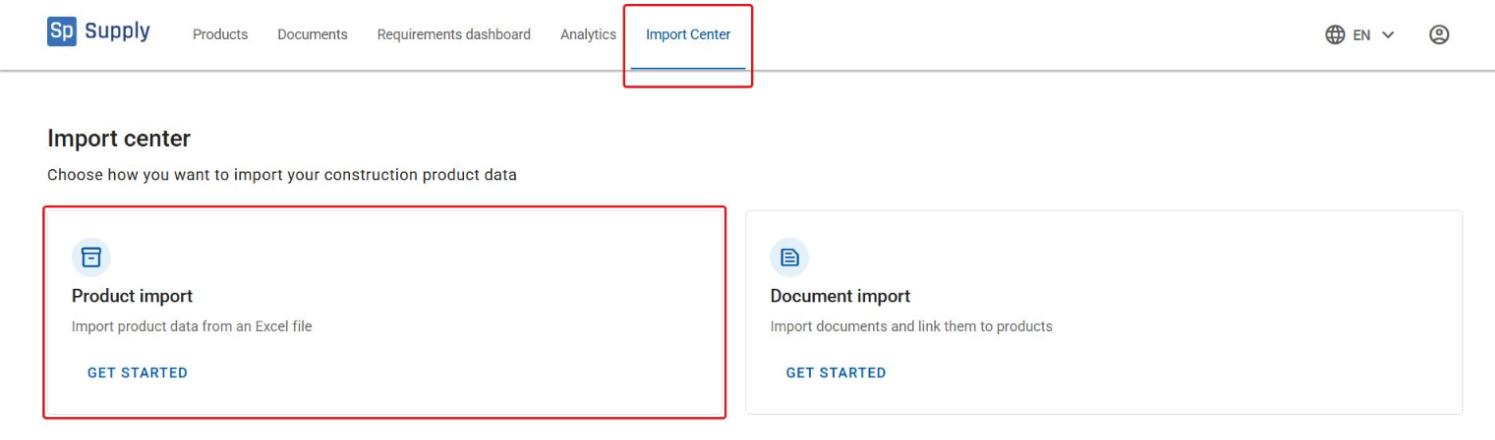
Go to Import Center in the top menu in Supply and choose Product import. Here you can also choose Document import to import documents and link them to products. On the import page, you can also click Export to download the names, descriptions and identifiers of all your products.
Download and fill in the template
2
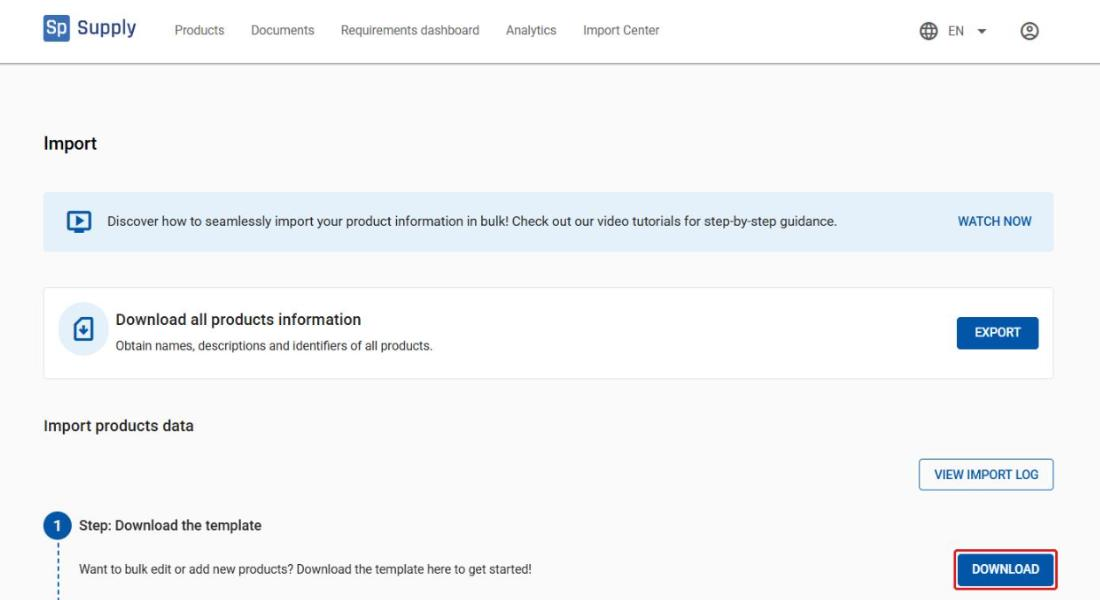
Click Download to download the Excel template to your computer.
3
Open the file and fill in the information for each product you want to import. The template has a help tab that explains what each field means, which requirements apply and which format to use. Make sure the data follows the template’s format so that the import works as expected.
Upload and verify the file
4
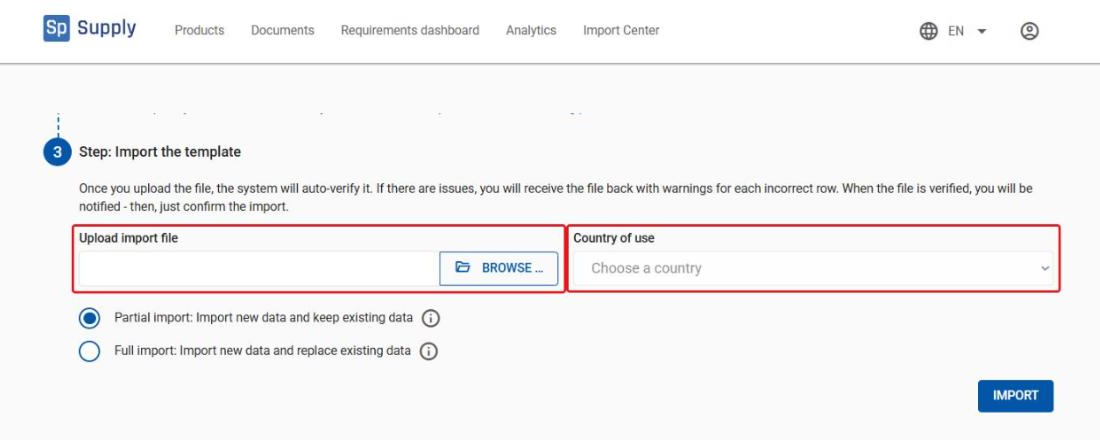
Upload the completed file with Browse, and select Norway under Country of use if the products will be used in Norway. Then click Verify.
5
If the file is approved, you get a confirmation that it is ready for import. If the file contains errors, you are notified and can download the file with the errors marked – correct the errors and upload the file again.
Choose the import type and import
6
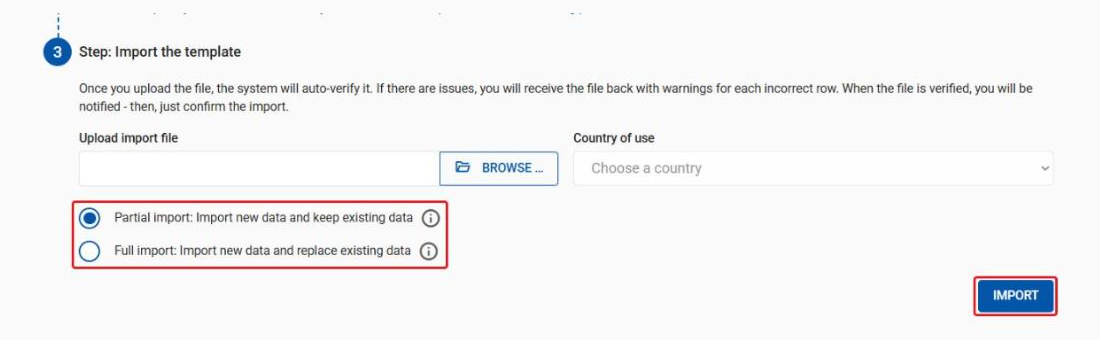
When the file is verified, choose the import type:
- Partial import imports new product data and keeps existing data. Data that isn’t included in the file stays unchanged.
- Full import imports new product data and replaces all existing data. Products that aren’t included in the file are marked as expired.
Click Import to start.
7
You’ll see the message Import is in progress. Please wait… while the import runs.
Follow the import in the Imports log
8
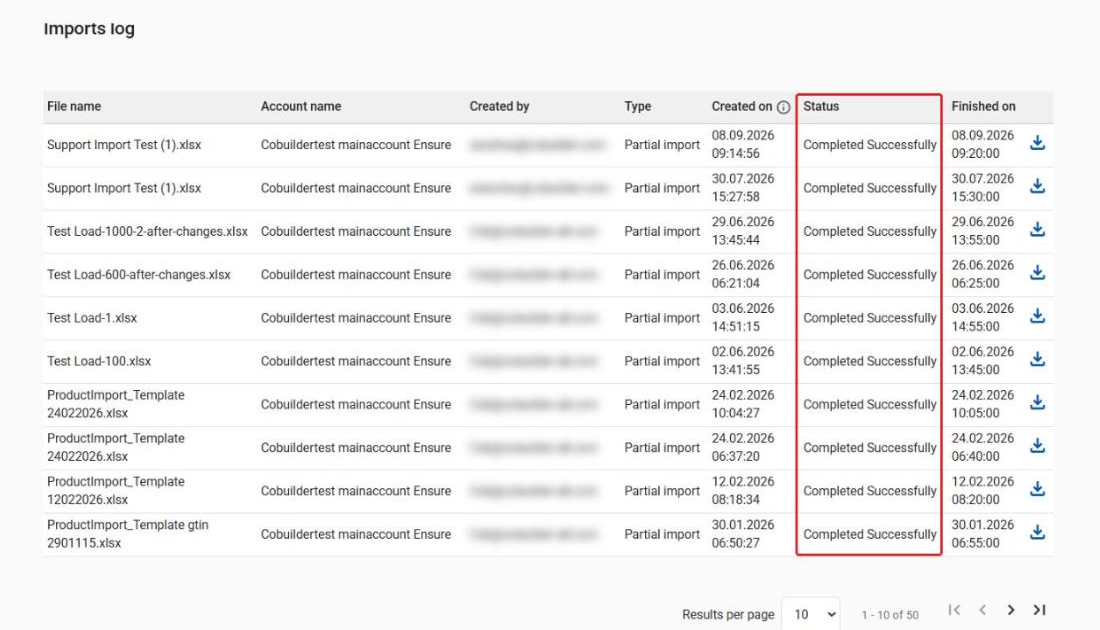
Below the import step, you’ll find the Imports log, which lists all previous import files and the status of each one. While an import is running, its progress is shown as a percentage. When the import is finished, the status changes to Completed Successfully.