Welcome to Cobuilder Training Portal
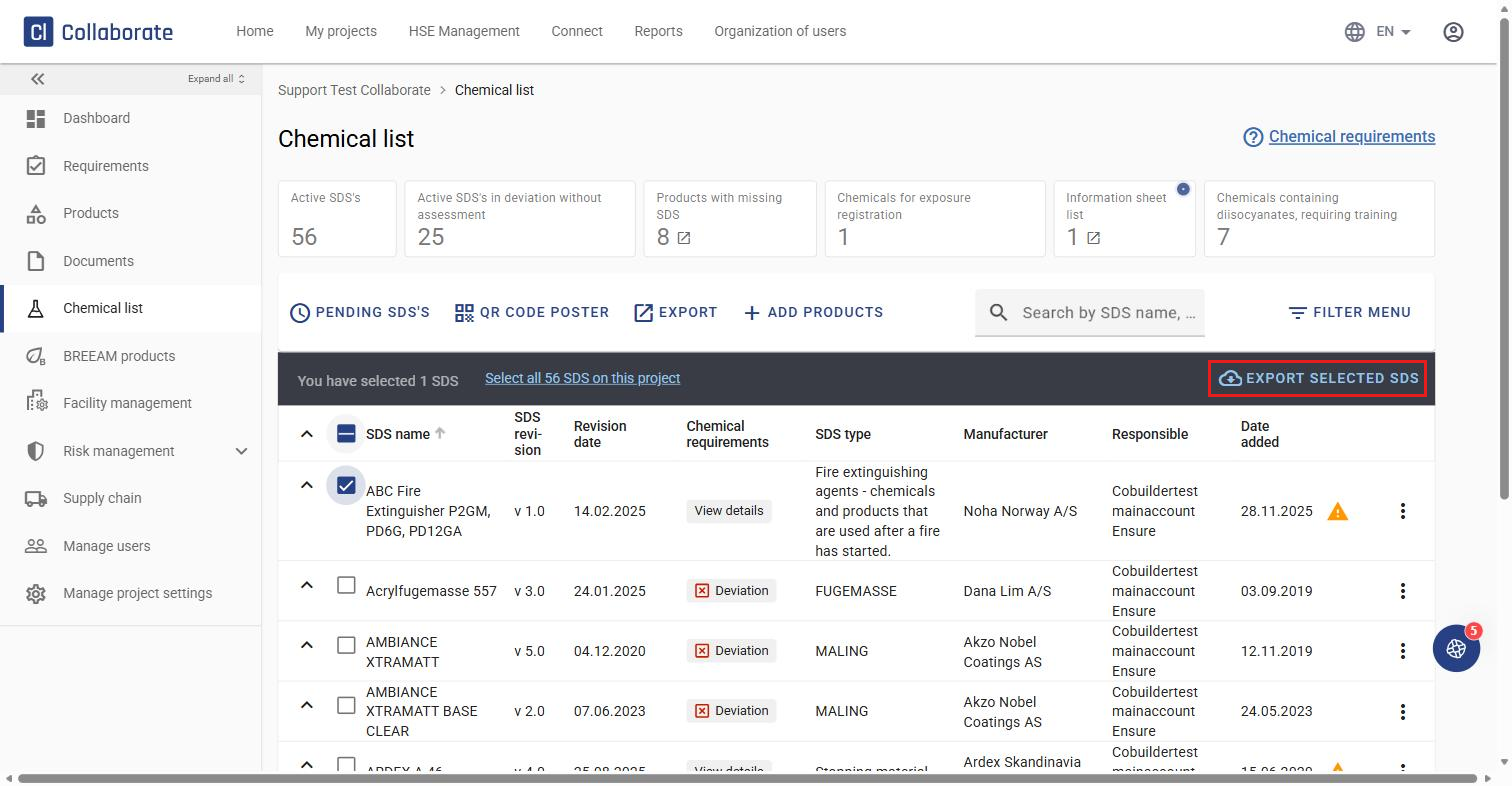
Export the Safety Data Sheets (SDS) from your project’s chemical list, either as an Excel overview or as a folder of files.
Export the SDS files
1
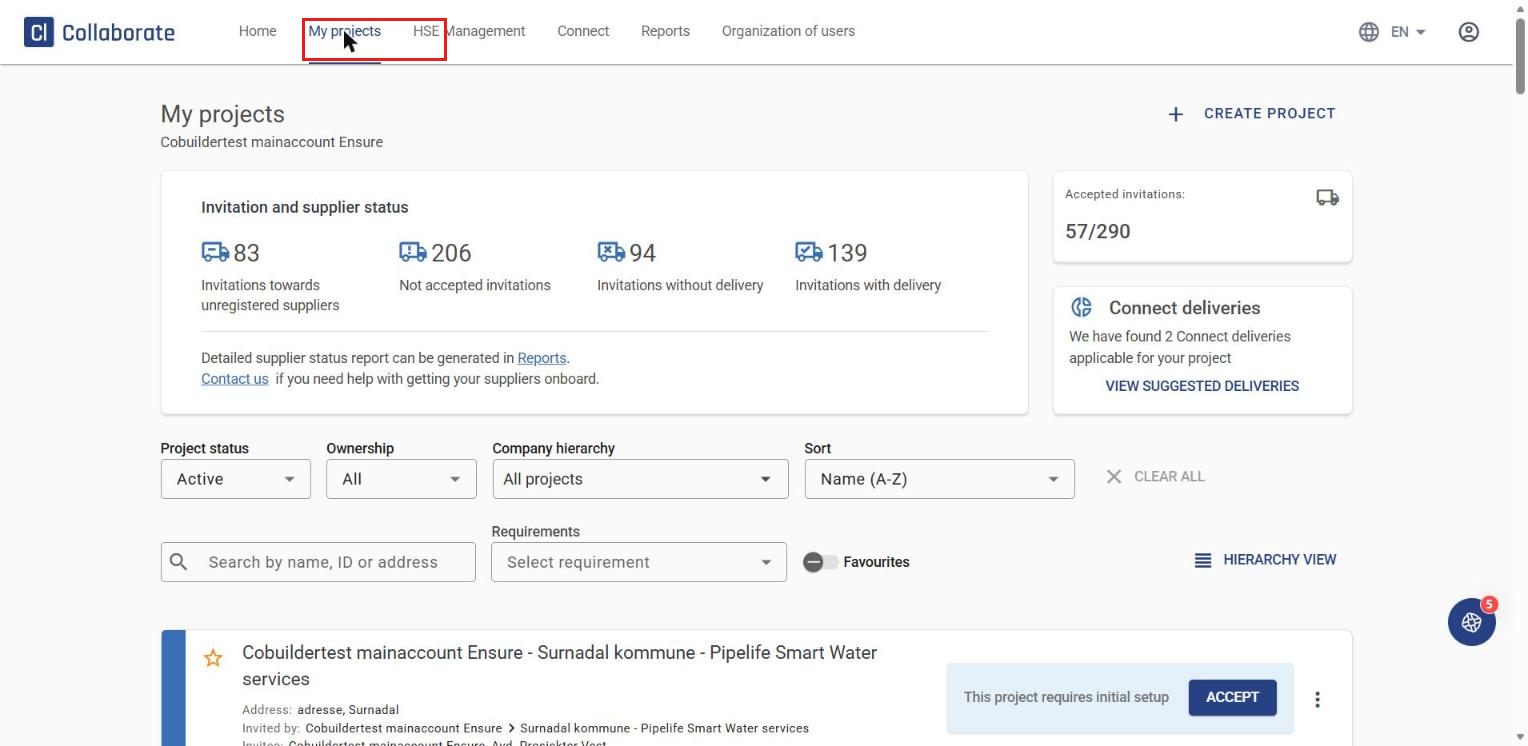
Go to My projects and open the project.
2
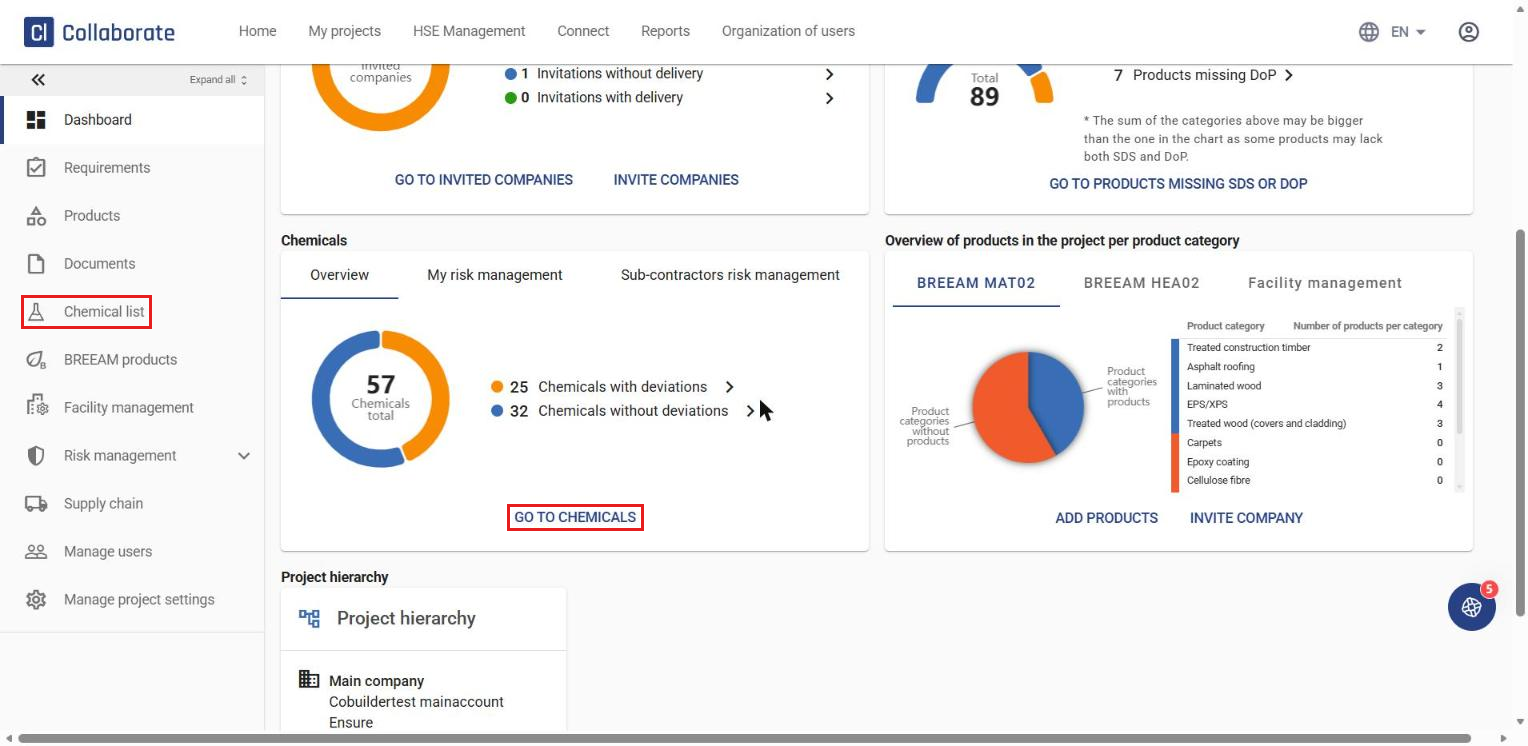
Click Chemical list in the left-hand menu, or Go to chemicals on the project dashboard.
3
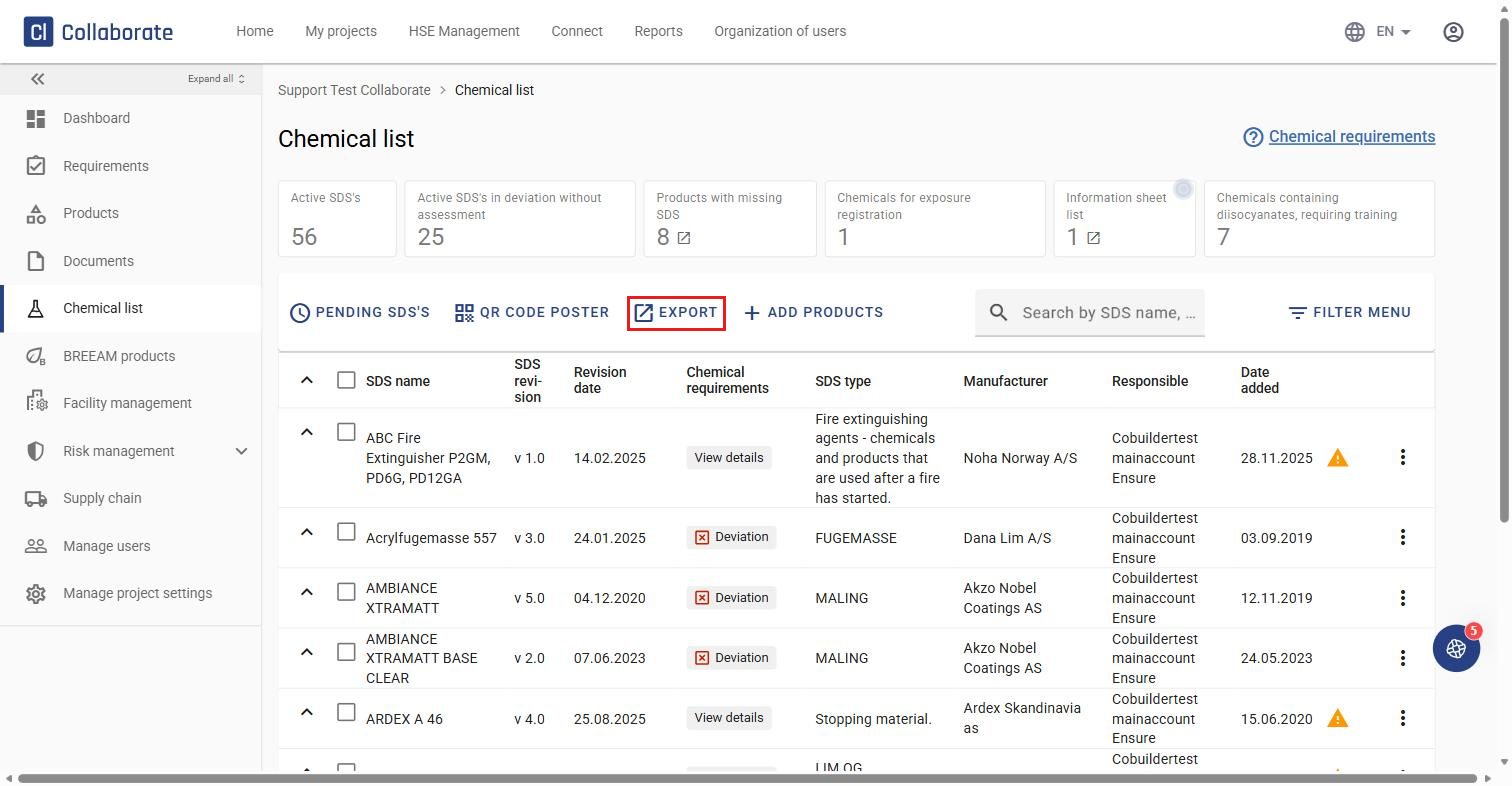
Click Export in the toolbar.
4
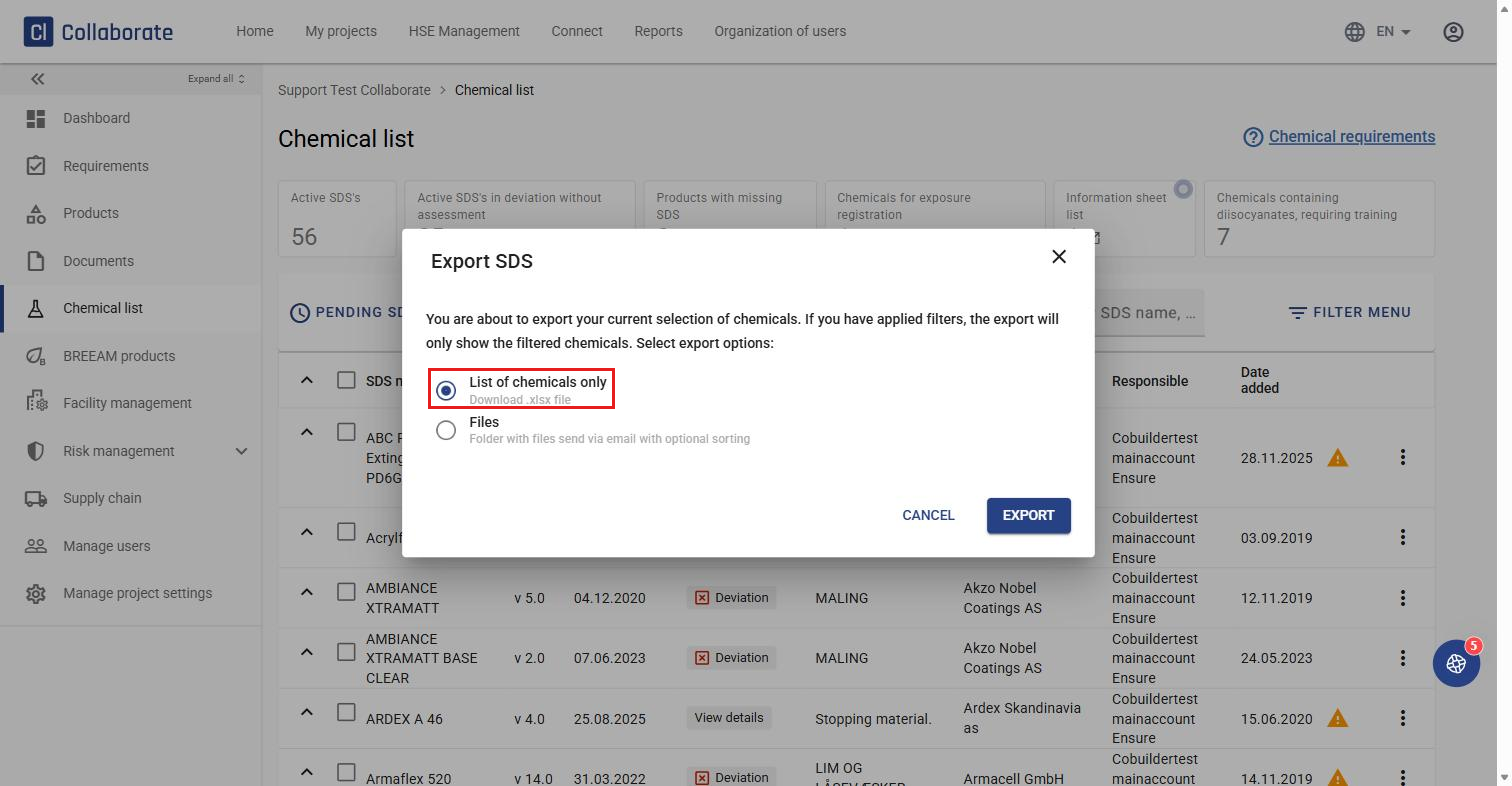
Choose List of chemicals only to download an Excel (.xlsx) file with the SDS name, QA status, and other details right away.
5
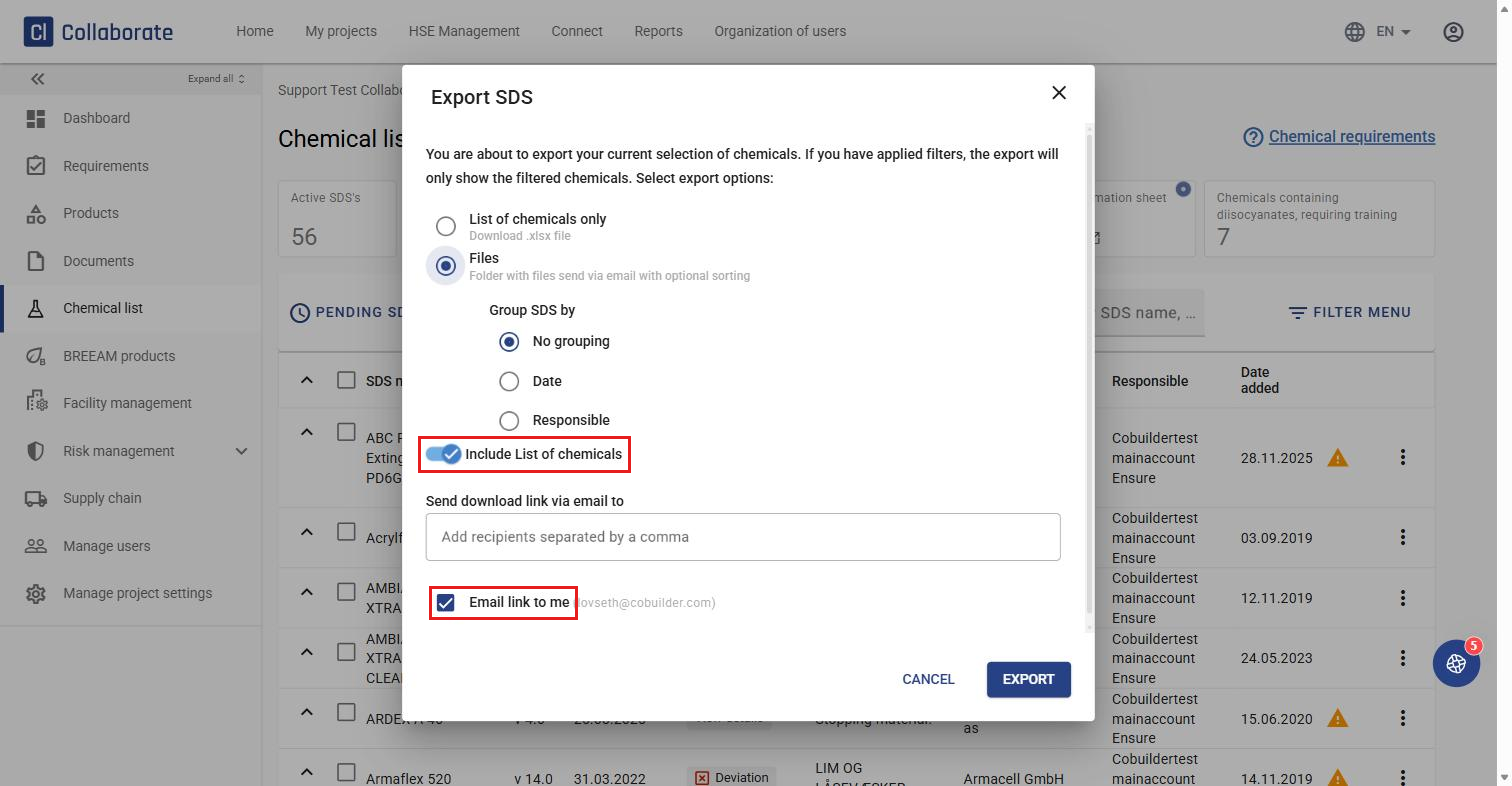
Or choose Files to export a folder of SDS files instead. Choose how to group them — No grouping, Date, or Responsible — and whether to include the chemical list report (Include List of chemicals, on by default). The download link is sent automatically to your own email; add other people’s email addresses (separated by commas) only if you also want to share it with them. Click Export.
6
You’ll receive an email with a link — click it to generate the export. After a few seconds, a ZIP file downloads containing the SDS folder, plus the Excel report if you included it.