Welcome to Cobuilder Training Portal
In the Cobuilder app, you can add products to a project in two ways: by scanning the barcode, or by searching for the product name. Both methods end in the same place, where you choose which project to add the products to.
Open the Add products screen
1
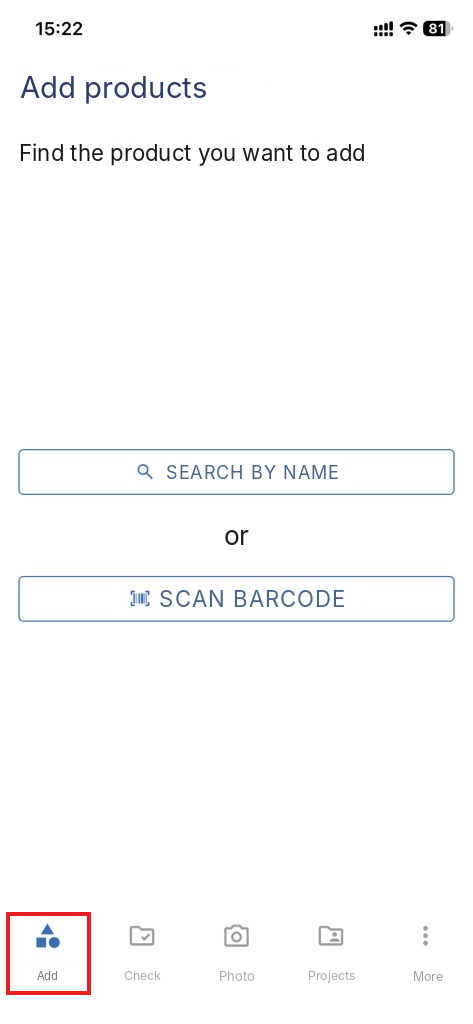
Open the Cobuilder app and tap Add in the bottom menu. The Add products screen opens.
Method 1: Scan the barcode
1
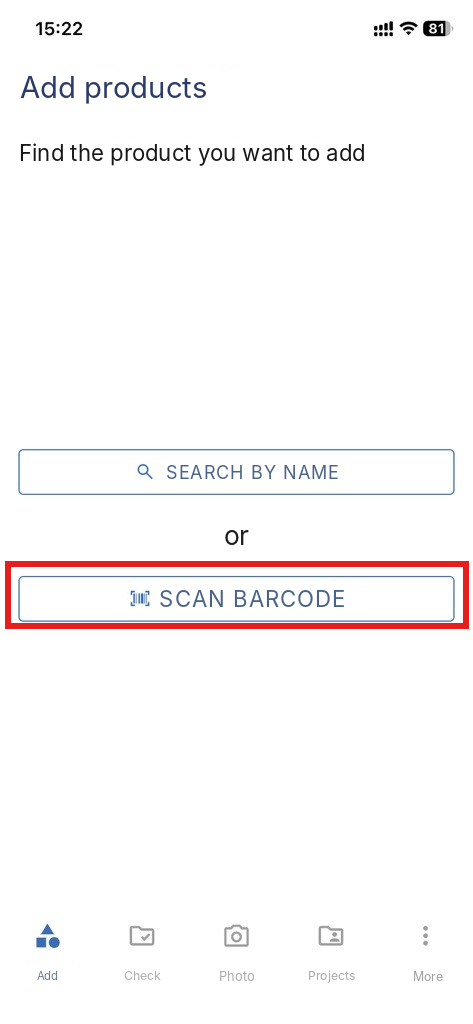
Tap Scan barcode.
2
Place the barcode in the center of the square.

3
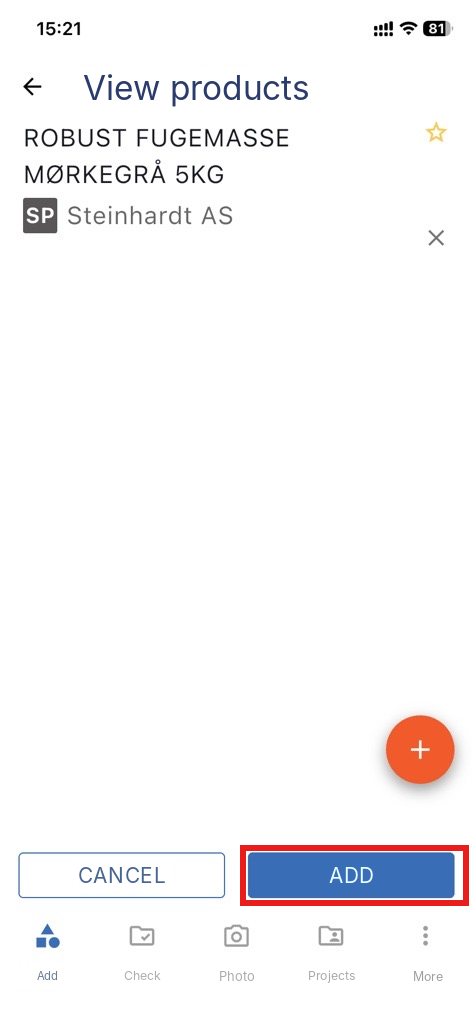
The app identifies the product automatically. Tap Add.
Method 2: Search by name
1
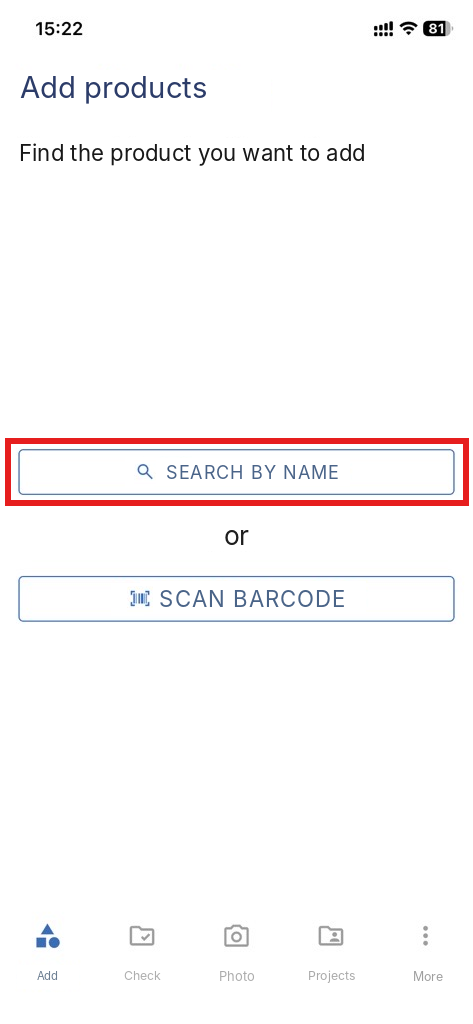
Tap Search by name.
2
Type the product name, or part of it, in the search field.
3
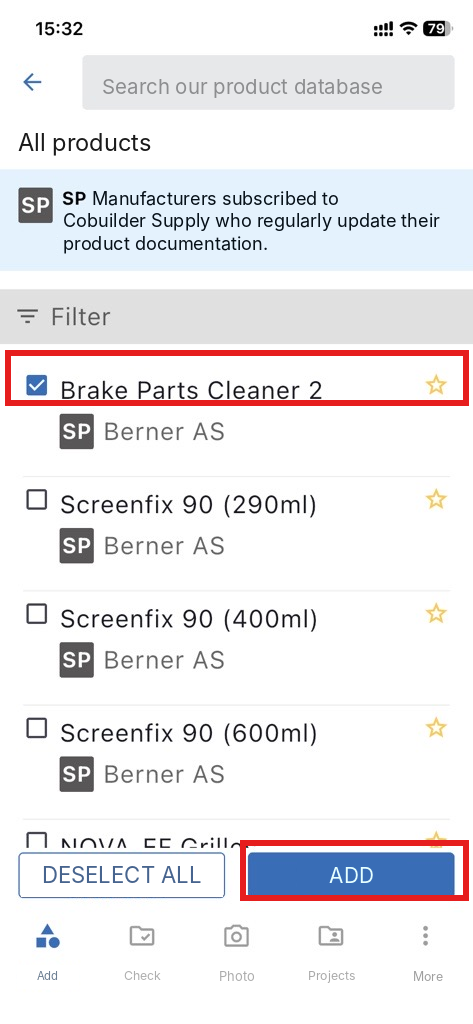
Select one or more products in the list, then tap Add.
Select a project and finish
1
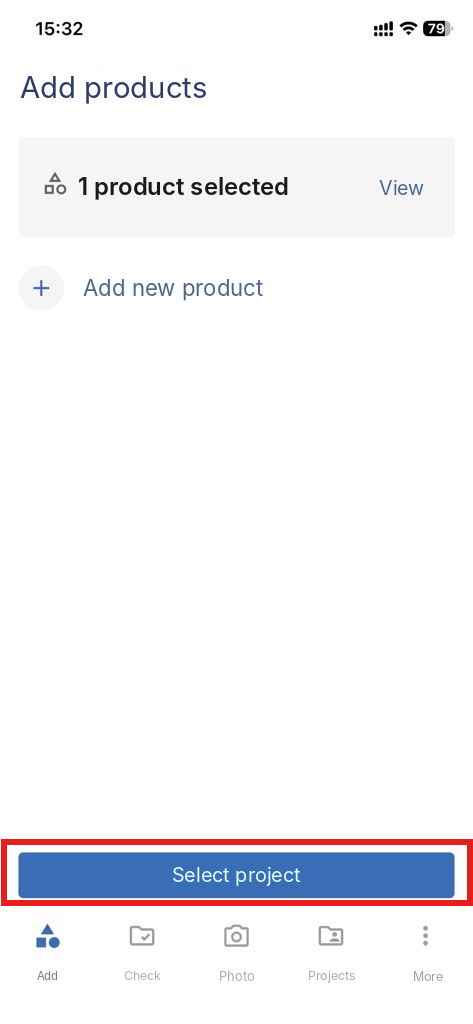
The screen now shows how many products you have selected. Tap Select project.
2
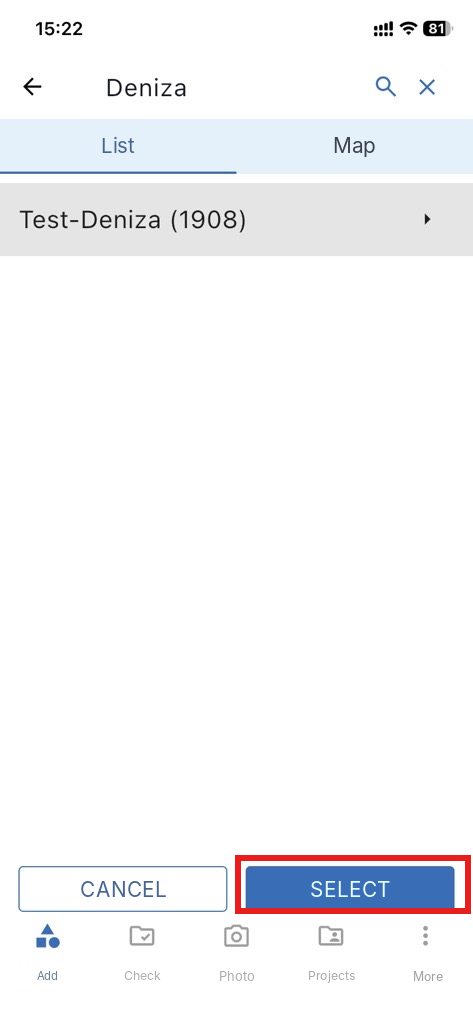
Find the project with the magnifying glass, or select it in the list, then tap Select.
3
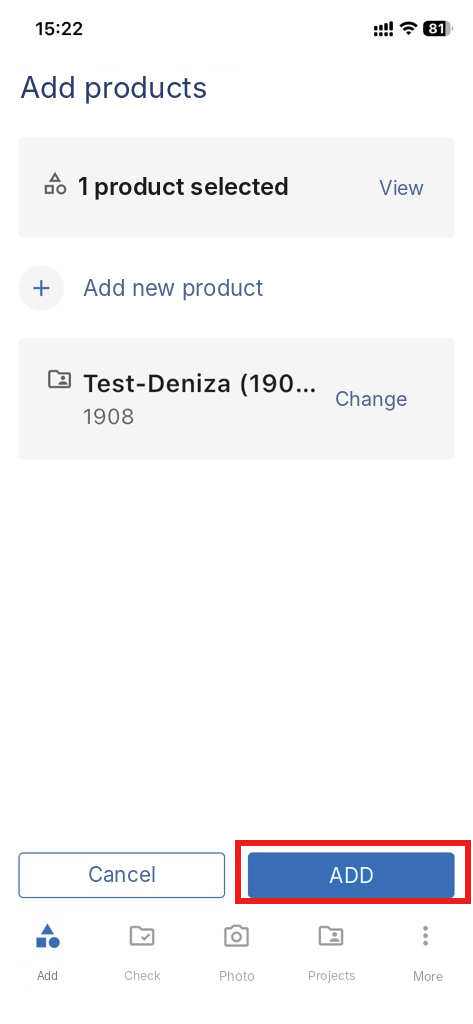
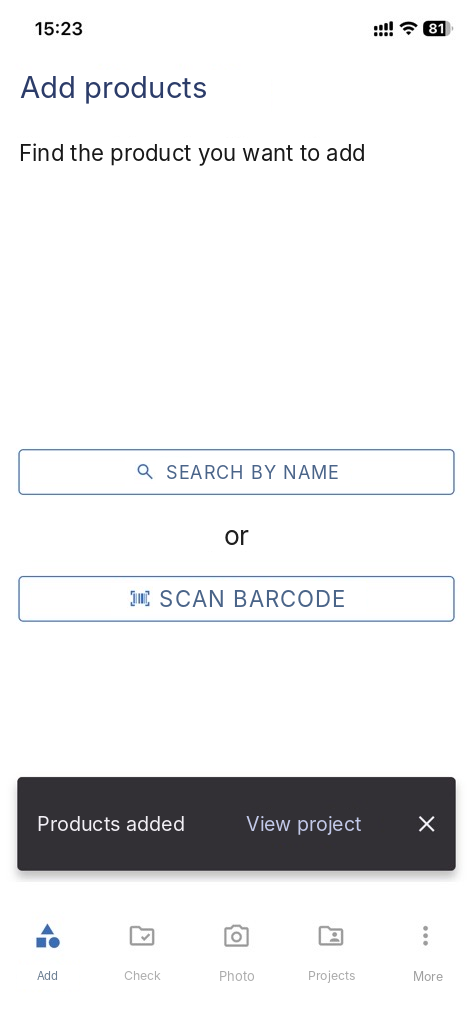
You return to the Add products screen, which now shows the project. Tap Add to finish.