Welcome to Cobuilder Training Portal
An information sheet is a simplified safety data sheet for chemicals in Group 2 or Group 3 under the Regulations concerning the Performance of Work. It is stored in the project’s Chemical list. You can base it on an existing safety data sheet, or fill in the information manually.
Steps
1
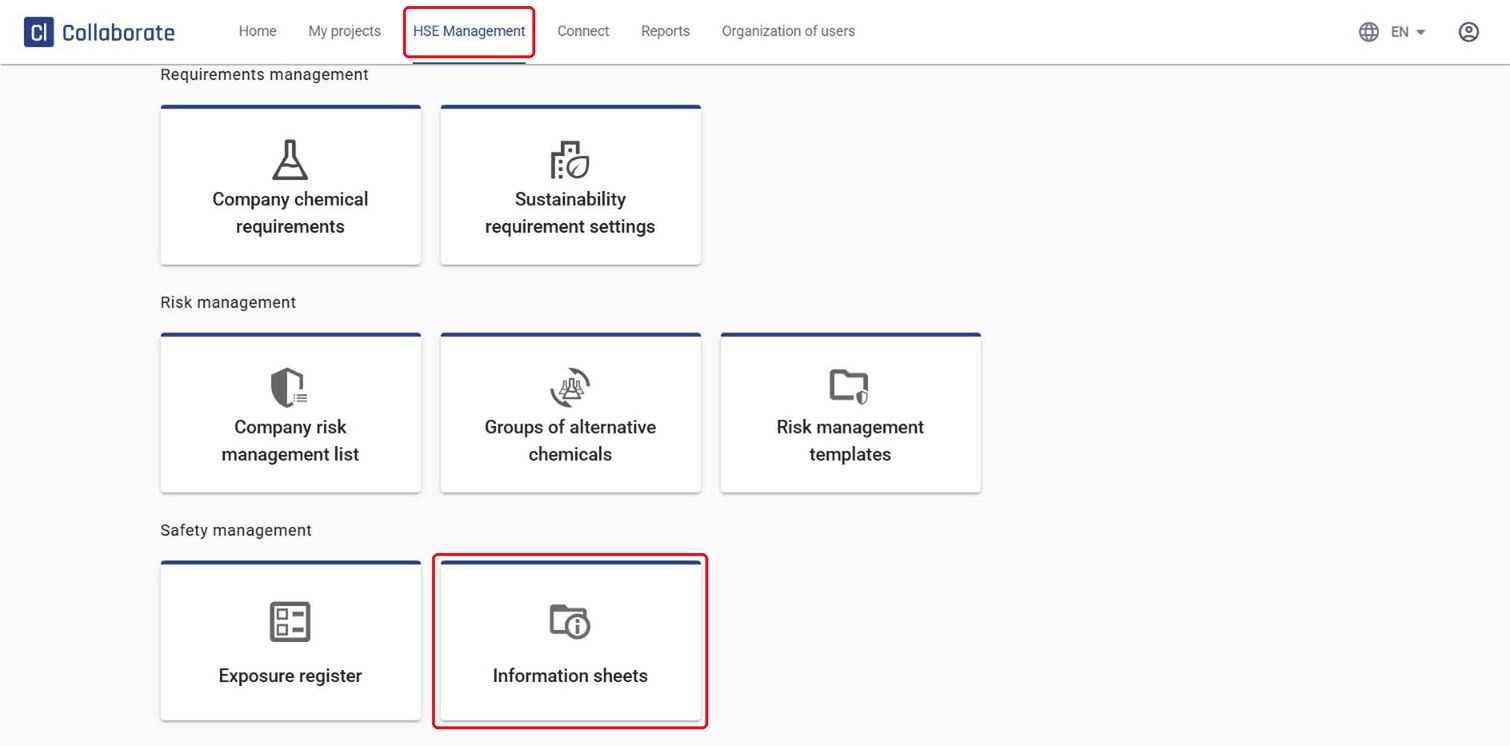
In the top menu, go to HSE Management and select Information sheets.
2
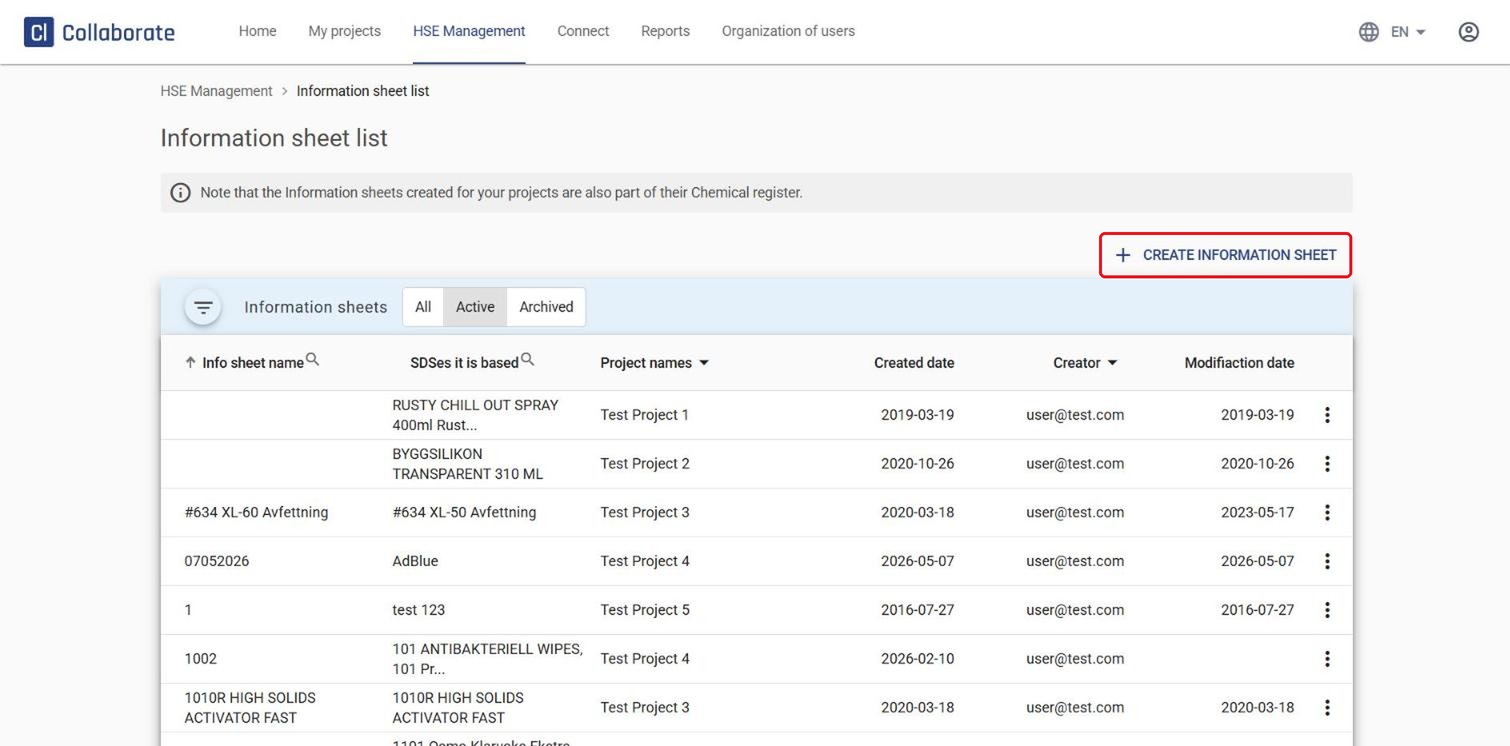
Click Create information sheet.
3
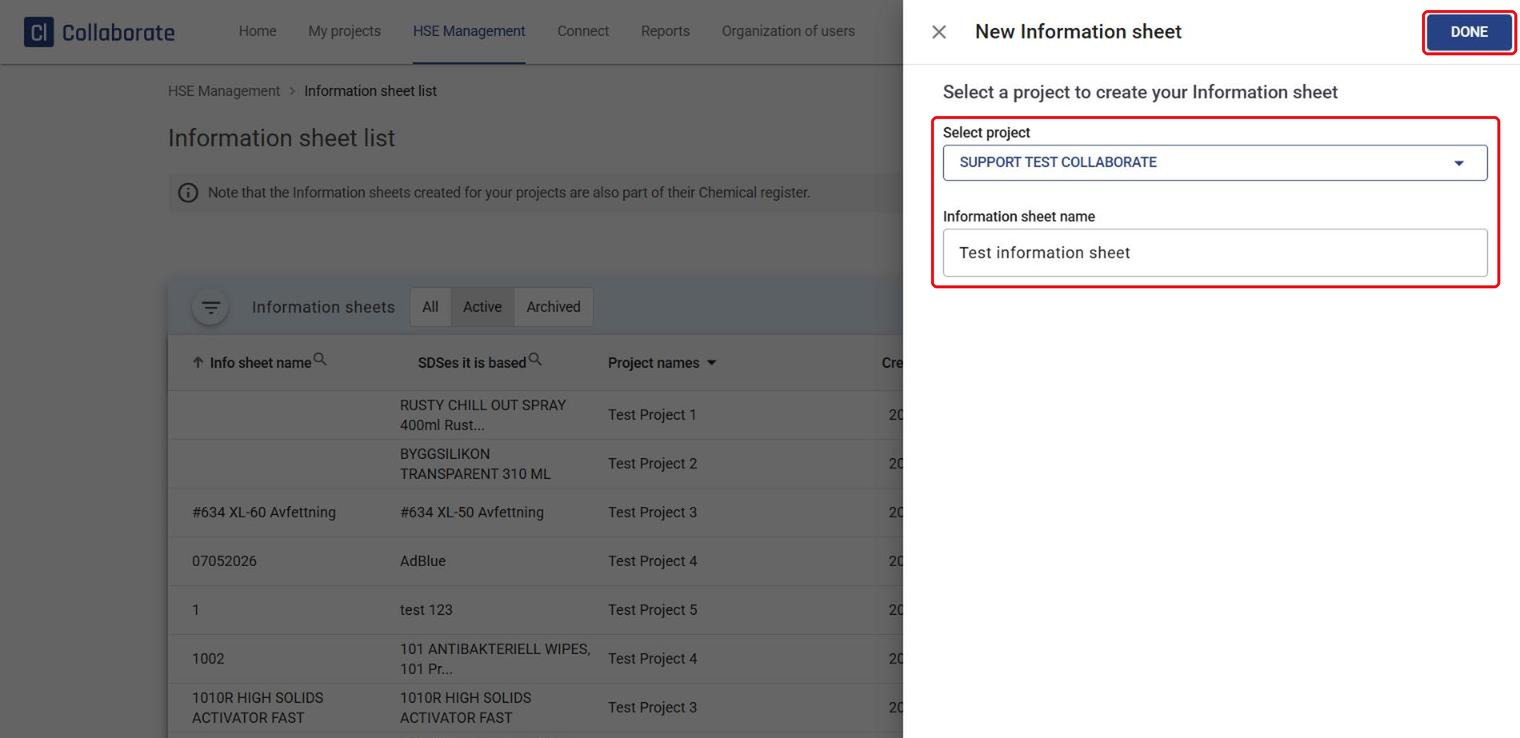
Select the project under Select project, enter a name under Information sheet name, and click Done.
4
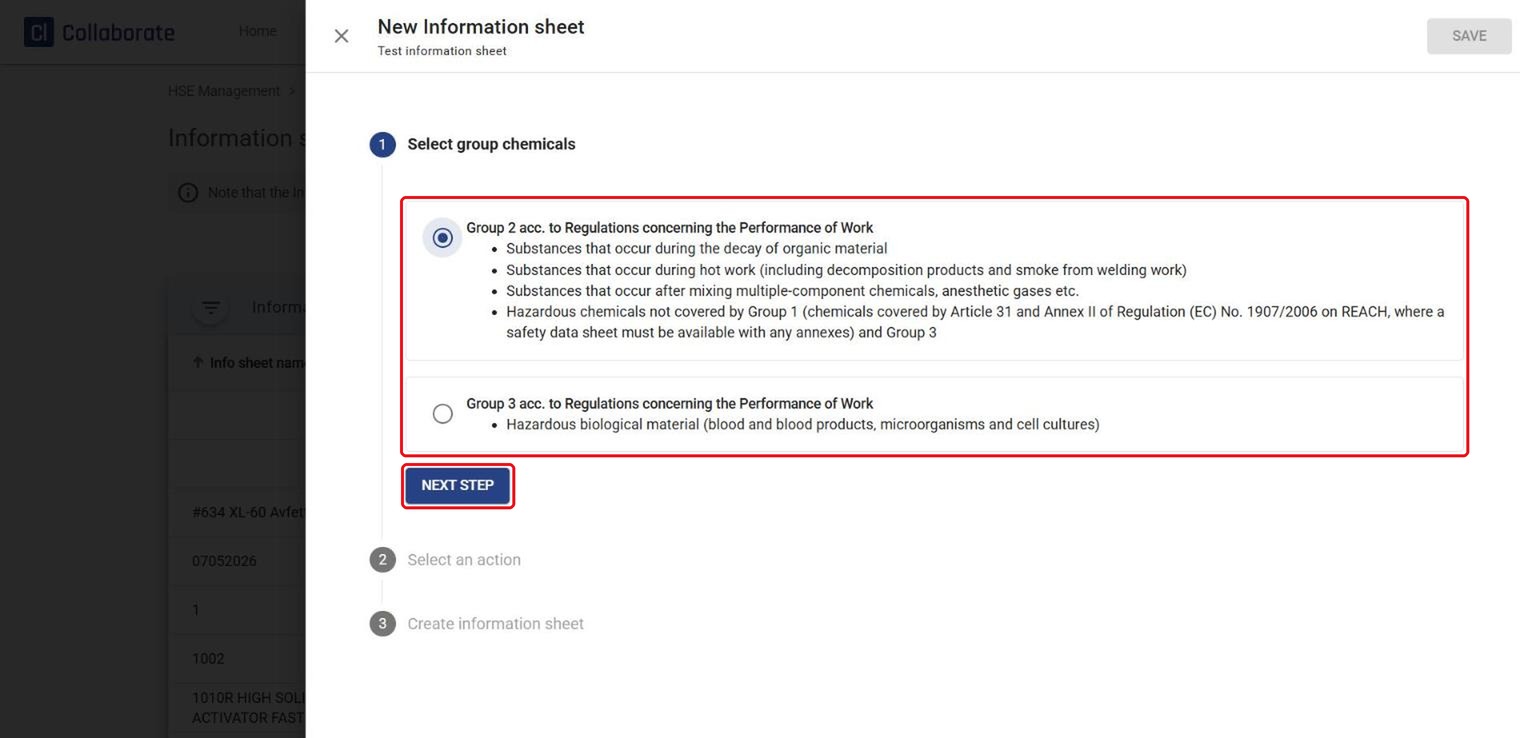
Select the correct chemical group, and click Next step.
5
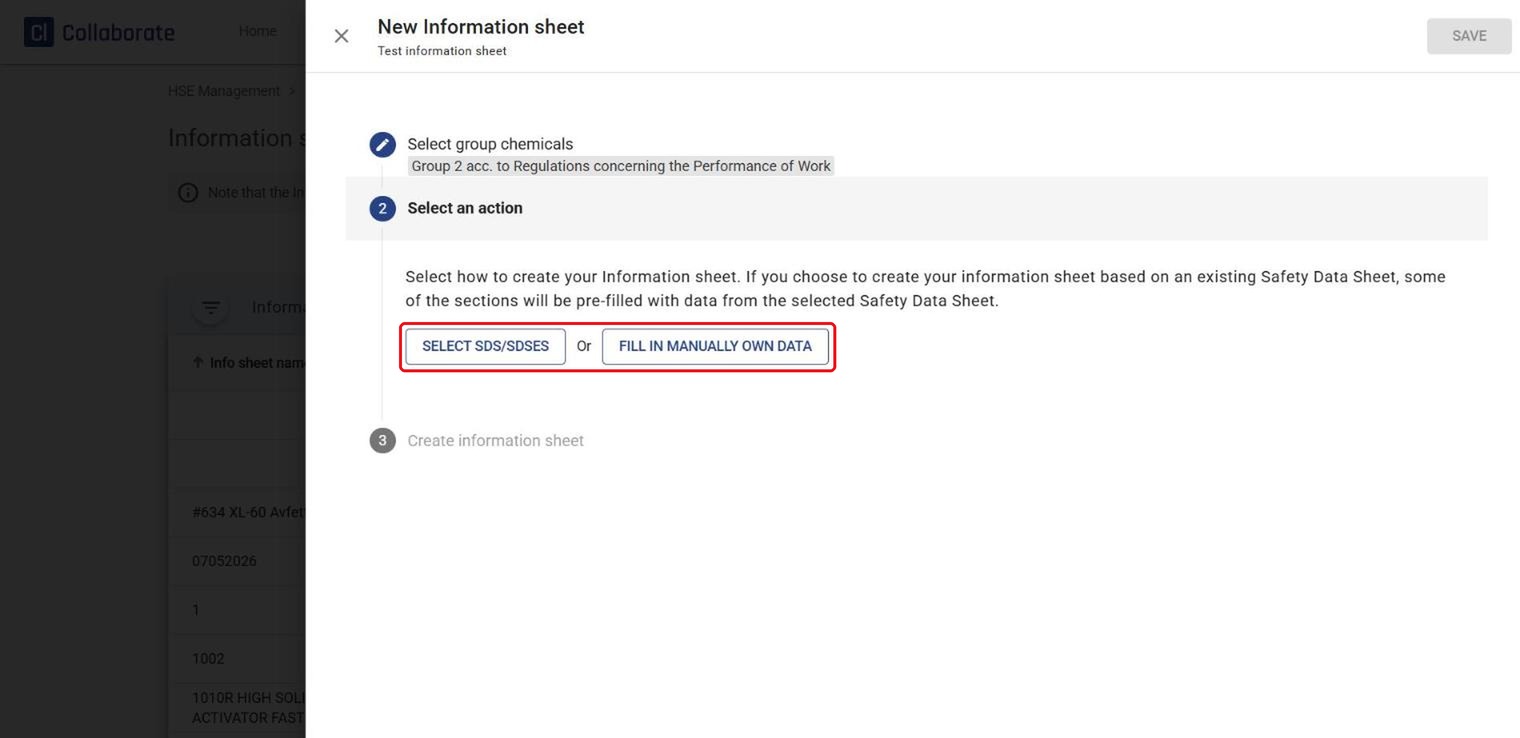
Choose how to create the information sheet. Click Select SDS/SDSes to use data from an existing safety data sheet – some sections are then filled in automatically. Click Fill in manually own data to fill in everything yourself.
6
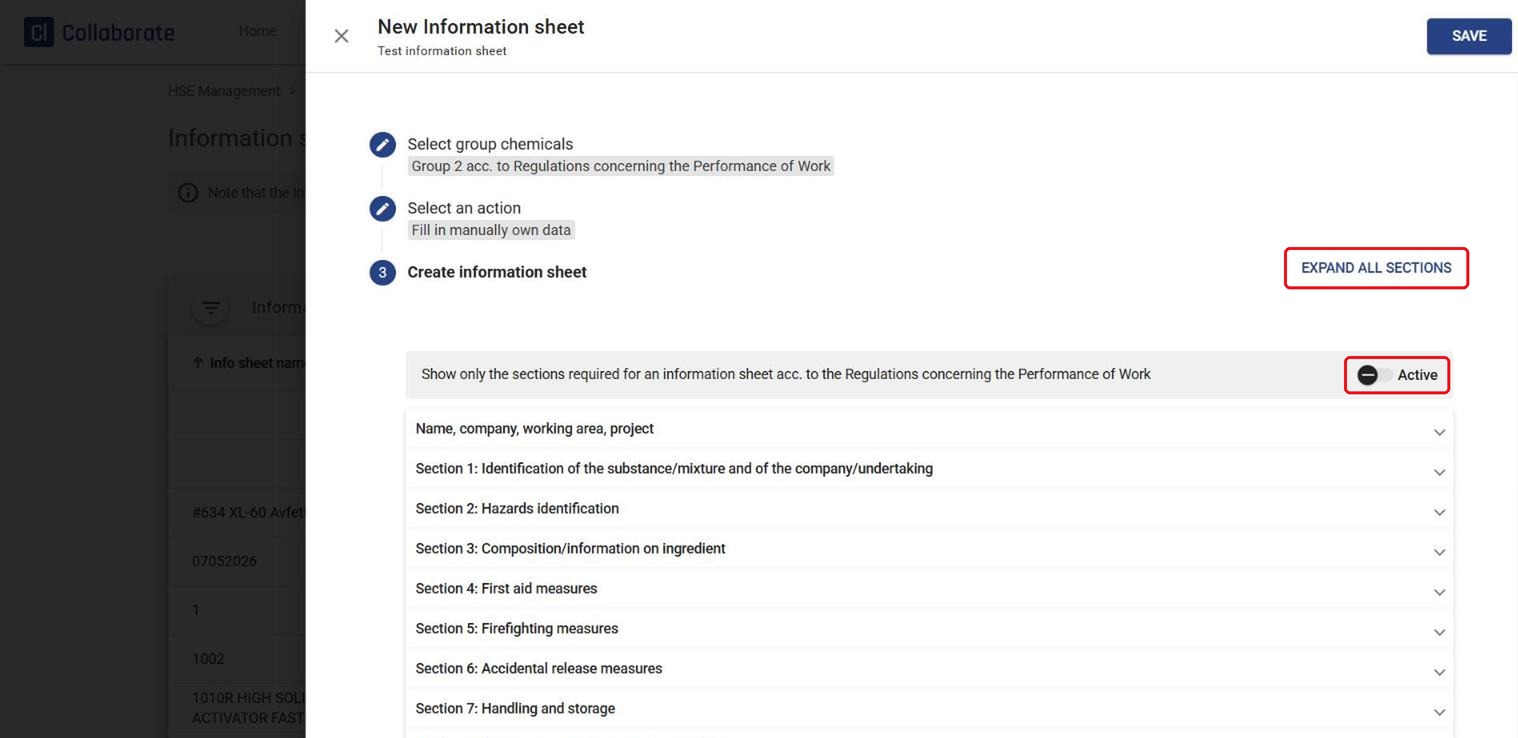
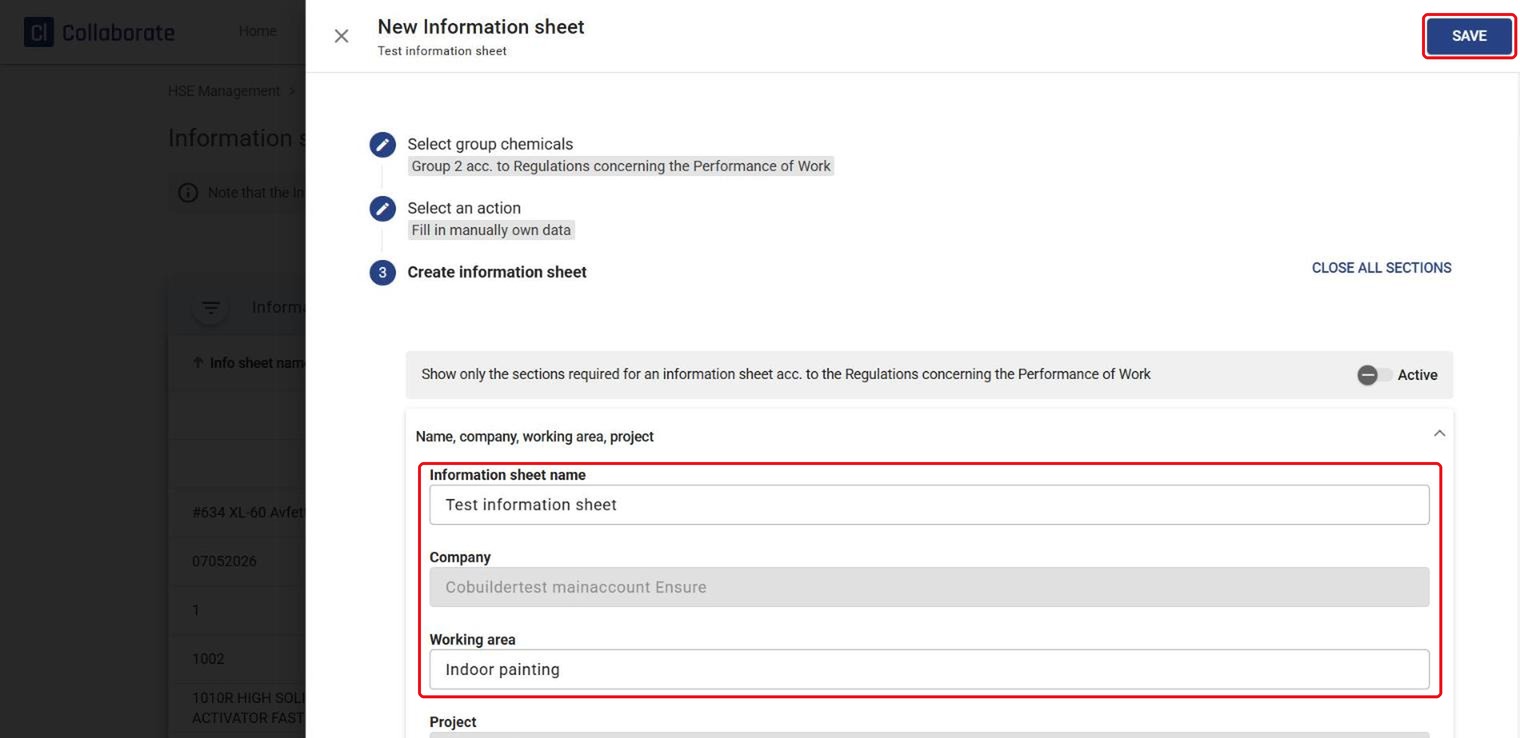
Click Expand all sections to open the fields you need to fill in. All SDS sections are shown by default – turn on the Active toggle to show only the sections required for an information sheet under the Regulations concerning the Performance of Work.
7
Fill in the information, and click Save when you’re done.
8
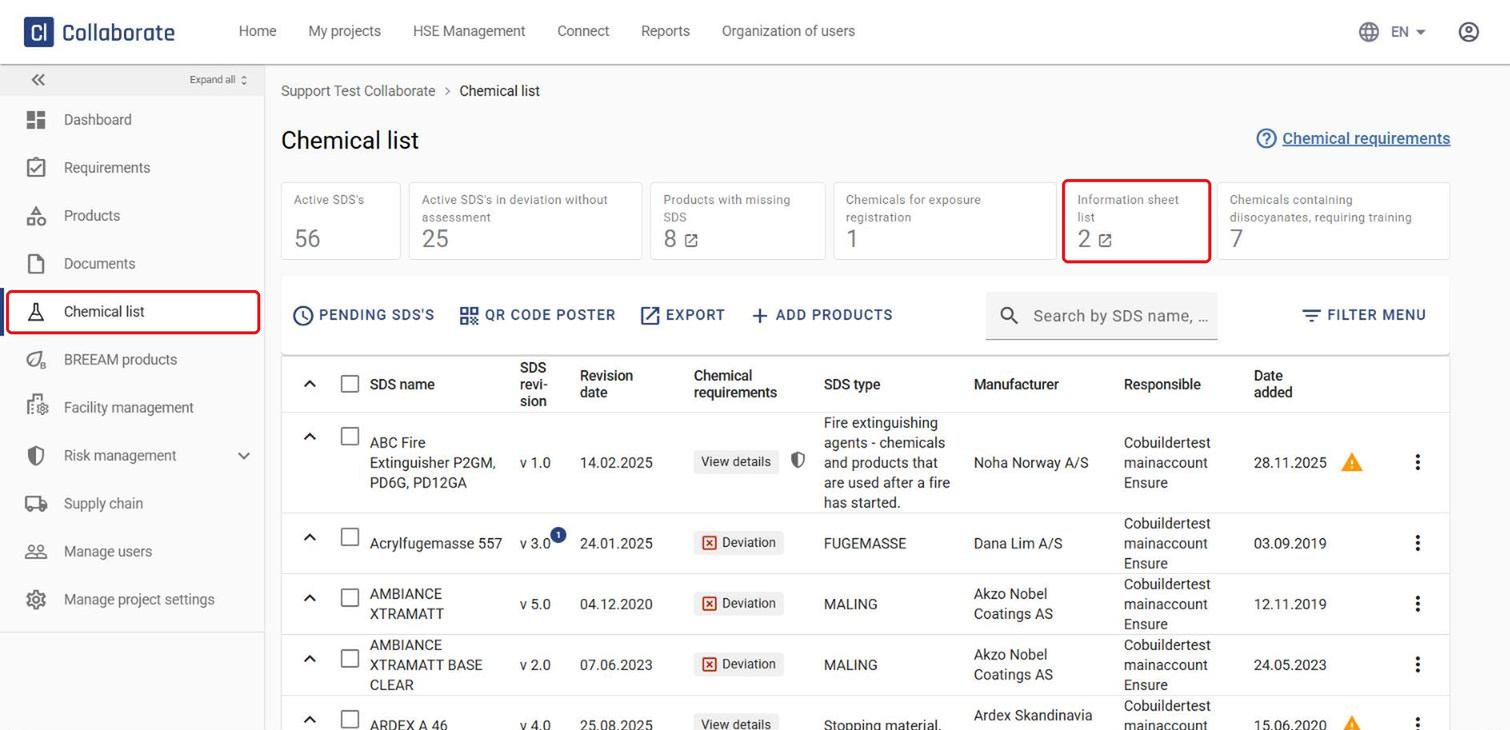
Open Chemical list in the relevant project, and click the Information sheet list tile at the top to see all information sheets in the project.
9
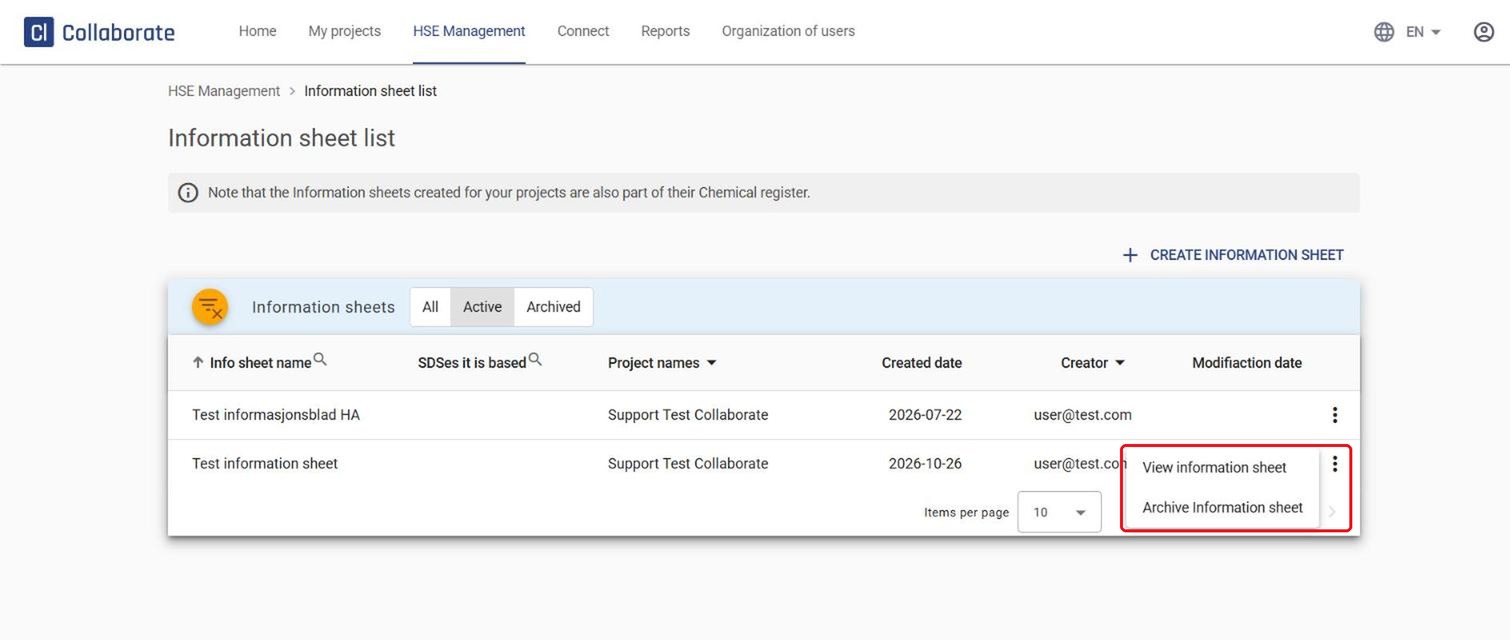
Click the three dots to the right of an information sheet, and select View information sheet or Archive Information sheet.