Welcome to Cobuilder Training Portal
In Cobuilder Supply, you can check whether your products meet the requirements for legislative documentation, BREEAM and sustainability reporting. You get a clear overview of deviations, the status of each product against the relevant requirements, and what you need to do to meet them.
Open the deviation overview
1
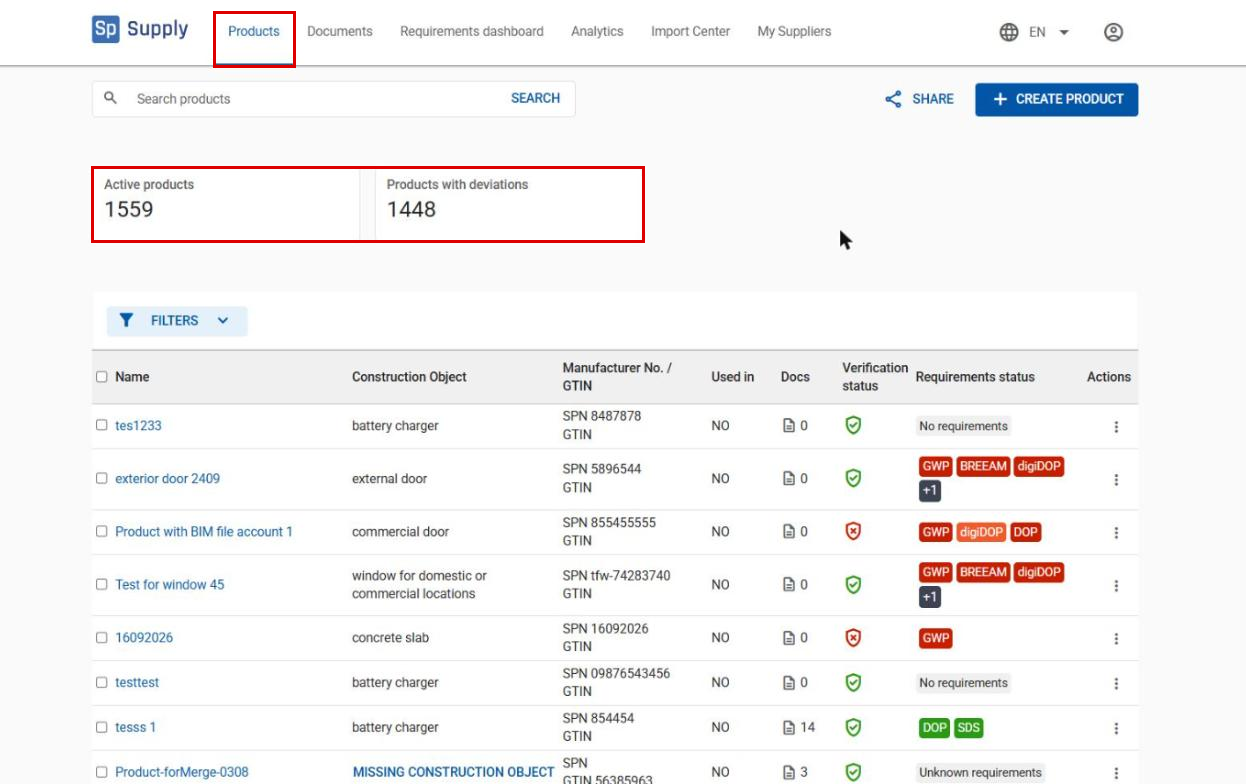
Go to the Products tab. Here you see all the products you have registered, including how many are active and how many have open deviations.
2
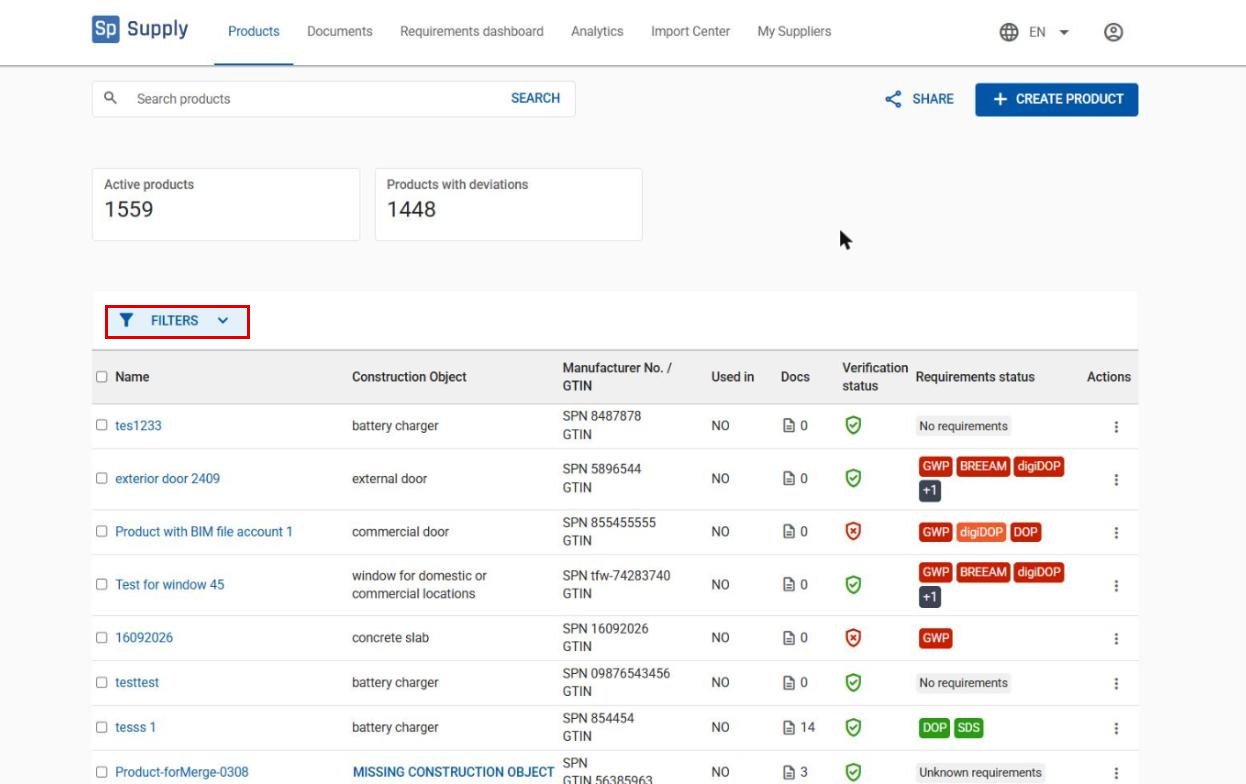
Click Filters to open the filter options.
3
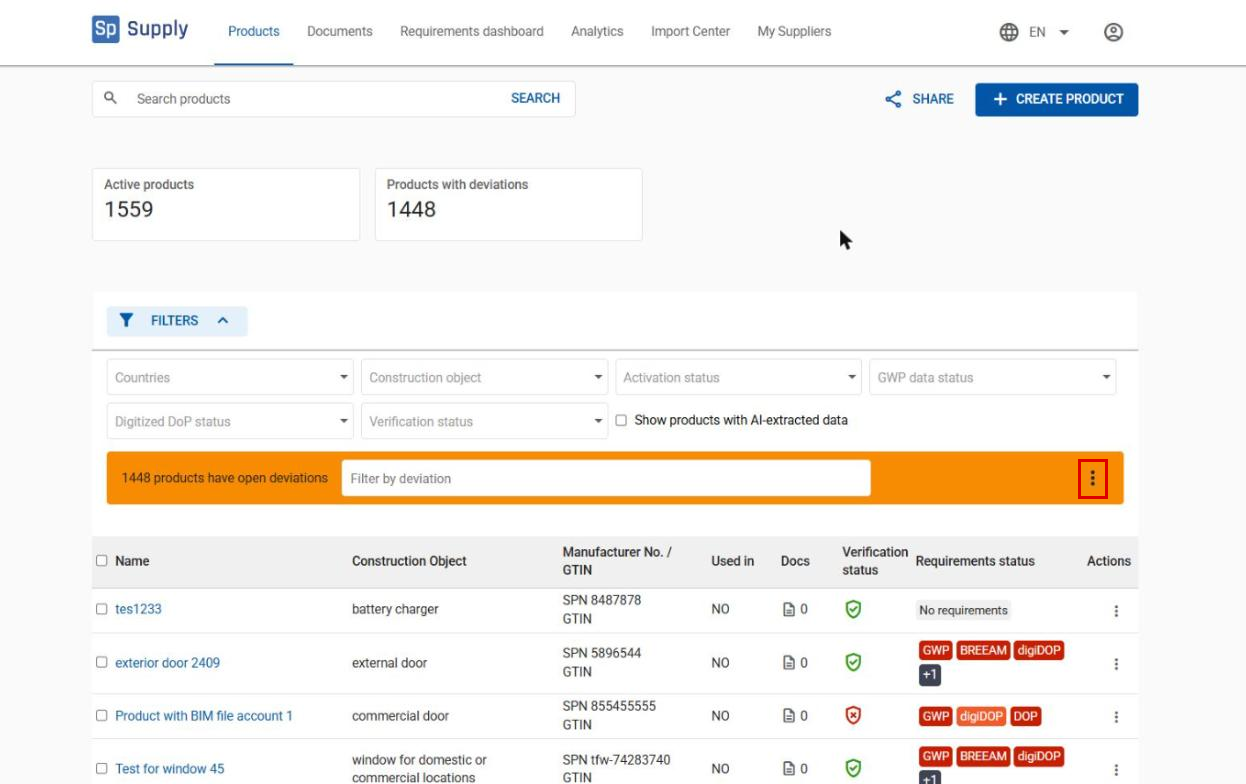
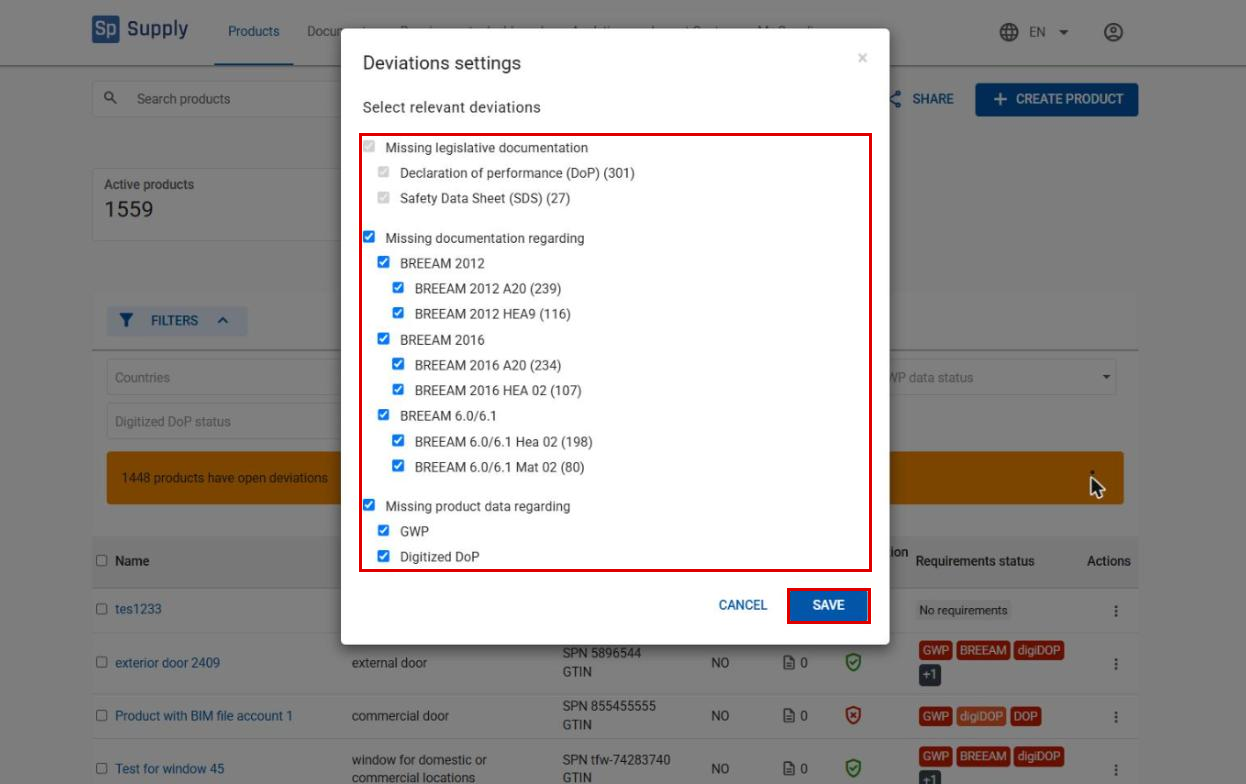
Click the three dots to the right of the deviation bar to open Deviations settings.
4
Select the types of deviations you want to follow, and click Save. Deviations for missing legislative documentation can’t be removed – they are always shown, because the documentation is required by law.
Filter by specific deviations
5
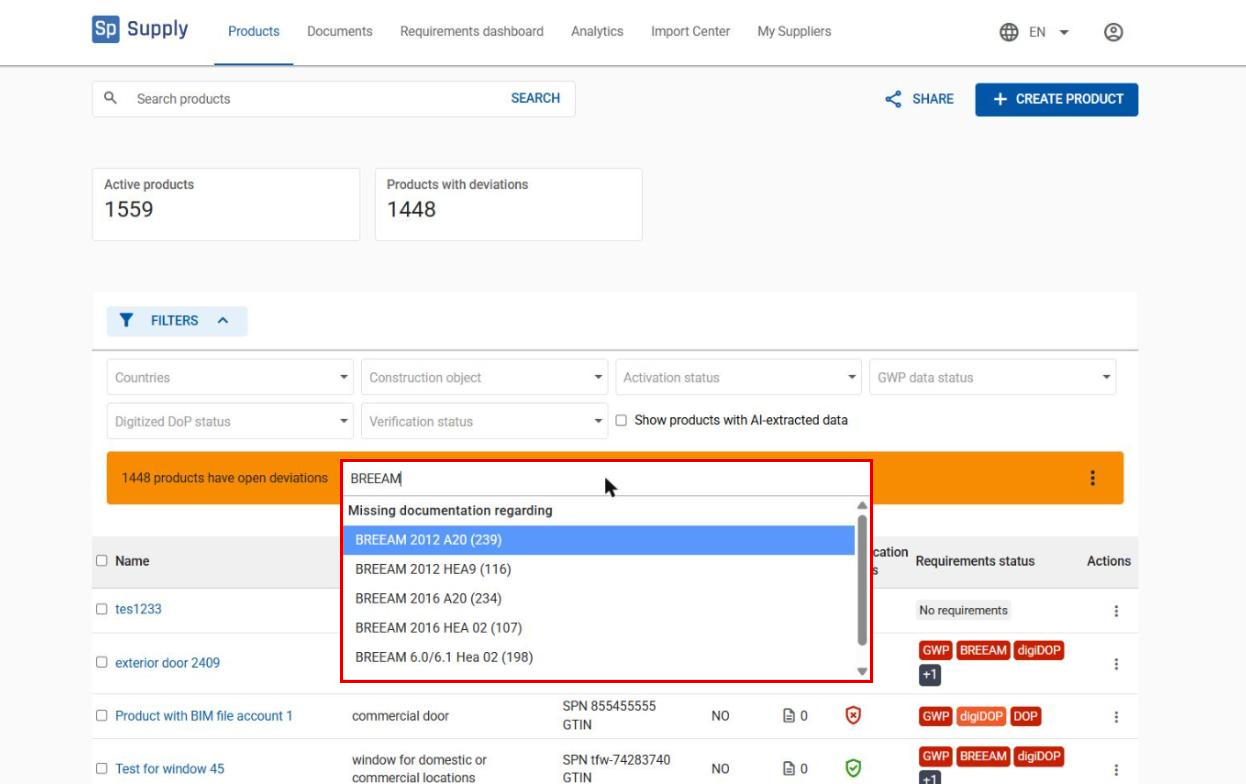
Use Filter by deviation to see which products have a certain type of deviation. Start typing to see the available deviations, and select the one you want to check. The number in brackets shows how many products are affected.
What do the colours mean?
6
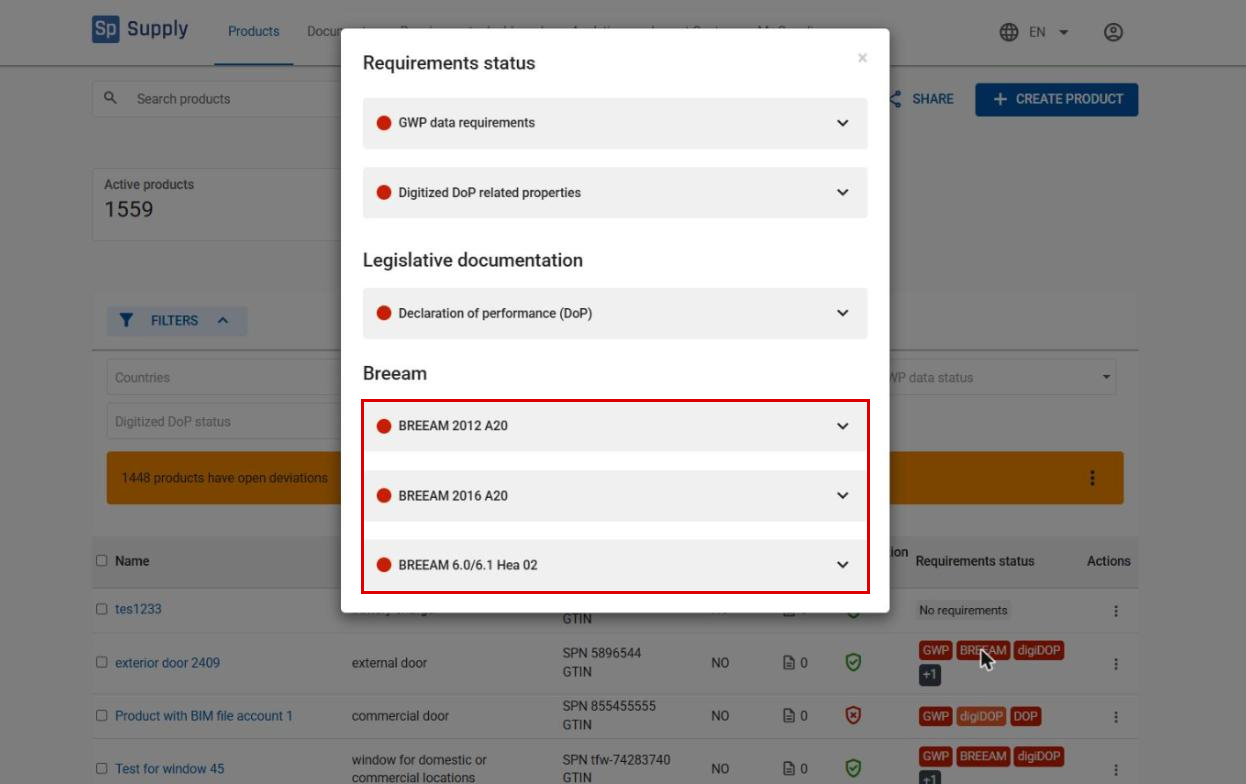
Cobuilder Supply uses colours to show the status of each requirement:
- Red – no requirements are met
- Orange – some requirements are met
- Green – all requirements are met
Click the coloured label in the Requirements status column to see which data is already in place and what is missing.
Close deviations with documentation
7
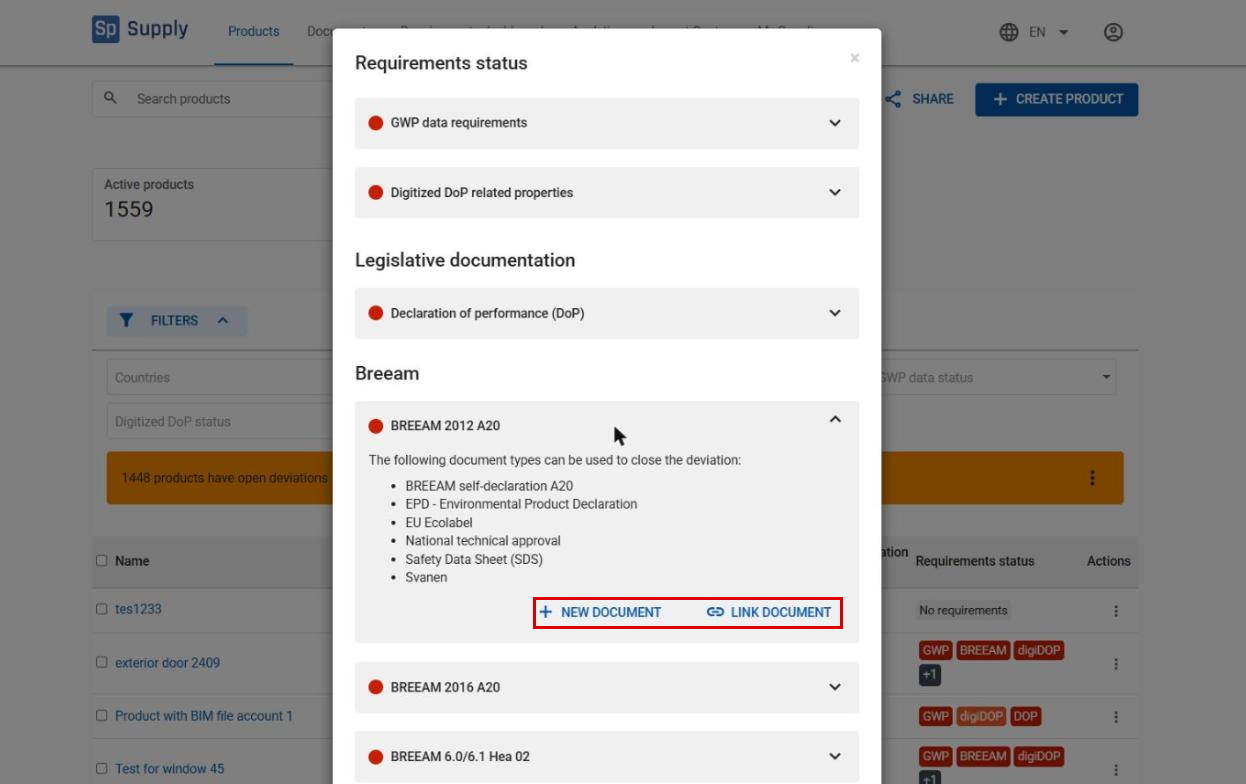
If documentation is missing, open the requirement and either upload a new document with New document, or link an existing document with Link document.
8
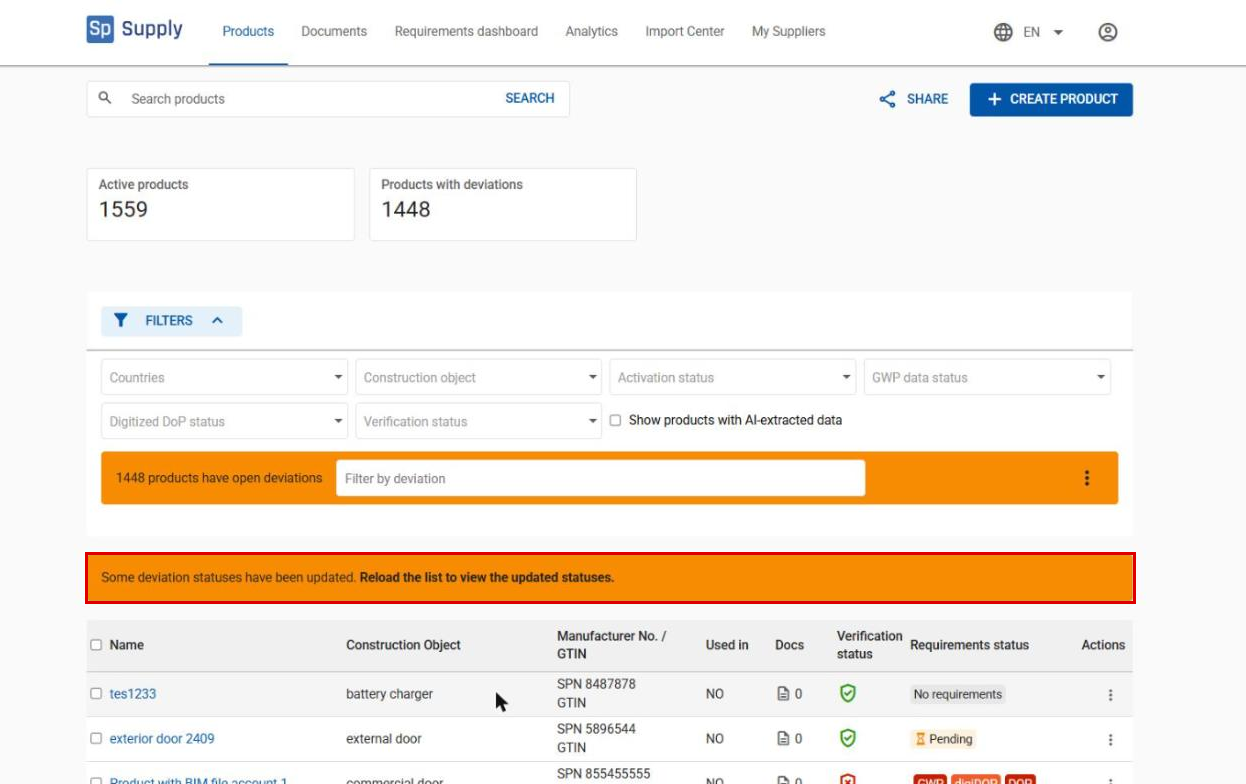
When the documentation is linked to the product, you get the message Some deviation statuses have been updated. Reload the product list to see the new statuses.